

Logic Pro's auto quantize is a handy feature that automatically corrects timing errors when you record with a MIDI keyboard. Just set the quantize in the Inspector, and from then on the timing of your recordings is corrected automatically. Setup is as simple as choosing the smallest note value, you don't need to play again if you don't like the result, and you can turn it off at any time, making it a time-saving tool for DTM beginners and advanced users alike.
Automating the Record → Quantize Workflow
When you record with a MIDI keyboard or similar,
the rhythm inevitably drifts relative to the bars and beats.
You then correct the rhythm with the quantize function,
but applying quantize every single time can be a hassle.
That's where the auto quantize function comes in handy.
As the name suggests,
it automatically quantizes the performance data you record.
- Logic X
- Logic 8/9
How to Set Up Auto Quantize in Logic X
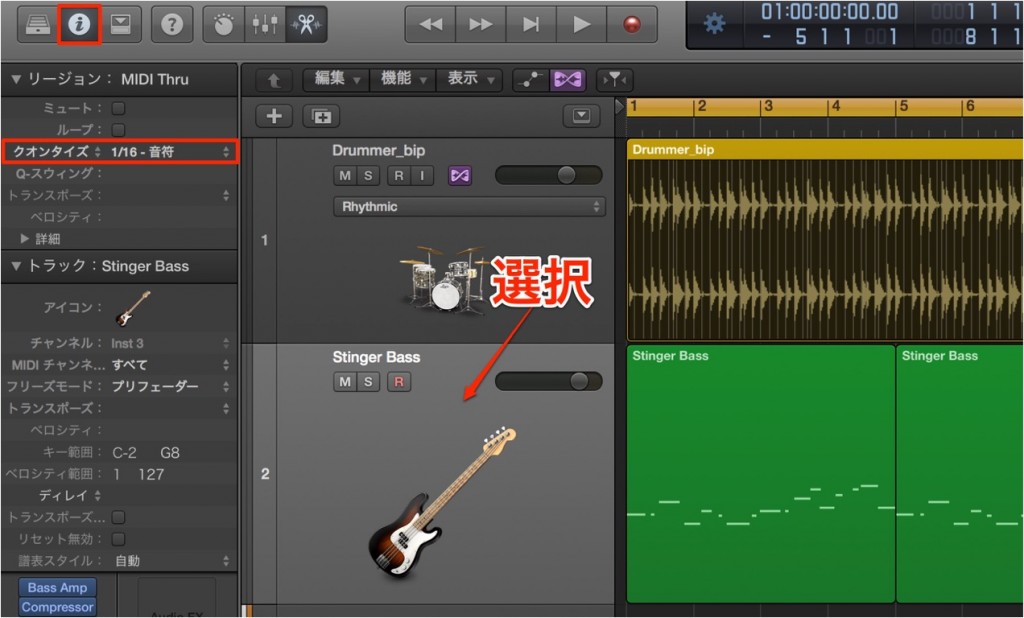
Click "Inspector" to show the window.
Click the "Quantize" area in the Inspector.
Choose the smallest note value you will play from the menu.
The concept is the same as normal quantizing.
That's all the setup you need.
Then start recording in this state.
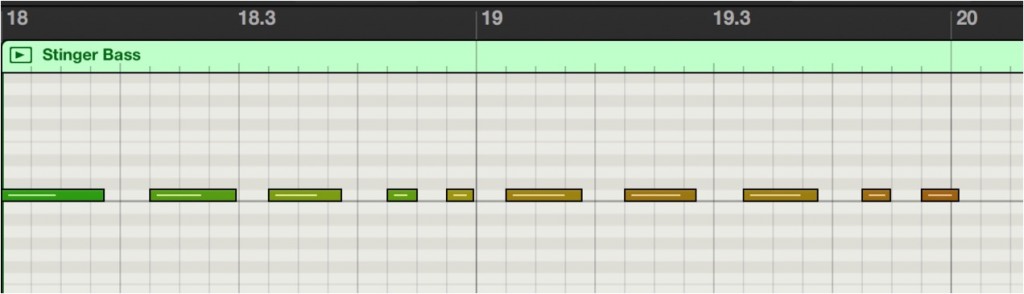
Even when recorded by playing the keyboard, everything is recorded at exactly the right positions, like this.
Very convenient.
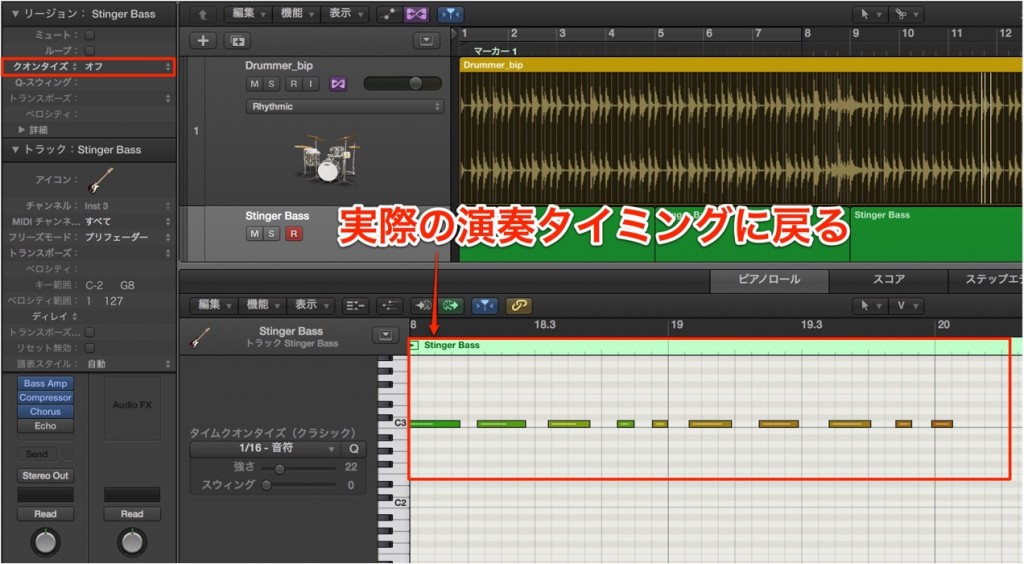
By turning this quantize "Off,"
you can turn it off at any time.
Even if you don't like the quantize result,
you don't need to play it again, so don't worry.
How to Set Up Auto Quantize in Logic 8/9

↑
1_Click "Inspector" to show the window.
2_Click the "Quantize" area in the Inspector.
Choose the smallest note value you will play from the menu.
This part is the same as normal quantizing.
That's all the setup you need.
Then start recording in this state.

↑ Even when recorded by playing the keyboard, everything is recorded at exactly the right positions, like this.
Very convenient.

By turning this quantize "Off,"
you can turn it off at any time.
Even if you don't like the quantize result,
you don't need to play it again, so don't worry.
- Logic X
- Logic 8/9

Frequently asked questions
Q1. What is the difference between auto quantize and quantize?
Normal quantizing is a manual process of correcting the rhythm after recording, whereas auto quantize corrects the rhythm automatically as you record once it is set. Because the correction happens at the same time as recording, it improves your efficiency.
Q2. What should I do if I don't like the auto quantize setting?
Just set the quantize in the Inspector to "Off" to turn it off. Even if you don't like the quantize result, the performance data itself is kept, so you don't need to play it again.
Q3. Which versions of Logic Pro have auto quantize?
It is available in several versions, including Logic X and Logic 8/9. However, the operation may differ depending on the version, so check the setup steps for the version you use.
NEW ARTICLES
Latest English Articles











