
Logic Pro's arpeggiator is a powerful tool for easily using one of the classic synthesizer playing techniques. In Logic X it is integrated as a more user-friendly MIDI FX, greatly simplifying the previously complicated setup. In this article, you can gain practical knowledge for beginners and advanced users alike, from the basic way to apply the arpeggiator and setting its detailed parameters (direction, resolution, length and octave) to troubleshooting problems that tend to occur in actual use. This lets you turn any MIDI performance into dynamic arpeggios and dramatically improves the expressiveness of your music.
- Logic X
- Logic 8/9
Apply the arpeggiator easily in Logic X!!
The "arpeggiator" could be called a classic synthesizer playing technique.
In Logic X, "MIDI effects" have been added.
This simplifies "arpeggiator setup", which used to take an extra step.
Explanation of the Arpeggiator and Chord Trigger
How to apply the arpeggiator
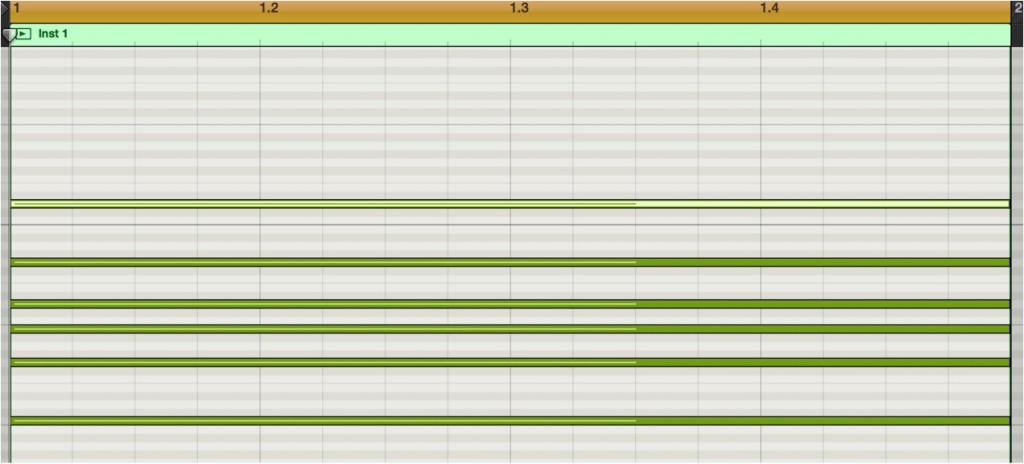
Program the notes you want the arpeggiator to play as sustained notes.
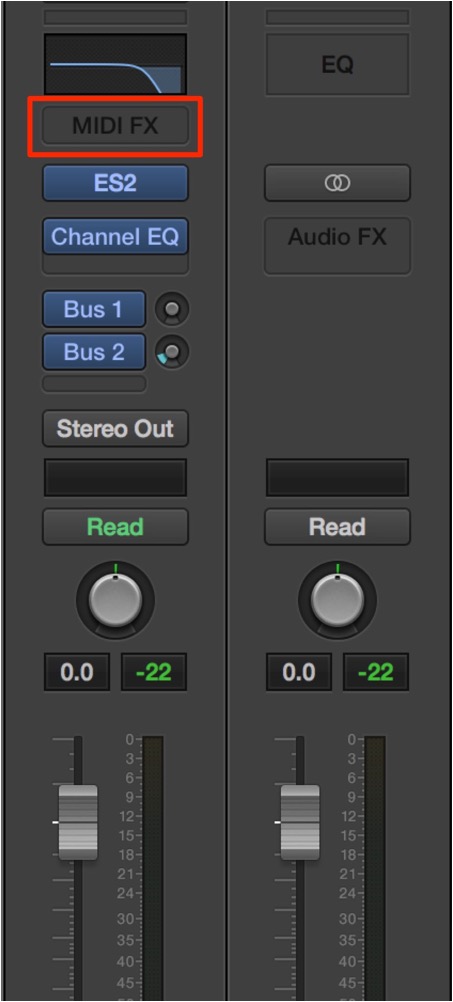
The area outlined in red is the new "MIDI FX".
It can only be applied to MIDI and gives a variety of effects.
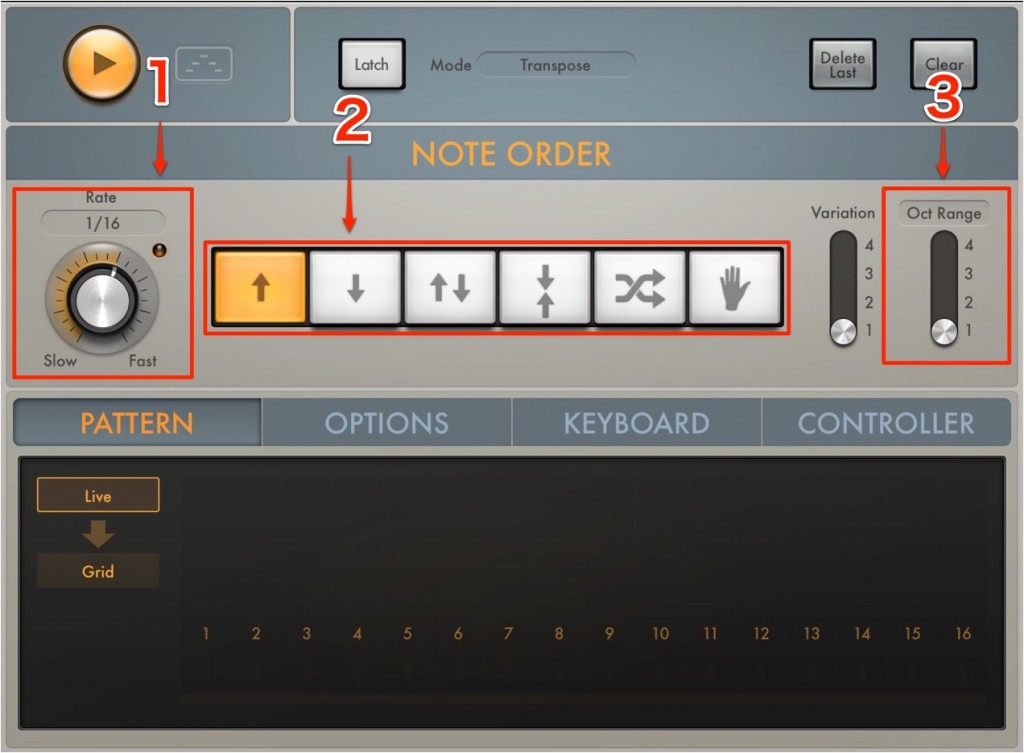
Select "Arpeggiator" from here.
It is designed very intuitively.
- 1_Specify how fine the arpeggio is as a note value.
- 2_Specify the arpeggio pattern.
- 3_Specify the pitch range of the arpeggio.
What if the arpeggiator has no effect?
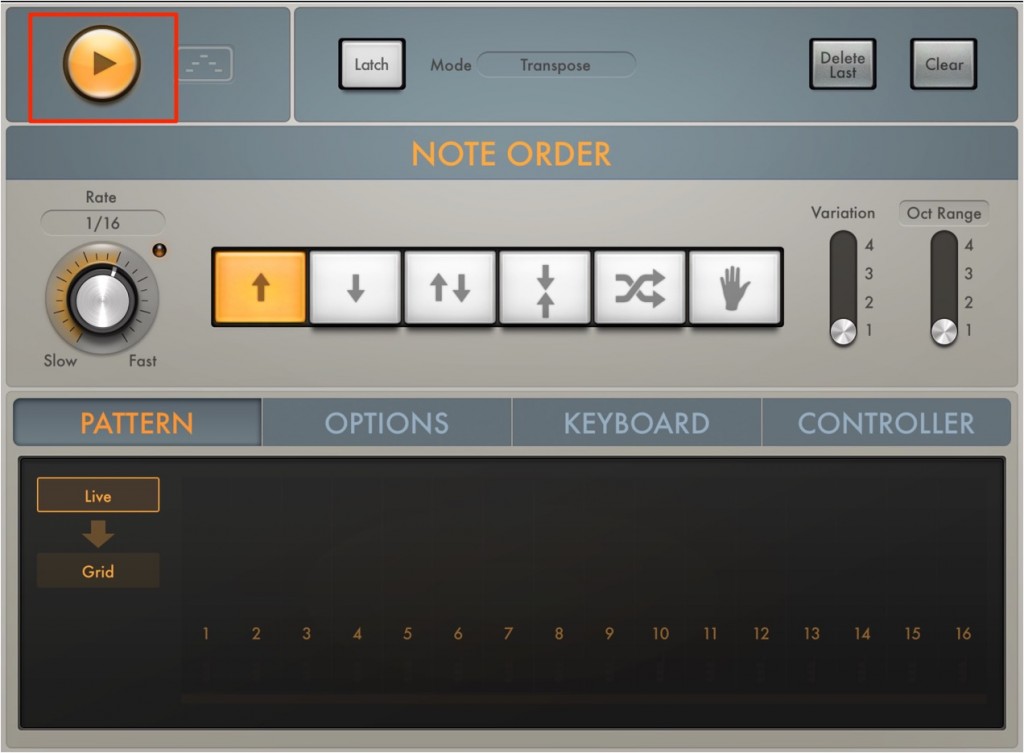
Check whether the power icon in the area outlined in red is lit.
What about loading two or more effects?
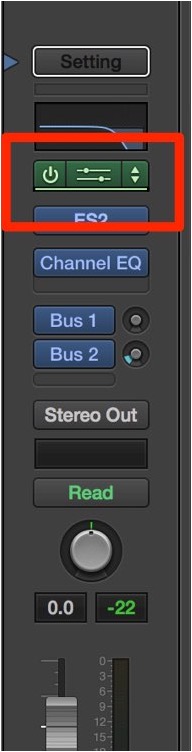
When using two or more [MIDI FX], click where a green line appears.
Otherwise, the previous FX will be replaced.
Apply it to any MIDI!! Logic's arpeggiator
The "arpeggiator" could be called a classic synthesizer playing technique.
Setting it up in Logic takes an extra step.
Here we explain the procedure.
We also explain how to deal with problems such as the "arpeggiator" not being applied.
Video point: Setting up and applying the arpeggiator
Open "Window" → "Environment" from Logic's top menu.

↑ From the Mixer in the "Environment", select "New" → "Arpeggiator".

↑ "Drag" the "arpeggiator" onto the track you want to apply it to.

↑ Then return to the usual "Arrange window"
and "right-click" the track you want to apply the "arpeggiator" to.
Select "Reassign Track" → "Mixer" → "Arpeggiator".
The MIDI phrase is now played as an arpeggio.
Video point: Adjusting the arpeggiator

↑ When you select the "track", you can set up the "arpeggiator" from the left side.
The most important settings are:
- "Direction": selects the arpeggio pattern
- "Resolution": specifies how fine the arpeggio is as a note value
- "Length": specifies the length of each note played by the arpeggiator
- "Octave": specifies the pitch range the arpeggiator moves through
Video point: Notes on the arpeggiator
Problems have been reported where the "arpeggiator" does not work in certain situations.

↑ This can be solved by leaving the first bar empty.

↑ The "arpeggiator" may not work properly during loop playback.
- Logic X
- Logic 8/9

Frequently Asked Questions
Q1. Can Logic Pro's arpeggiator be used in Logic 8/9?
A more user-friendly MIDI FX version was added from Logic X. In Logic 8/9 you can still use the arpeggiator from the Environment, but the setup procedure is different. Logic X is more intuitive and easier.
Q2. What should I do if the arpeggiator has no effect?
There are several possible causes. Check whether the MIDI FX power icon is lit, and try leaving the first bar empty. It may also not work properly during loop playback, so we recommend trying normal playback.
Q3. How do I use multiple MIDI FX at the same time?
Click where a green line appears to add a new effect slot. Be careful, because otherwise the previous effect will be replaced.
Q4. What is the difference between "Resolution" and "Length" in the arpeggiator?
Resolution specifies how fine the arpeggio is (its speed in note values), and Length specifies how long each note lasts. Combining the two lets you create arpeggio patterns freely.
NEW ARTICLES
Latest English Articles











