
FL Studio's browser snap function is a handy feature that lets you save and switch between specific display states when managing large amounts of material such as software synths and loops. You can create up to six snaps from Snap4 to Snap9, and quickly switching between them for different tasks greatly improves your production efficiency. By registering additional folders, you can also manage purchased sample libraries and plug-ins in one place and get to the material you need quickly.
Using the browser even more comfortably
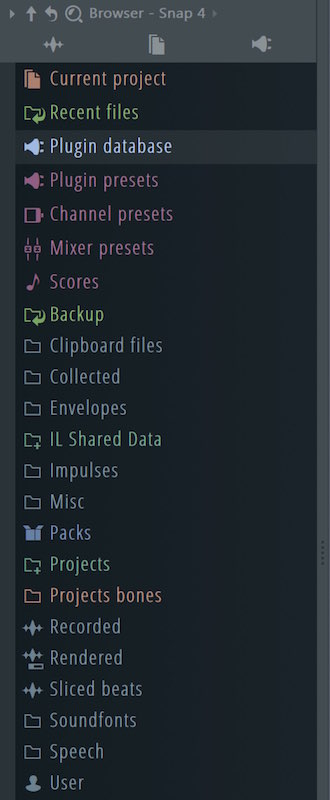
The browser manages all kinds of material, such as software synths and loops, in a directory structure,
but it has so many items that getting to the place you want
can sometimes take time.
What solves this is the "snap function".
It saves specific display states of the browser so you can switch between them as you work.
How to use snaps
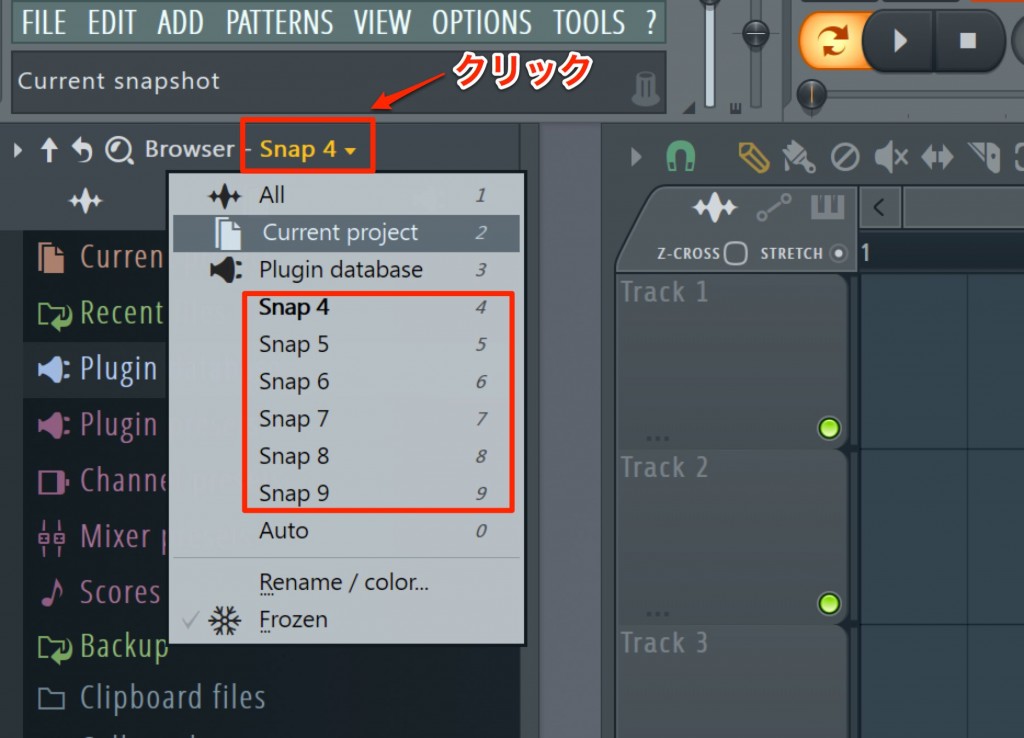
Click the area outlined in red and select one of "Snap4 to Snap9".
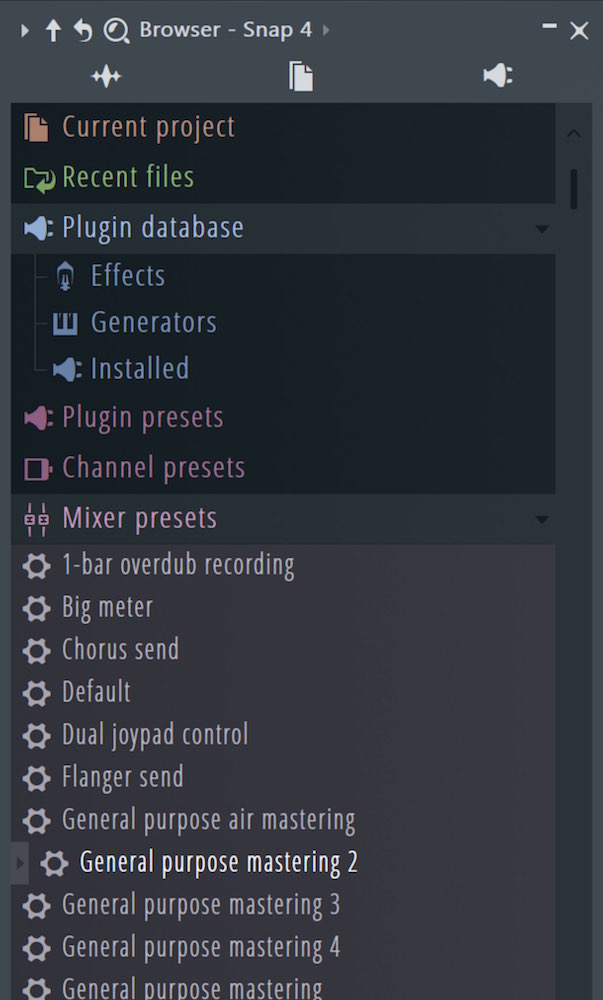
Then just set up the display state you like.
This state is remembered, so you can simply switch Snaps according to the task at hand.
You can also add any folder
You can add a folder of your choice to this browser.
This is useful for managing purchased sample libraries and similar material.
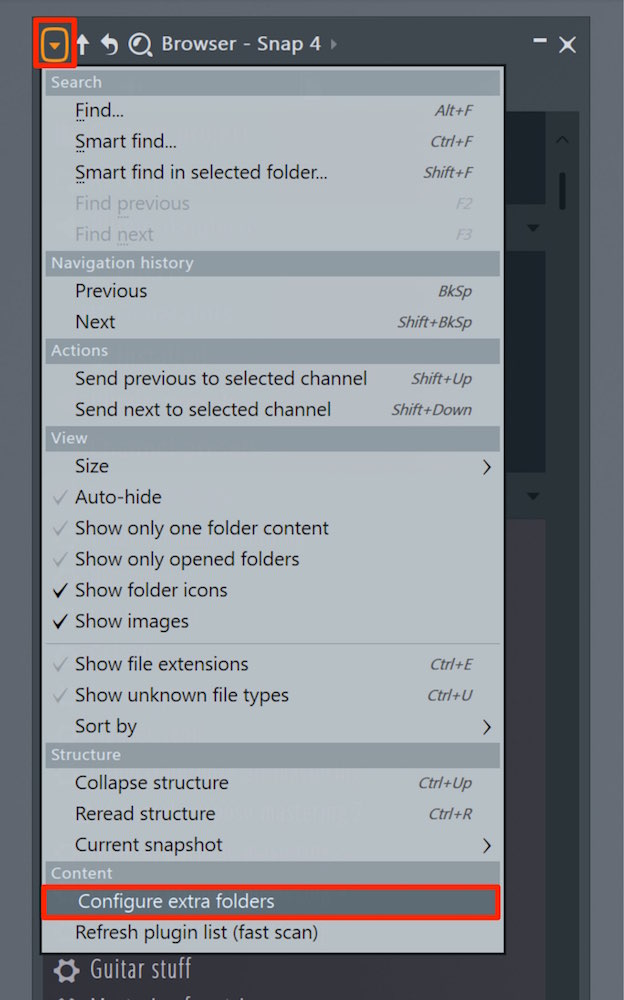
Click the icon at the top of the browser and select "Configure extra folders".
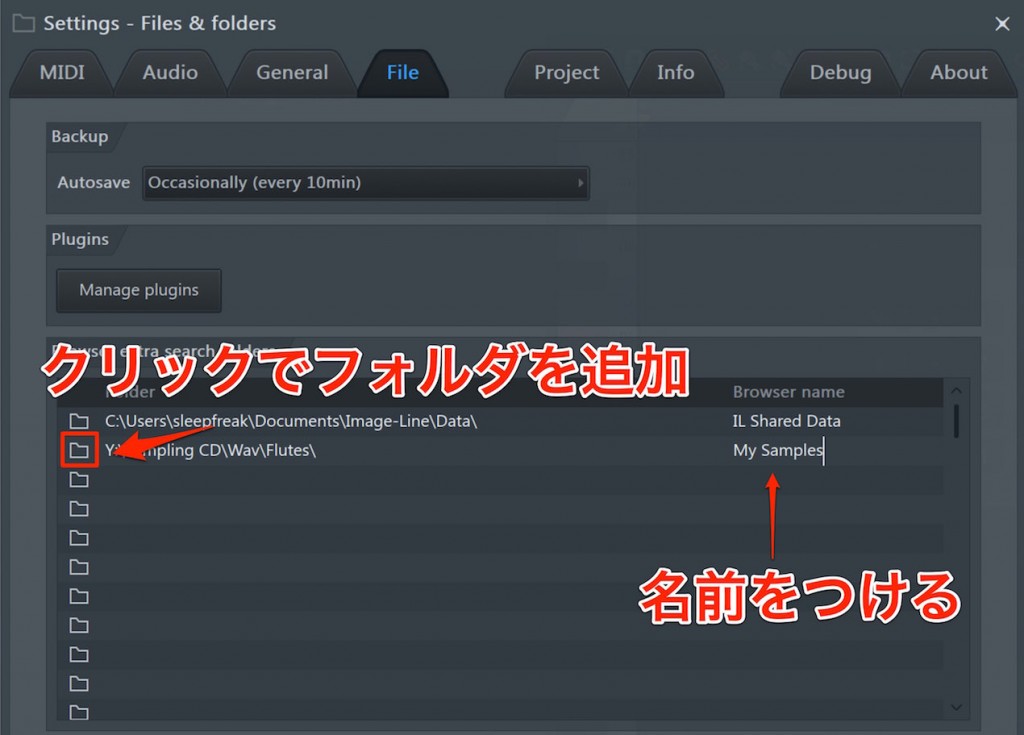
Click the folder icon and specify the folder you want.
Then it is a good idea to give it an easy-to-understand name on the right.
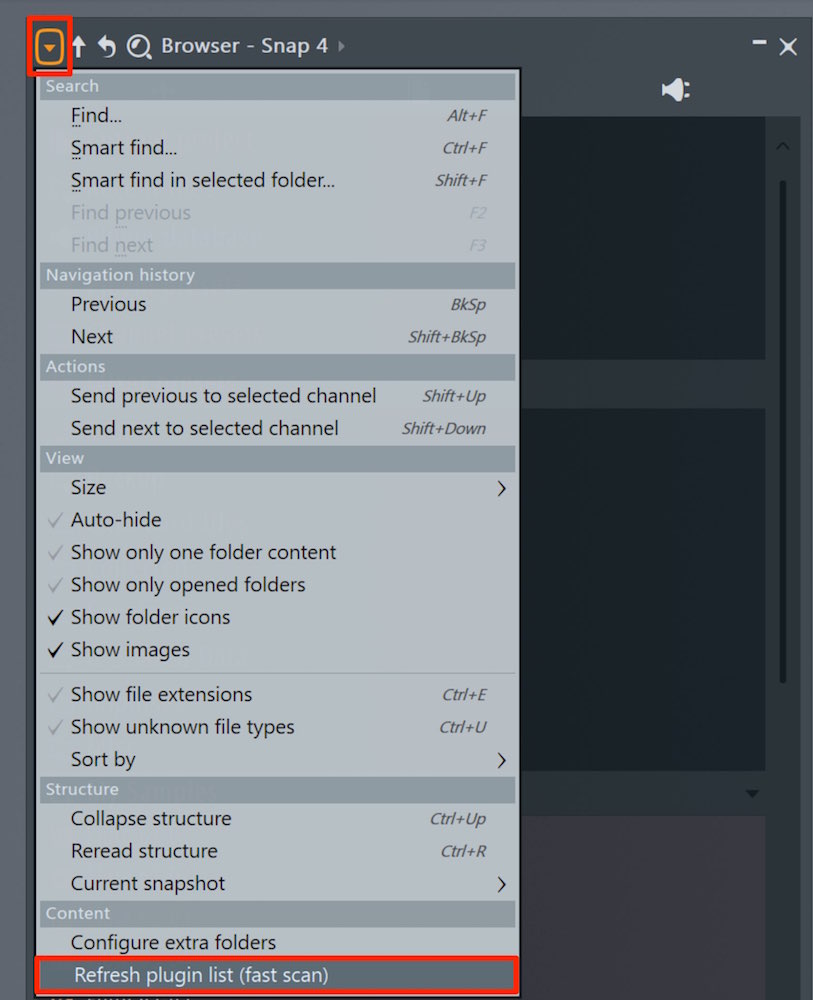
Click the icon at the top of the browser and select "Refresh plugin list".
This may take some time.
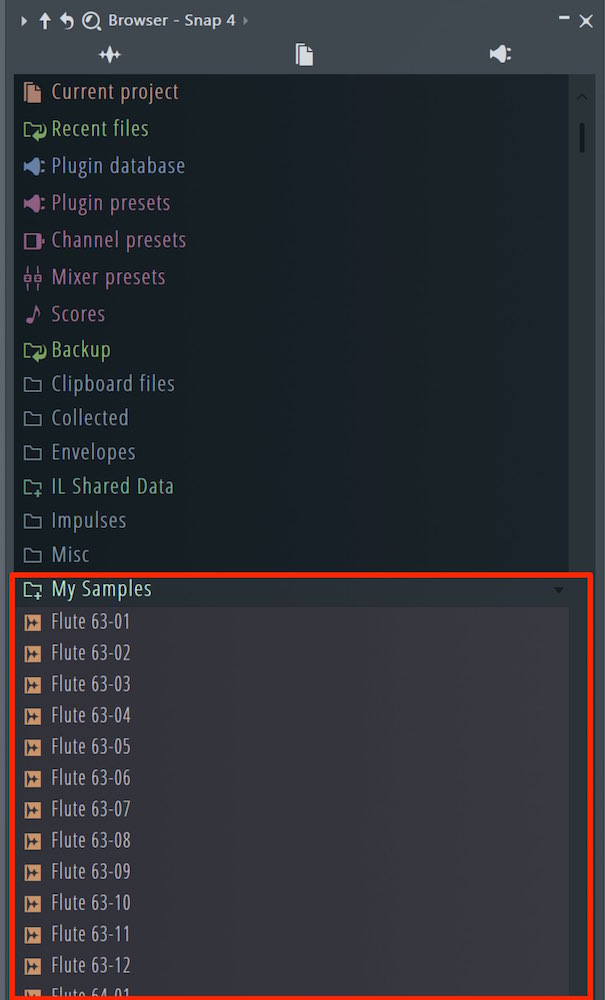
The registered folder is displayed like this.

Frequently Asked Questions
Q1. What is FL Studio's snap function?
It is a function that saves the browser's display state (such as which folders are open or closed) and restores it instantly later. Saving several display patterns lets you switch quickly between different tasks and greatly reduces the time spent searching for material.
Q2. How many snaps can I create?
You can create six snaps, from Snap4 to Snap9. Assigning a different browser display state to each snap lets you handle several working patterns.
Q3. I added a custom folder, but it does not appear.
Select "Refresh plugin list" from the icon menu at the top of the browser to update the list. This process may take some time. After the update, the custom folder will appear.
Q4. In what situations is the snap function useful?
It is useful when the material you need differs by task, such as building drum kits, creating melodies or using effect sounds. Saving the best folder layout for each purpose makes your production workflow more efficient.
NEW ARTICLES
Latest English Articles











