
In music production with FL Studio, the number of channels grows as a project gets bigger, and finding the channel you want starts to take time. The "channel group" function solves this problem. Channel groups let you display only the channels you specify, and organizing them by instrument type such as drums, synths and vocals greatly improves your work efficiency. By creating and switching between several groups, you can manage channels visually and create a faster, stress-free production environment.
Visually organize your growing number of channels
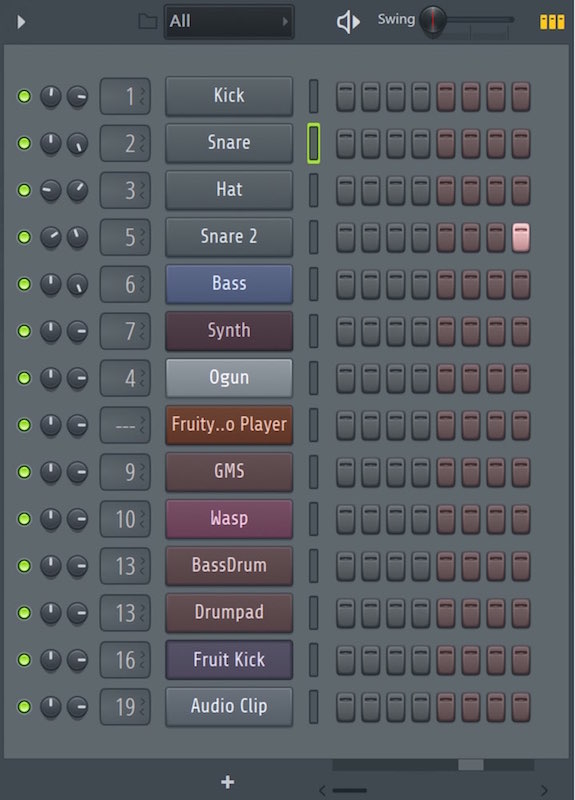
As production progresses and the number of instruments and tracks grows,
the number of instruments in the Channel rack increases too.
Then keeping track of the channels becomes a problem.
Reducing the time it takes to get to the channel you want as much as possible leads to more efficient work.
What helps here is the "channel group" function.
It displays only the channels you specify; it is very simple but highly effective.
Setting up channel groups

First, select the channels you want to group.
Hold the Shift key and light up the select indicators.
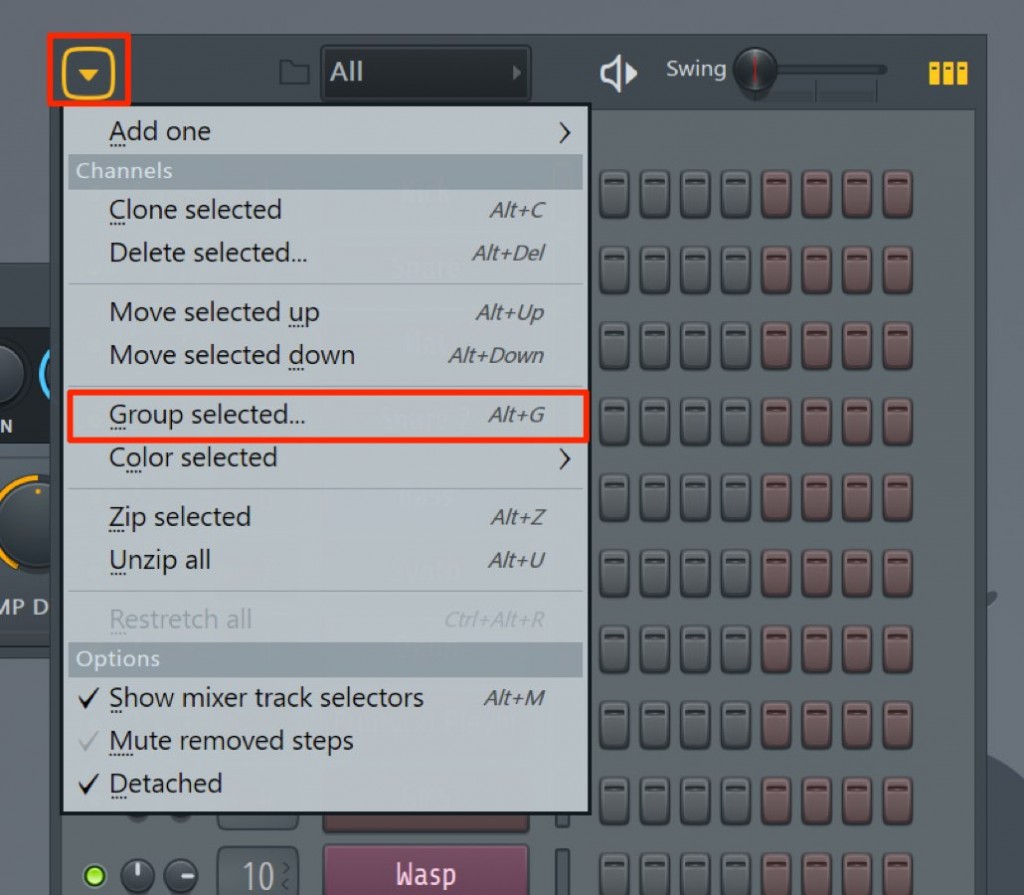
Click "▶︎" at the top left of the Channel rack and select "Group selected".

Give the group any name you like.
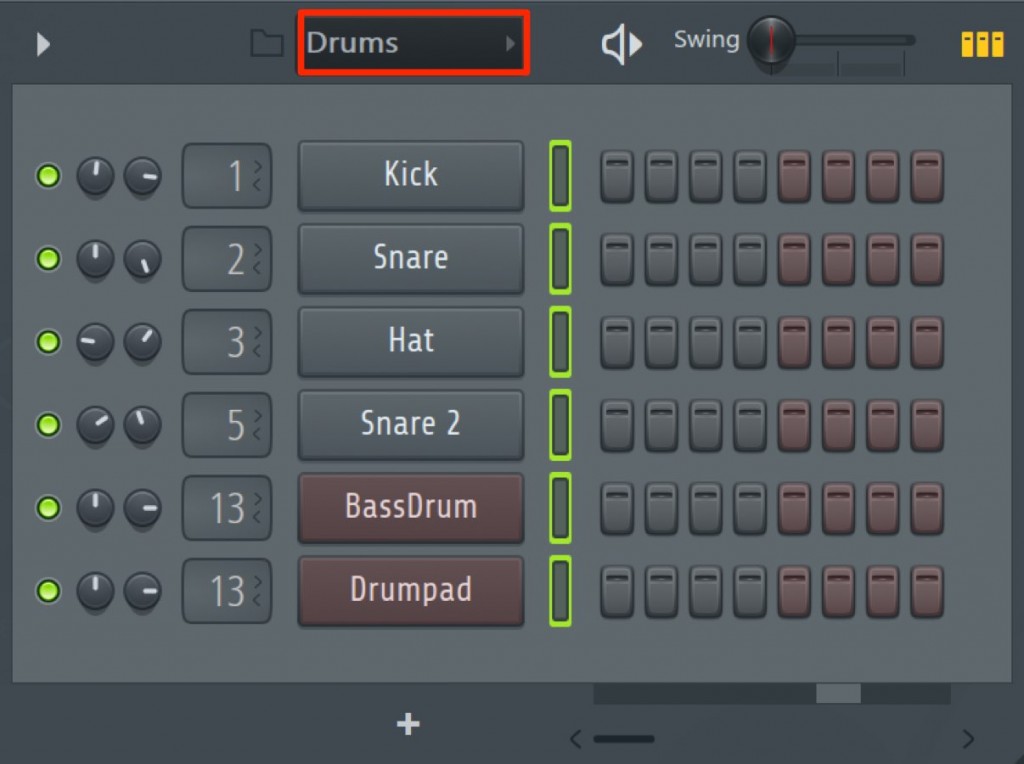
Only the selected channels are now displayed like this.
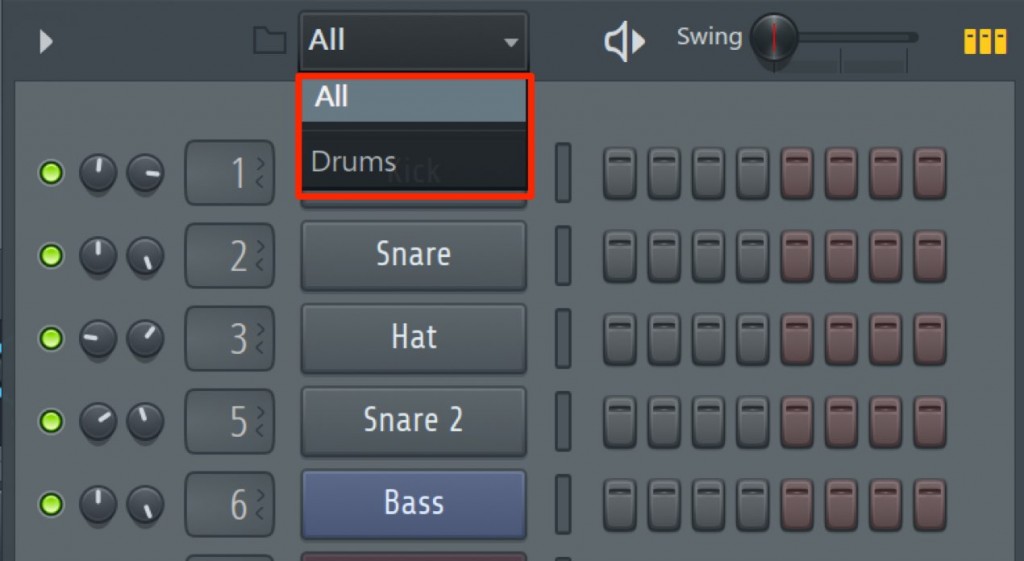
Then switch between groups as needed while you work.
Of course, you can also create several groups.
This time it was drums, but dividing channels by type, such as "Synth", "Vocal" and "Guitar",
is also recommended.
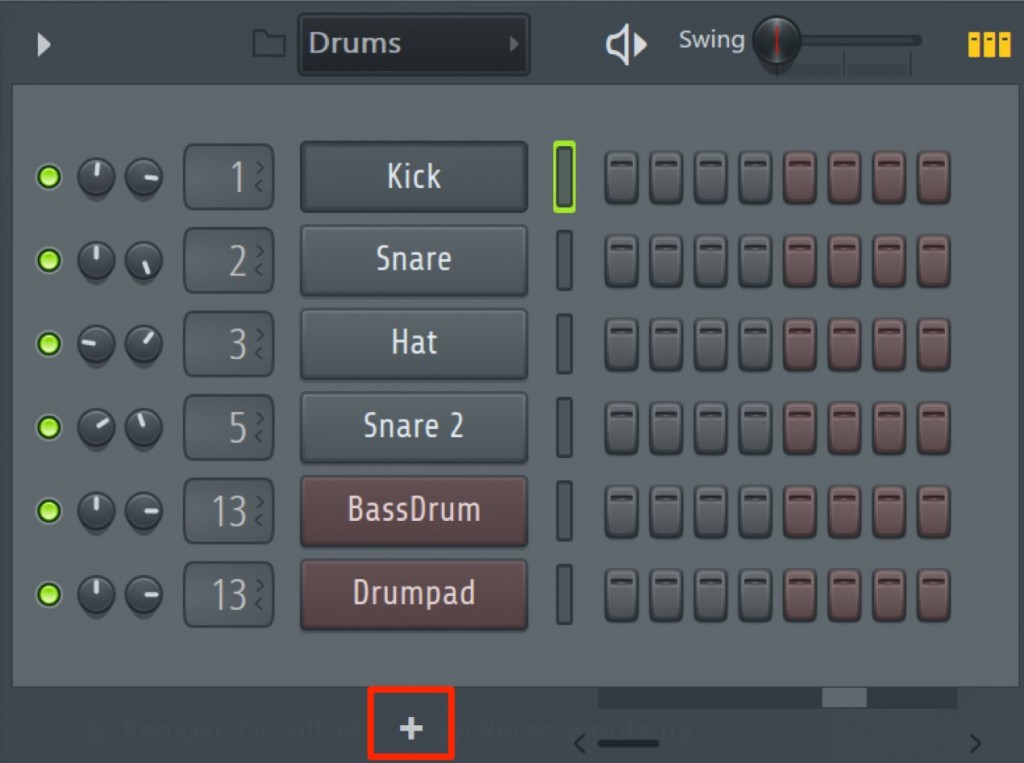
When you add a new channel, you can also add it to a specific group from the start.
Just display the group you want to add it to and click the "+" icon.
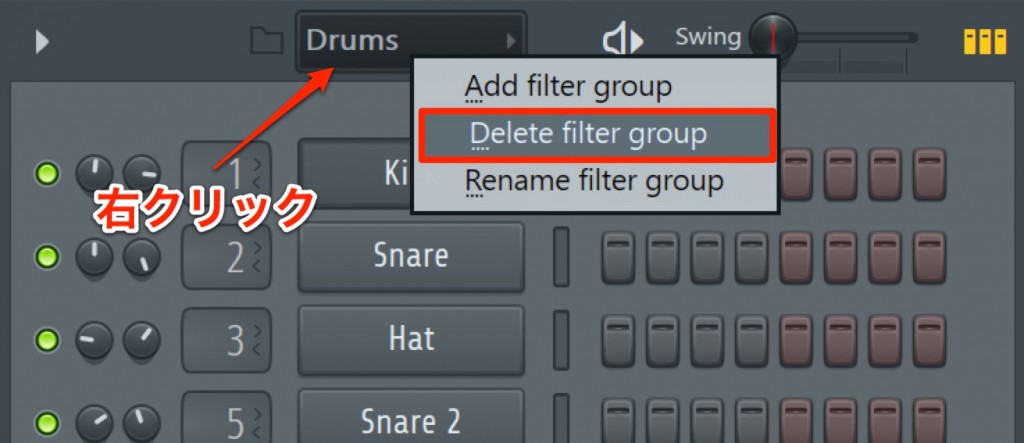
To delete a group, with that group open,
right-click the group name and select "Delete filter group".

Frequently Asked Questions
Q1. What are channel groups in FL Studio?
Channel groups are a function that gathers multiple channels into one group and displays only the channels you specify. Sorting them by instrument type improves visibility in the Channel rack and shortens the time it takes to reach the channel you want.
Q2. What are the steps for creating a channel group?
Select the channels you want to group while holding the Shift key, click "▶︎" at the top left of the Channel rack and select "Group selected". Then give the group any name to finish creating it.
Q3. Can I add new channels to a group I have already created?
Yes. Just click the "+" icon while the group you want to add to is displayed, and the new channel is added directly to that group.
Q4. How do I delete a group?
Open the group you want to delete, right-click the group name and select "Delete filter group" to delete it.
NEW ARTICLES
Latest English Articles











