
Cubase's "MIDI Modifiers" are a powerful feature for controlling your MIDI programming efficiently. You can adjust velocity, pitch, note length, and more in an instant, and the random function adds human-like variation that turns mechanical programming into natural-sounding performance. The range function also lets you exclude specific notes from playback for finer editing. These adjustments apply to the whole track, and you can lock them in with the freeze function as needed, greatly improving the quality of your productions.
All kinds of MIDI control in an instant
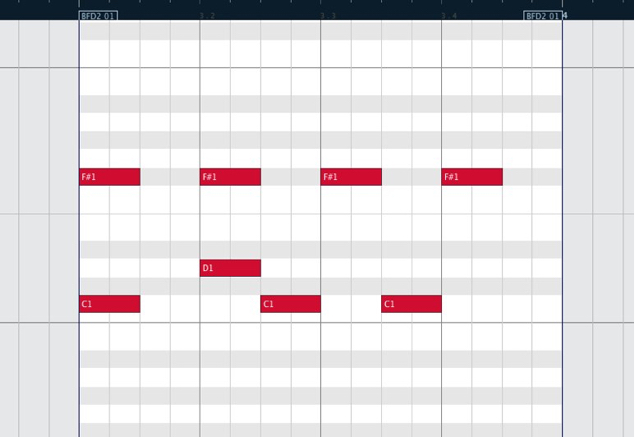
By using Cubase's "MIDI Modifiers",
you can adjust your programming easily and quickly.
You can control dynamics, pitch, length, randomization, and more.
Showing the MIDI Modifiers
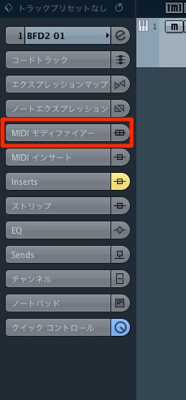
Click "MIDI Modifiers" in the Inspector to configure them.
What if they aren't shown??
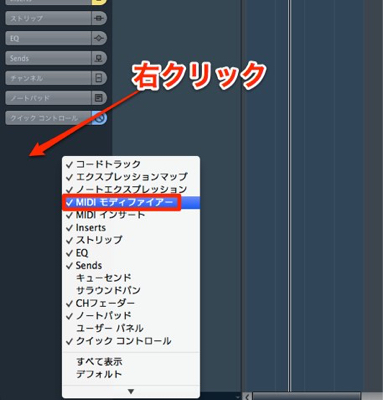
"Right-click" the Inspector
and check "MIDI Modifiers" in the menu.
MIDI Modifiers: basic section
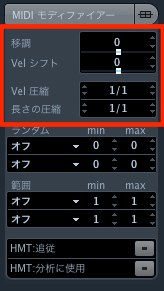
- Transpose_Transposes in semitone steps
- Velocity Shift_Adds to or subtracts from the current velocity
- Velocity Compression_Compresses the current velocity by a ratio such as "1/2." In this case, the velocity is halved.
Complex ratios such as "3/22" are possible, and reversing the numbers to "2/1" doubles the velocity.
It's handy for changing the overall dynamics while keeping the relative dynamics of the performance. - Length Compression_Think of it as the velocity compression above applied to MIDI note length instead
MIDI Modifiers: random section
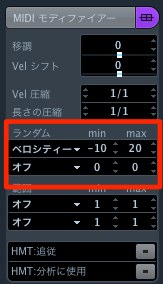
Using random lets you add the kind of variation a human performer would.
Even the same event varies differently every time it plays.
Choose the "item to randomize" on the left and set the "random range" on the right.
Here, "velocity" is being randomized.
- min: The lowest value played; at "0" it doesn't go down.
Here it's set to "-10," so notes play within "-10" of the current velocity - max: The highest value played; at "0" it doesn't go up.
Here it's set to "20," so notes play within "+20" of the current velocity
MIDI Modifiers: range
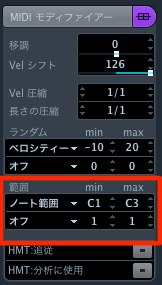
By specifying a range, you can prevent MIDI notes outside it from playing.
Choose the "item the range is based on" on the left and set the "conditions for sounding notes" on the right.
Here, we'll set it based on "pitch."
When you specify "min" and "max," notes outside that range don't sound.
This is handy when you want to preview with specific notes excluded.
MIDI Modifiers: points to note
- These settings apply to the whole track (all events). They can't be applied per event
- The performance changes, but the actual MIDI notes don't.
To lock in these changes, do the following
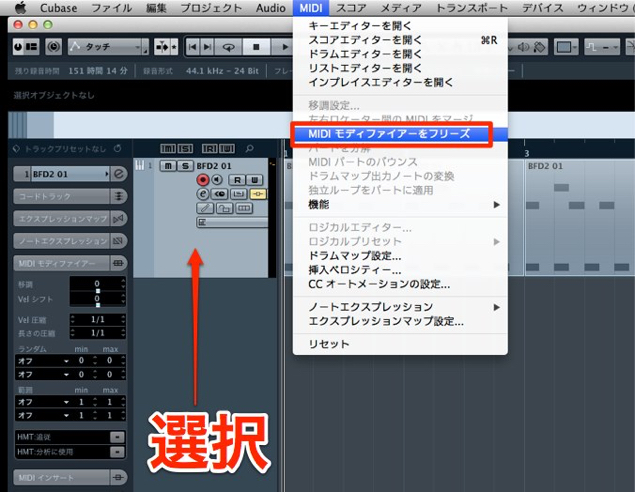
Select the track you want to bake the modifiers into,
and select "MIDI" → "Freeze MIDI Modifiers" from the top menu.
The values you set are now written into the "MIDI events."
Frequently asked questions
Q1. What should I do if the MIDI Modifiers aren't shown?
Right-click the Inspector and check "MIDI Modifiers" in the menu to show them.
Q2. What do complex numbers like "3/22" in velocity compression mean?
Velocity compression is expressed as a fraction, so "3/22" compresses the velocity to 3/22 of its value. Reversing it, as in "2/1," doubles it.
Q3. How do I apply changes made with MIDI Modifiers to the actual MIDI notes?
Select the track and choose "MIDI" → "Freeze MIDI Modifiers" from the menu, and the settings are written into the MIDI events.
Q4. What's the difference between "min" and "max" in the random function?
min is the lowest value played (the minus direction), and max is the highest (the plus direction). For velocity, with min at -10 and max at +20, the value varies within that range around the current value.
Q5. Can MIDI Modifiers have different settings for each event?
No. These settings apply to the whole track. You can't set them individually per event.
NEW ARTICLES
Latest English Articles











