
After finishing a song in Cubase, backing it up is essential to protect it against data loss and other problems. This article explains how to use Cubase's project backup function to remove unneeded takes and efficiently organize only the files you need. With "Back up Project," you can package scattered audio files and the project into a single folder and save it to an external HDD, managing your data safely while reducing file size. This greatly lowers the risk of data loss from computer trouble or mistakes and makes your production environment more reliable.
When You Finish a Song in Cubase, Back It Up to Organize Your Data
Once you have finished a song, something you should always do is back it up.
Store your data in case of computer trouble or mistakes.
Most of a song's file size is taken up by
audio files such as vocals and guitar.
Cubase keeps not only the files used in the song but also every rejected take.
Here is an efficient backup method that removes these unused takes
and saves the project in a clean state.
Saving the backed-up song to an external HDD
further reduces the chance of data loss.
Explanatory Video
Selected questions and answers from the YouTube video

I want to back up my project. I can get as far as clicking File → Back up Project, but the screen that appears after that has no New Folder button. Even when I click an empty folder I created and then click Choose, it says the selected disk has almost no free space. What should I do?

Does your computer's storage (hard disk) have free space? I think the message is most likely telling you that there is not enough free space.
Saving the Song
Even if the project and audio files are scattered in different locations,
you can package them into a single folder.
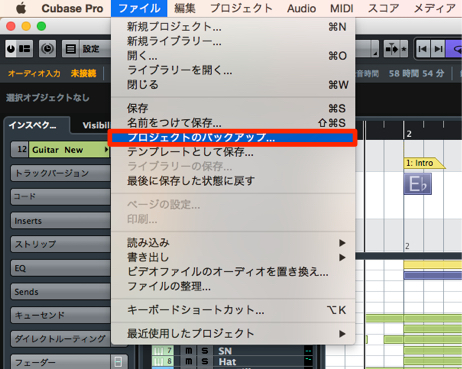
↑ From the Cubase top menu, choose "File" → "Back up Project."
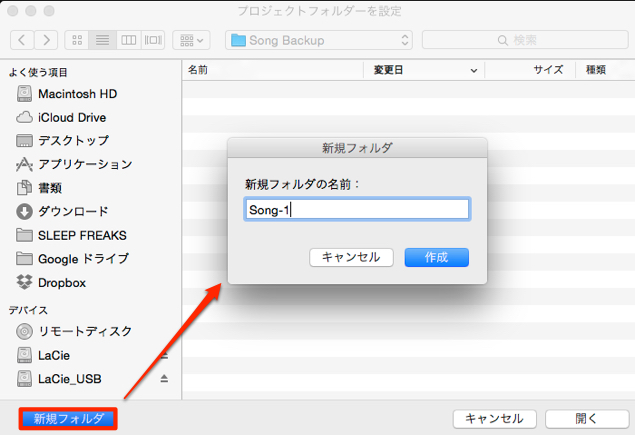
↑ A dialog like this opens.
Choose any location, create a "New Folder," and save.
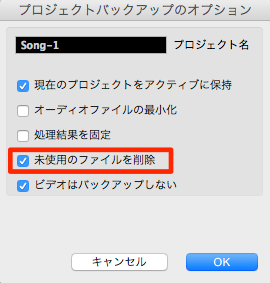
↑ Check "Remove Unused Files" and click "OK."
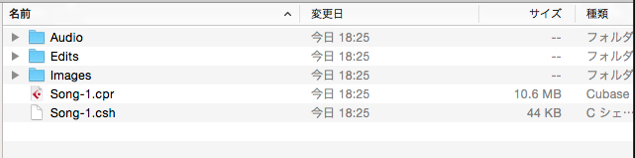
↑ A project containing only the necessary data has been created in the specified location.
Actually open the file and make sure it opens correctly.
If there are no problems, back up this file.
Frequently asked questions
Q1. What is the most efficient way to back up a song in Cubase?
Choose "File" → "Back up Project" from the menu and check "Remove Unused Files" to gather only the necessary data into a new folder. Saving it to an external HDD makes it even safer.
Q2. What does "Remove Unused Files" remove?
Cubase keeps not only the takes in use but also rejected takes. This function removes unneeded takes and leaves your project neatly organized.
Q3. How can I check that the backup file works properly?
After creating the backup, actually open that file and make sure it loads without problems. This verifies that the data was saved correctly.
Q4. Is saving backups to an external HDD essential?
It is not essential, but we strongly recommend saving to an external HDD to prevent data loss if your computer has problems. This further reduces the risk of losing data.
NEW ARTICLES
Latest English Articles











