
Cubase's Auto Quantize is a feature that automatically corrects timing errors when recording MIDI. It greatly reduces the effort of applying quantize manually every time: just set the smallest note value in the Transport panel and it is applied automatically from the moment you start recording. If you don't like the result, you can undo it with the reset function, so you can experiment as often as you like. It is a practical workflow improvement for everyone from DTM beginners to working professionals who want to improve accuracy and efficiency.
Automating the Record → Quantize Workflow
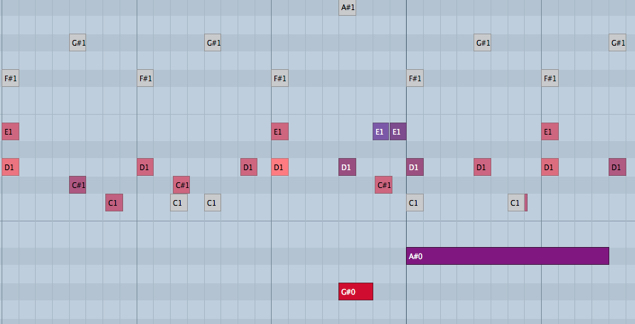
When you record with a MIDI keyboard or similar,
the rhythm inevitably drifts relative to the bars and beats.
You then correct the rhythm with the quantize function,
but applying quantize every single time can be a hassle.
That's where the Auto Quantize function comes in handy.
As the name suggests, it automatically quantizes the performance data you record.
This article will deepen your understanding.

- Cubase 7.5 and later
- Cubase 7 and earlier
How to Set Up Auto Quantize in Cubase 8

↑ Click the area outlined in red in the Transport panel.

↑ Set the quantize value to the smallest note value you will play.
Then start recording in this state.

↑ Even when recorded by playing the keyboard, everything is recorded at exactly the right positions, like this.
Very convenient.
You can undo it by resetting the quantize.

↑ Select the event whose quantize you want to reset,
then apply "Edit" → "Reset Quantize" from the menu bar.
This way, even if you don't like the quantize result, you don't need to play it again.
How to Set Up Auto Quantize in Cubase (7 and Earlier)

↑ Turn on the area outlined in red in the Transport panel.

↑ Set the quantize value to the smallest note value you will play.
Then start recording in this state.

↑ Even when recorded by playing the keyboard, everything is recorded at exactly the right positions, like this.
Very convenient.
You can undo it by resetting the quantize.

↑ Select the event whose quantize you want to reset,
then apply "Edit" → "Reset Quantize" from the menu bar.
This way, even if you don't like the quantize result, you don't need to play it again.
- Cubase 7.5 and later
- Cubase 7 and earlier
Frequently asked questions
Q1. Which versions of Cubase have Auto Quantize?
It has been available since older versions. However, the setup differs slightly between Cubase 7.5 and later and Cubase 7 and earlier, so check the setup for the version you have.
Q2. Can I return to the original rhythm after Auto Quantize has been applied?
Yes. Select the event you want to reset and apply "Edit" → "Reset Quantize" from the menu bar to return to the performance data before Auto Quantize.
Q3. What is the "smallest note value" set for Auto Quantize?
It is the setting for the shortest note value you use in your performance. For example, if you play down to sixteenth notes, choose sixteenth notes, and the rhythm is corrected to that grid.
Q4. Should I use Auto Quantize for all MIDI performances?
It depends on the song. It is effective when you need precision that follows the metronome, but if you want to keep human feel or swing, we recommend adjusting in combination with features such as randomize.
NEW ARTICLES
Latest English Articles











