
This article explains how to make audio files automatically follow changes to the song's tempo in Cubase. Normally, when you change a song's tempo, MIDI tracks follow automatically, but the playback speed of audio files doesn't change. This article introduces a simple setting: double-click the audio event and turn on "Musical Mode" in the Sample Editor and the Inspector, and the audio will respond to tempo changes just like MIDI. It is especially useful for songs whose tempo changes often or when you need to work with live performance.
Treat tempo changes for audio files like MIDI

When you change the song's tempo, MIDI follows the change,
but the playback speed of audio files doesn't change.
Here, we explain how to make audio files follow the song's tempo
just like "MIDI tracks."
How to set it up
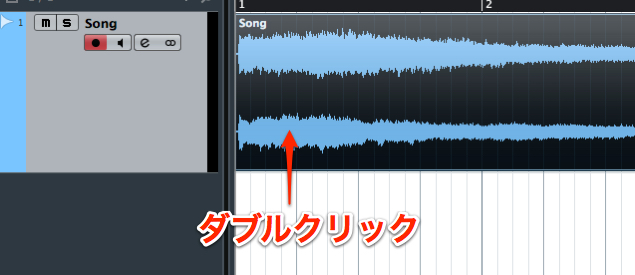
Double-click the audio event.
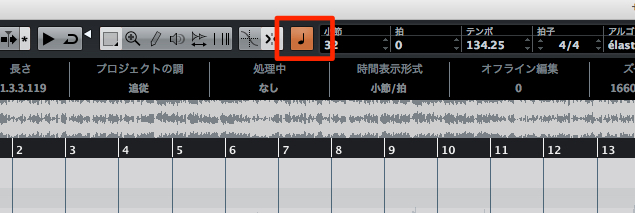
Turn on "Musical Mode" at the top of the Sample Editor.
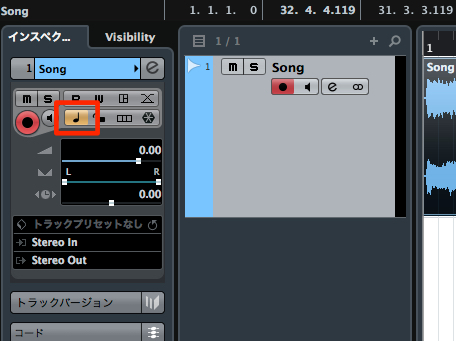
Also turn on "Musical Mode" in the Inspector.
That completes the setup.
From now on, this audio track will also follow tempo changes.
Frequently asked questions
Q1. How do I make audio follow the tempo in Cubase?
Double-click the audio event to open the Sample Editor and turn on "Musical Mode" at the top. Also turn on "Musical Mode" in the Inspector to complete the setup. The audio will then automatically follow later tempo changes.
Q2. What are the benefits of enabling Musical Mode?
The playback speed of audio files is adjusted automatically when the tempo changes, so you can edit the song's tempo efficiently just like with MIDI tracks. It is especially handy for live sync and songs with many tempo adjustments.
Q3. Can Musical Mode be applied to every audio track?
Yes, it can be set for each audio event. However, for material that doesn't need to follow the tempo, such as vocals, leaving it off may give a more natural result.
NEW ARTICLES
Latest English Articles











