
With Cubase's Time Warp feature, you can automatically adjust the DAW's tempo to fit audio material with an irregular tempo, such as live recordings or voice-memo ideas, without changing the material itself. By setting warp points on the beats in the waveform and dragging them left or right to line up each beat precisely, the programming that follows becomes much more efficient. If you need finer adjustment, setting the quantize value to eighth or sixteenth notes allows even more precise timing correction.
Making Cubase Follow Material Whose Tempo Isn't Constant
Material recorded without a metronome
naturally does not have a constant tempo.
Examples include audio recorded live and phrases recorded as quick ideas.
When editing this kind of material or programming instruments to it,
there are two possible approaches.
- 1_Adjust the material to fit Cubase's tempo
- 2_Make Cubase follow the material's tempo
We have covered "1_Adjusting the material itself" before.
Here, we explain approach 2, making Cubase fit the material's tempo, with the Time Warp feature.
This lets you program parts in time with material whose tempo is irregular,
without changing the audio material at all.
Cubase Time Warp Feature
How to Use the Warp Feature
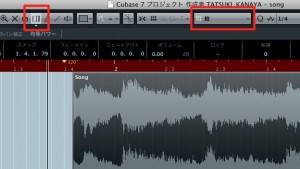
Import the audio material into Cubase
and change the tool to the Time Warp tool.
Then change the grid to "Beat".
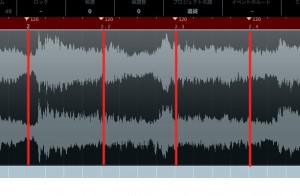
Without worrying about the audio waveform,
click beats 1, 2, 3, and 4 on the grid over the waveform.
This adds warp points.
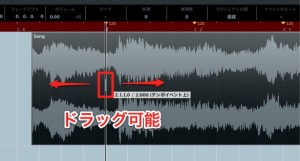
You can drag the warp points on the waveform left and right.
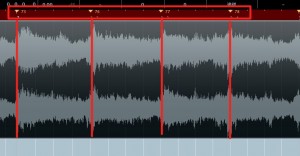
Listen to the audio and, while looking at the waveform, find beats 1, 2, 3, and 4 in the material.
Drag each beat's warp point left or right to line up beats 1, 2, 3, and 4.
Cubase's tempo now changes automatically
to match the audio material.
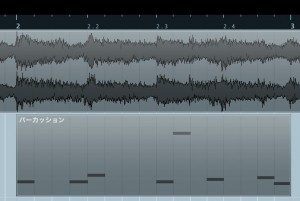
If you program as usual,
your parts will line up properly with the audio material.
Do this for every bar.
It is hellish work if the song is long (lol),
but doing it first makes all the work that follows dramatically easier.
How Can You Match the Material Even More Precisely?
Above, we adjusted in units of beats (quarter notes),
but here is what to do if that still leaves timing gaps.
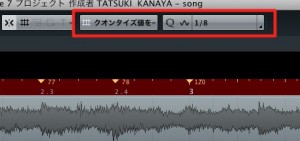
Change the grid to "Use Quantize" and
set the quantize value on the right to a finer unit such as eighth or sixteenth notes.

You can now add warp points at the note value you set,
allowing finer adjustment. Line each one up in the same way.
The finer the note value, the more effort it takes,
so we recommend making fine corrections only where the beat (quarter note) grid does not line up.
Frequently asked questions
Q1. What is the difference between Time Warp and AudioWarp?
Time Warp changes Cubase's tempo to fit the material. AudioWarp, on the other hand, makes the audio event itself follow the song's tempo, so their uses differ. Time Warp is better suited to material with an irregular tempo.
Q2. Isn't setting warp points on every bar a lot of work for a long song?
As the article says, it takes effort, but doing it first makes later editing dramatically easier. We recommend correcting only the parts that do not line up at the beat level by setting a finer quantize value.
Q3. Why set the grid to "Beat"?
Setting the grid to beats makes it easier to see where the beats fall on the waveform and gives you a clear reference when adding warp points, which enables accurate tempo adjustment.
NEW ARTICLES
Latest English Articles











