
When software synths or plugins do not appear in Cubase on Windows after installation, the cause is almost always choosing the wrong VST destination during installation. This article clearly shows the correct VST folder locations for both the 32-bit and 64-bit versions, and explains how to move the files if you could not choose the destination during installation. Following these steps ensures that the plugins you bought are recognized and usable in Cubase.
Check the VST Location You Chose During Installation
The software synth or plugin you finally bought doesn't show up in Cubase.
It's one of the top three most hopeless moments in DTM life.
Don't worry.
Any software synth that supports VST will definitely be recognized.
In most cases, the wrong VST (Cubase's plugin format) location was chosen during installation.
Choosing the VST Location
With most software synths and plugins,
you can choose the VST location during installation.
In that case, choose:
32-bit:
C drive → Program Files (x86) → Steinberg → Cubase → VSTPlugins
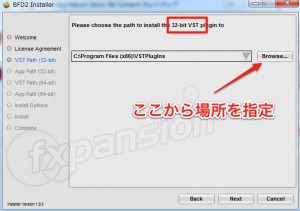
*Folders marked "x86" are for the 32-bit version.
64-bit:
C drive → Program Files → Steinberg → Cubase → VSTPlugins
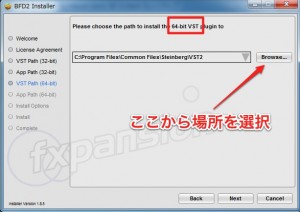
If you specify these locations and continue the installation,
the plugin will be loaded the next time you start Cubase and will be ready to use.
What If You Weren't Asked for a Location During Installation?
A manufacturer-name folder will have been created under C drive → Program Files.
Inside the manufacturer's folder is a file called "PluginName.dll",
and moving it to the location above solves the problem.
Frequently asked questions
Q1. I forgot to choose the VST destination during installation. What should I do?
Manually move the "PluginName.dll" file in the plugin manufacturer's folder to Cubase's VST folder (inside the Steinberg folder under Program Files (x86) for 32-bit, or under Program Files for 64-bit). Then restart Cubase and it will be recognized.
Q2. Are the 32-bit and 64-bit VST folders separate?
Yes, they are different. The 32-bit version goes in Program Files (x86), and the 64-bit version goes in Program Files. It is important to choose the correct folder for your version of Cubase.
Q3. What else should I check if a VST plugin is still not recognized after installation?
A VST-compatible plugin will always be recognized if it is in the correct folder. If it still does not appear after restarting Cubase, check that the file really is in the specified folder and that its file extension is ".dll."
NEW ARTICLES
Latest English Articles











