
When you install DAW software or plug-ins on Windows, settings files and sound data are usually saved automatically to hidden folders such as "AppData." These folders are not shown by default, so you can't reach them when changing settings or troubleshooting, which is inconvenient. This article explains how to show hidden files from Folder Options in the Control Panel. Following these steps gives you direct access to all the important files related to DAWs such as Cubase, so you can troubleshoot and fine-tune settings.
Can't find the folder of software you installed?
When you install DAW software or sound libraries,
files containing settings and sounds are created.
For example, with Cubase,
a folder called "AppData" containing settings and sounds is created inside "User,"
but this "AppData" folder is hidden and not displayed.
This becomes inconvenient when you want to change a setting,
so we will explain how to show these hidden folders.
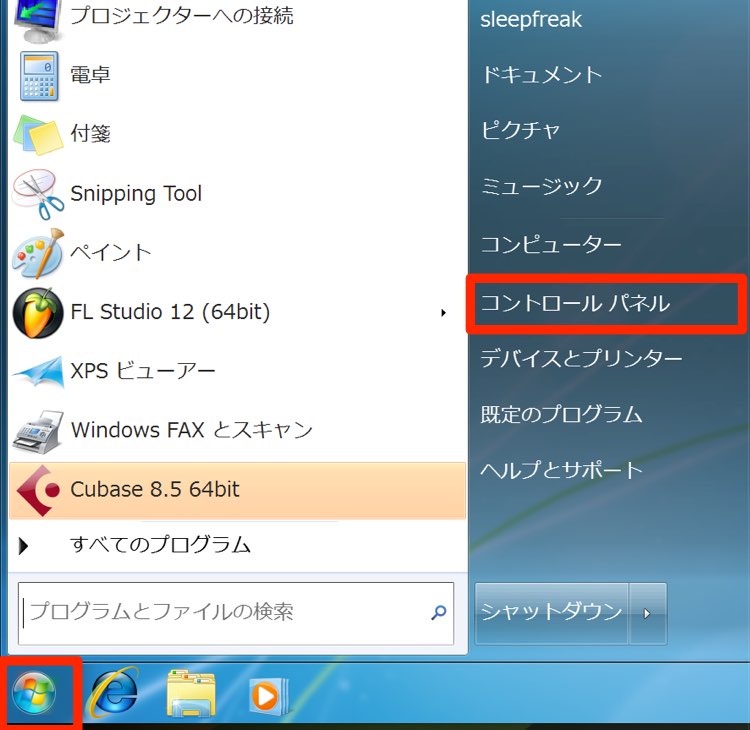
Open the Control Panel.
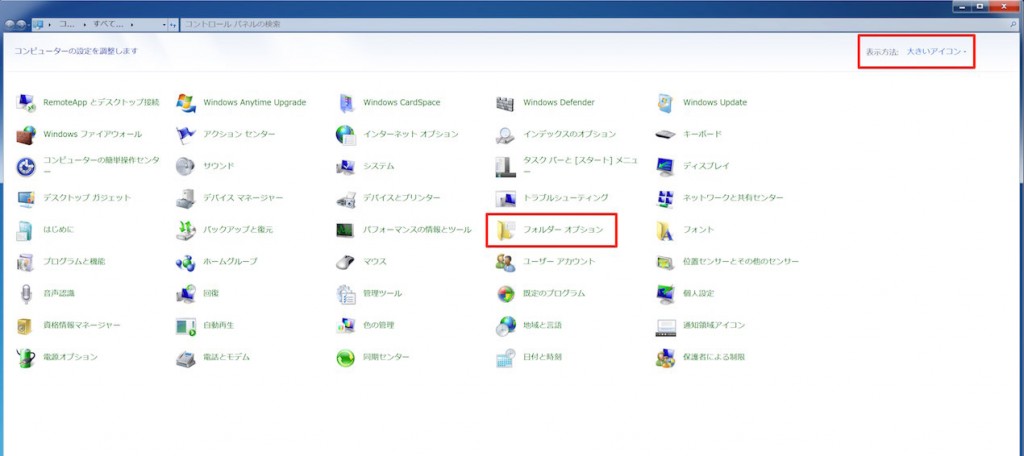
Select Folder Options.
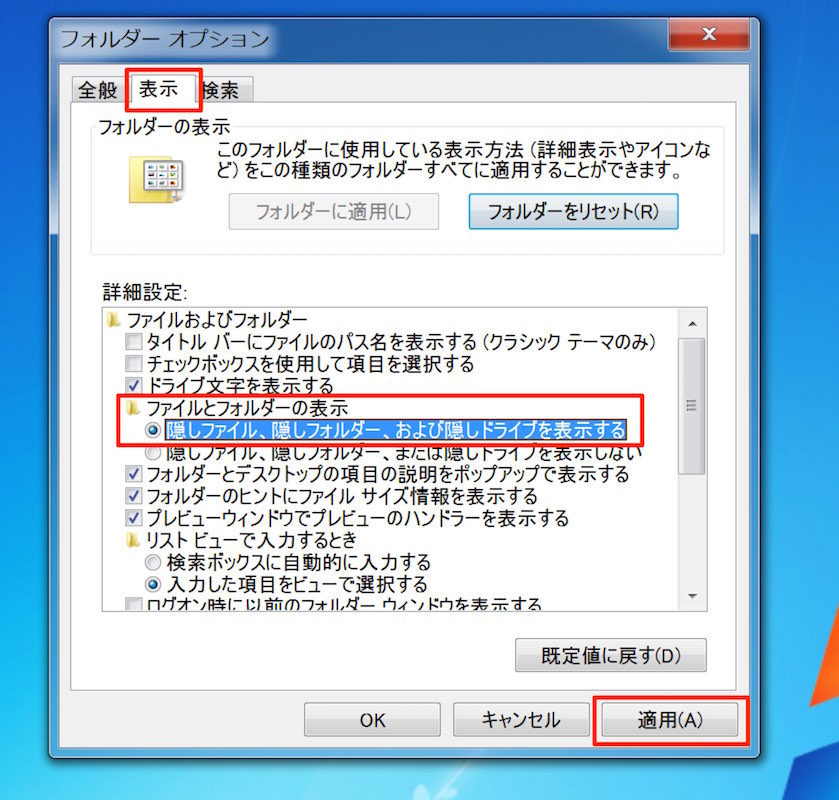
In the window that appears, select the "View" tab,
select "Show hidden files, folders, and drives," and click "Apply."
That completes the setup.
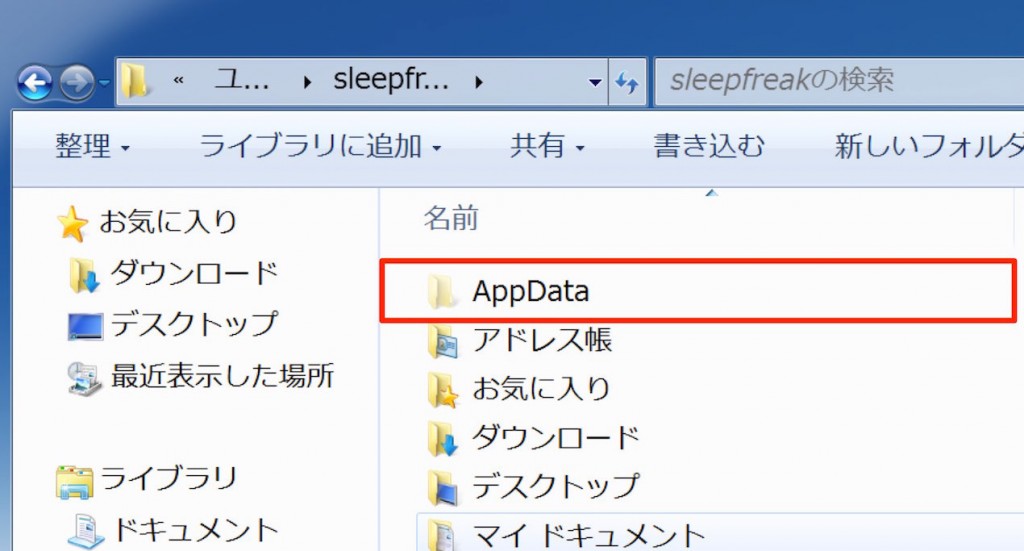
As shown here, folders that were previously invisible are now displayed,
and you can access their contents.
Frequently asked questions
Q1. Why can't I see hidden folders in Windows?
For security and ease of use, Windows hides system-related folders such as AppData by default. This is designed to prevent accidental deletion or modification.
Q2. Where are Cubase's settings files stored?
Cubase's settings files and presets are stored in a hidden folder called "AppData" inside your user folder. You can access it by turning on the display of hidden folders.
Q3. Can I hide the folders again after showing them?
Yes. Simply select "Don't show hidden files" in Folder Options in the Control Panel and click "Apply."
NEW ARTICLES
Latest English Articles











