
When producing with Waves plugins, the hissing noise that comes from vintage modeling is caused by the analog simulation feature. This article explains how to remove the noise easily by setting "Analog" to "Off" in plugins such as VComp and HDelay, or by disabling the "50Hz/60Hz" setting. Solving this noise problem while keeping the high-quality sound makes your mixing work more comfortable and efficient.
Plugin noise from vintage modeling

"Waves" lets you finish your sound quickly at high quality.
But as you work on a mix, a mysterious hissing noise may creep in.
Perhaps some of you have been struggling with it?
This noise is caused by the noise simulation built into vintage-style plugins,
and it's easy to deal with.
Solution
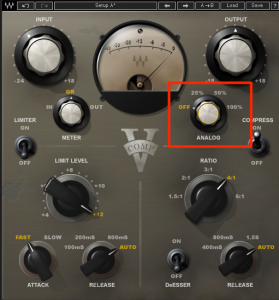
For "VComp," set "Analog" to "Off."
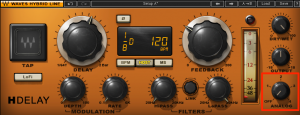
For "HDelay," also set "Analog" to "Off."
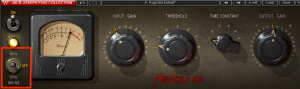
In other plugins, set the "50Hz/60Hz" section to "Off."
This stops the noise completely.
Frequently asked questions
Q1. Why do Waves plugins produce a hissing noise?
The noise comes from the analog noise simulation built into the vintage modeling. It's included intentionally to reproduce the character of analog gear, but you can disable it in the settings if you don't need it.
Q2. How do I remove the noise from VComp?
In the VComp plugin window, change the "Analog" setting to "Off." That alone removes the noise.
Q3. Does the same solution work for all Waves plugins?
For VComp and HDelay, set "Analog" to "Off." For other plugins, you can deal with it by setting the "50Hz/60Hz" section to "Off." The setting's location may differ by plugin, so check each one.
Q4. Does turning Analog off affect sound quality?
The noise is a side effect of the simulation, and the high-quality vintage sound is kept even when you turn it off. In fact, without the noise you get the plugin's true performance.
NEW ARTICLES
Latest English Articles











