
If nothing is recorded in Logic X even when you press the Record button, the main cause is that the Autopunch function is enabled. This article explains in detail how to turn off Autopunch by customizing the control bar, and following these steps lets you record normally. You can learn the solution to a problem beginners often face, with a video, making this very useful for setting up a smooth production environment.
Recording doesn't work even though you pressed Record
This is a troubleshooting step to try when you've started recording in Logic X
but your playing isn't being recorded.
Video explanation
Check Autopunch
When Autopunch is enabled, recording doesn't take place.
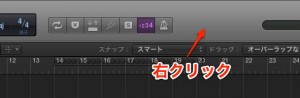
"Right-click" an empty area at the top of Logic and select "Customize Control Bar."
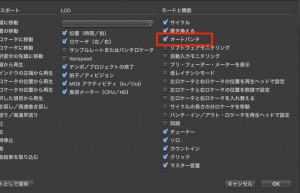
Check "Autopunch."
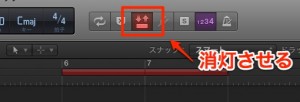
Turning this "Autopunch" button off disables it.
You can now record normally.
Frequently asked questions
Q1. Why is nothing recorded when I press Record in Logic X?
It's very likely that the Autopunch function is enabled. Right-click the control bar at the top of Logic, display the Autopunch button via "Customize Control Bar," and turn it off to solve the problem.
Q2. When is the Autopunch function used?
Autopunch is used when you want to record over only a specific part of an existing recording. It isn't needed for normal full recording, so we recommend keeping it disabled.
Q3. What should I do if I still can't record?
Other factors are possible, such as the audio interface connection, the driver version, or the track settings. Check the connection, update the driver, and review your track settings.
NEW ARTICLES
Latest English Articles











