
If you get errors on a Mac where files or folders won't open or sounds won't load, the cause is very likely a permissions problem. This error occurs when a folder's owner changes after buying a new computer or restoring a backup, and you can fix it easily by changing the permissions to "Read & Write" in the Finder Info window. If a folder contains many files, choosing "Apply to enclosed items" changes the permissions of all of them at once, greatly improving the efficiency of your music production.
Errors where files won't open or load
As you use a computer over time,
you'll go through tasks like "buying a new computer" or "restoring a backup."
When you do, certain folders may not open or sounds may not load,
and you may run into errors like these.
This involves what are called permissions,
and it happens when the folder's owner differs from the current user.
Here we'll explain how to fix it.
Solution
Select the "HDD" or "folder" with the error and press "Command + I".
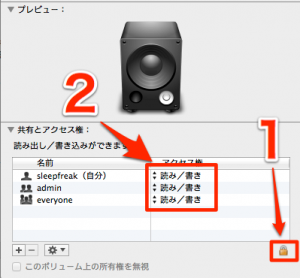
- 1_Click the lock icon and enter your password
- 2_Change the permissions to "Read & Write"
If there are many files inside,
doing this for each file one by one would be a nightmare.
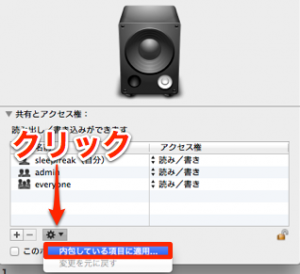
Click the gear icon and select "Apply to enclosed items".
This changes the permissions of every file inside.
*Permissions are a very delicate matter in managing your computer system.
Proceed carefully and at your own risk.
Frequently asked questions
Q1. What causes the error where folders won't open on a Mac?
The main cause is a permissions problem. It occurs when a folder's owner changes after restoring a backup or setting up a new computer. You can fix it by opening the Info window with Command + I and checking and changing the permissions.
Q2. Is there a way to change the permissions of multiple files at once?
Yes. Select the folder, open Command + I, and choose "Apply to enclosed items" from the gear icon to change the permissions of all files inside at once.
Q3. What should I be careful about when changing permissions?
Permissions are an important setting in your computer system, so proceed carefully and at your own risk. Improper changes can affect how the system works.
NEW ARTICLES
Latest English Articles











