
In most cases, a MIDI keyboard that doesn't respond in Cubase can be fixed with the right steps. This article introduces three main solutions: installing the driver, checking the connections, and configuring the MIDI device settings. By covering the common causes beginners run into, such as USB connection problems, wrongly connected cables, and unchecked device settings, it gives beginners the knowledge to start using a MIDI keyboard smoothly.
MIDI keyboard doesn't respond, so you can't input notes
You went to the trouble of getting a MIDI keyboard,
but Cubase doesn't recognize it...
A DAW really becomes convenient and fun to use when you have a MIDI keyboard.
Let's solve this problem here.
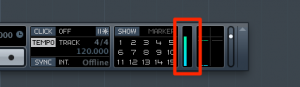
If the part outlined in red on the Transport reacts when you play the keys, the keyboard has been recognized.
Solutions
1_Install the driver
Go to the product manufacturer's website
and download and install the latest driver.
"Driver list page for each manufacturer"
https://sleepfreaks-dtm.com/dtm-trouble/driverup/
After installing the driver, restart your computer just to be safe.
2_Check the connections
This is a simple mistake, but
"the USB cable isn't connected properly"
"the IN/OUT of the MIDI cables are reversed"
Check for these.
Also, be sure to launch Cubase with the MIDI keyboard already connected.
3_Turn on the MIDI device
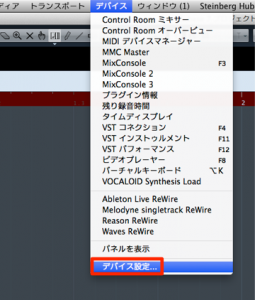
From the top menu, open "Devices" → "Device Setup."
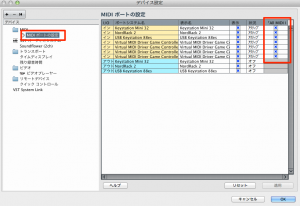
Select "MIDI Port Setup" and check "In 'All MIDI Inputs'" in the right window.
Video to watch when Cubase produces no sound
*Added note:
When using an audio interface, don't use a "USB hub."
If the keyboard doesn't respond, also try connecting it directly to your computer.
Frequently asked questions
Q1. Why isn't my MIDI keyboard recognized when I connect it to Cubase?
The main causes are an uninstalled driver, a USB cable that isn't connected properly, or a MIDI port setting that isn't enabled. Checking these in order solves the problem in most cases.
Q2. What should I do after installing the driver?
After installing, restart your computer. Then it's important to launch Cubase with the MIDI keyboard connected.
Q3. My MIDI keyboard is connected but doesn't respond in Cubase. What should I check first?
First check the physical connections. Make sure the USB cable is firmly connected and the MIDI cables' IN/OUT are correct. If you're using a USB hub, try connecting directly to your computer.
Q4. What is "In 'All MIDI Inputs'"?
It's a setting in Cubase's Device Setup that makes the connected MIDI keyboard part of All MIDI Inputs. Checking it enables input from the keyboard.
NEW ARTICLES
Latest English Articles











