
After updating to macOS Catalina 10.15.4, your display colors may change. This is caused by a new color adjustment feature called "High Dynamic Range", added in the update, which is turned on automatically. If you do work that requires accurate color, such as music production or color grading, you can turn this feature off to return to your LCD monitor's original color settings. The setting can be changed easily from the Displays section of System Preferences.
Settings to Restore Your Display Colors
"macOS Catalina 10.15.4" was released recently.
Several features were added, such as "iCloud Drive folder sharing" and "Head Pointer", which moves the cursor according to your head movements.
The update also adds a color adjustment feature called "High Dynamic Range", which is turned on automatically after the update.
Some of you may feel that "the colors on my LCD monitor have changed a lot and I want to put them back" because of this feature.
Here we explain the setting for restoring your monitor colors.
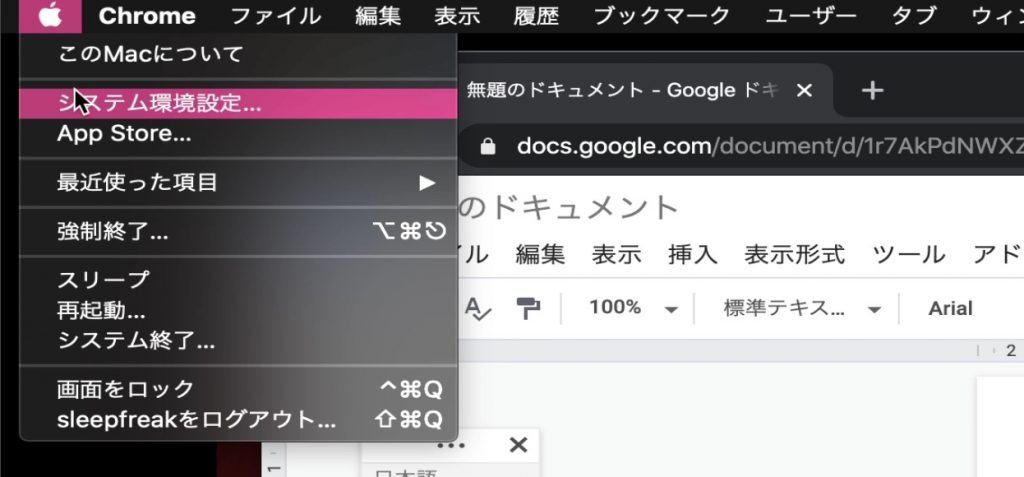
Select "System Preferences" from the Apple icon in the top menu.
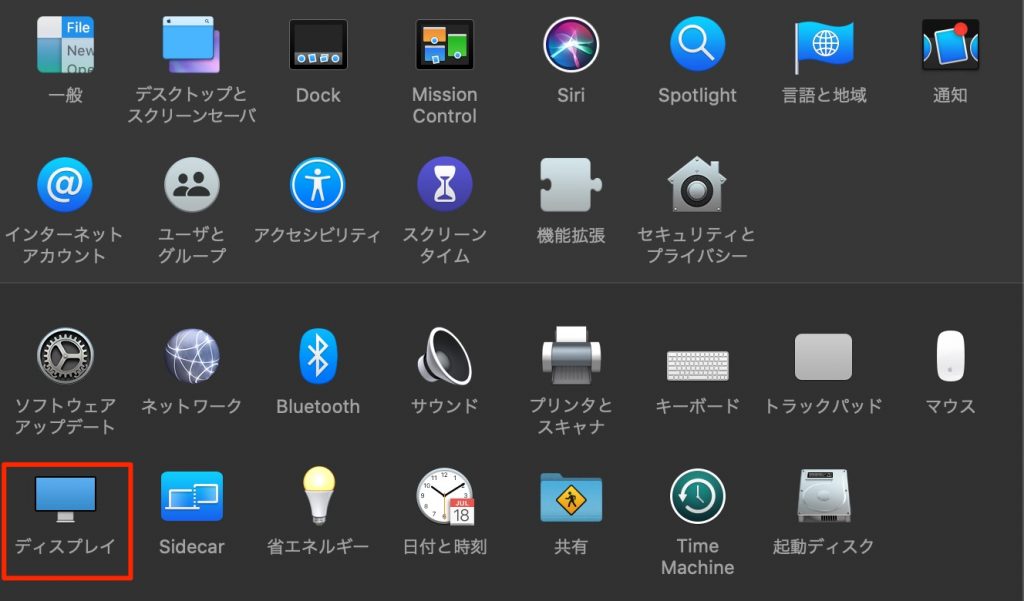
Select Displays.
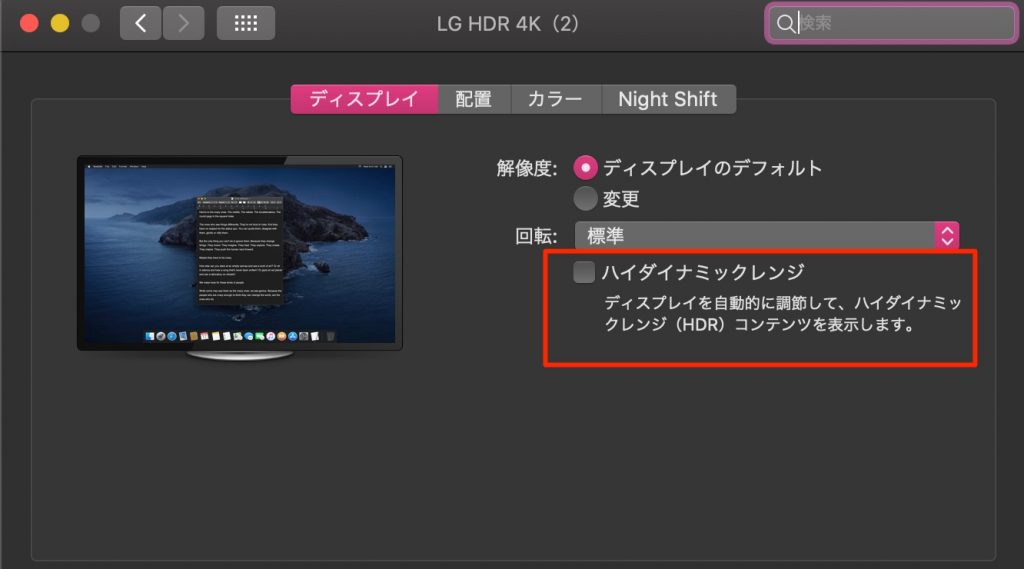
Uncheck "High Dynamic Range" to turn it off.
Your LCD monitor's colors will now be back to normal.
Frequently Asked Questions
Q1. My monitor colors look wrong after updating macOS Catalina. What is the cause?
The cause is that a color adjustment feature called "High Dynamic Range" was turned on automatically by the update. Turning this feature off in Displays in System Preferences will restore the colors.
Q2. How do I turn off the "High Dynamic Range" feature?
Open "System Preferences" from the Apple menu at the top of the screen and select "Displays". Then uncheck "High Dynamic Range" to turn it off.
Q3. Changing colors interfere with my music production work. What should I do?
For music production that requires accurate color, we recommend turning High Dynamic Range off. This lets you keep a stable environment with your monitor's original color settings.
NEW ARTICLES
Latest English Articles











