
When editing audio files in Logic Pro X, "destructive editing" can leave you unable to return to the original state. This article explains how to prevent such irreversible situations, teaching you a practical method that uses the Sample Editor's backup function so you can restore the original audio file if something goes wrong. It helps music producers from beginners to advanced users manage the risks of important audio edits.
Can't revert an edited audio file
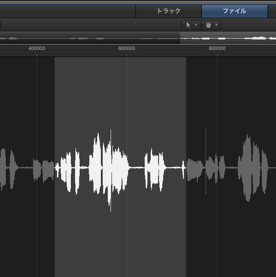
Essential for high-quality productions and somewhat elaborate arrangements: "audio editing."
While editing, you often want to return a file to its original state.
Such situations come up frequently.
But you can no longer return it to its original state...
This time, we explain troubleshooting to avoid this situation.
Solution
Audio file editing in Logic includes what is called "destructive editing."
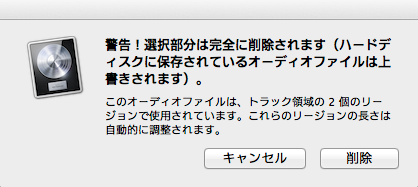
This means "you can no longer return to that state".
Even if you quit Logic without saving, it won't help...
That's because the file itself is completely rewritten.
What if it was something you can't re-record...
There is a way to prevent this frightening situation.
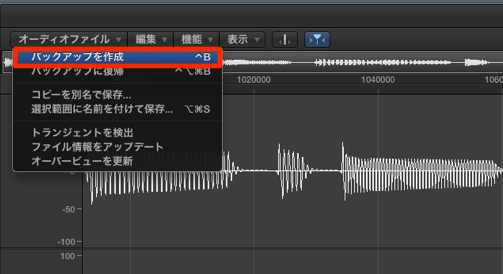
From "Audio File" at the top left of the Sample Editor, select "Create Backup."
That's it.
If you later want to go back and can't,
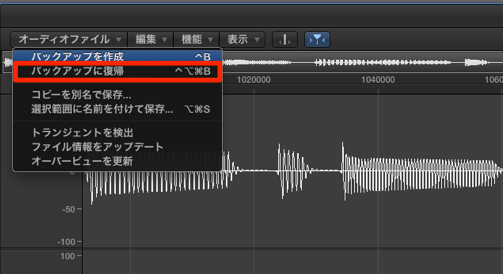
select "Audio File" → "Revert to Backup"
to restore the original audio file.
We strongly recommend always doing this before editing audio files.
Frequently asked questions
Q1. What is destructive editing in Logic Pro X?
Destructive editing is a method that directly rewrites the audio file itself. In this case, the changes are kept even if you don't save, so you can't return to the original state. Unlike non-destructive editing, restoring the file becomes difficult, so be careful.
Q2. How do I create a backup of an audio file?
Simply select "Create Backup" from the "Audio File" menu at the top left of the Sample Editor. This protects the original file before editing so you can restore it when needed.
Q3. If I've already made a destructive edit, can I restore the file?
If you created a backup, you can restore the original file with "Audio File" → "Revert to Backup." Without a backup, however, restoring is difficult, so prevention beforehand is important.
NEW ARTICLES
Latest English Articles











