
This article explains the cause of and solution for ARA plug-ins such as Melodyne not appearing in Logic. Plug-ins that support the ARA standard are very convenient because they let you produce music with the feel of Logic's built-in features. However, there can be trouble where they do not appear on screen even though they are installed. This problem can actually be solved with simple steps by checking where you place them in the insert slots. With the correct setup, you can make full use of ARA plug-in features in Logic.
ARA Plug-ins That Should Be Installed Do Not Appear
Recently, more and more ARA-standard plug-ins, starting with Melodyne, integrate seamlessly with Logic.
They are very useful because you can work with the feel of Logic's own stock plug-ins and features.
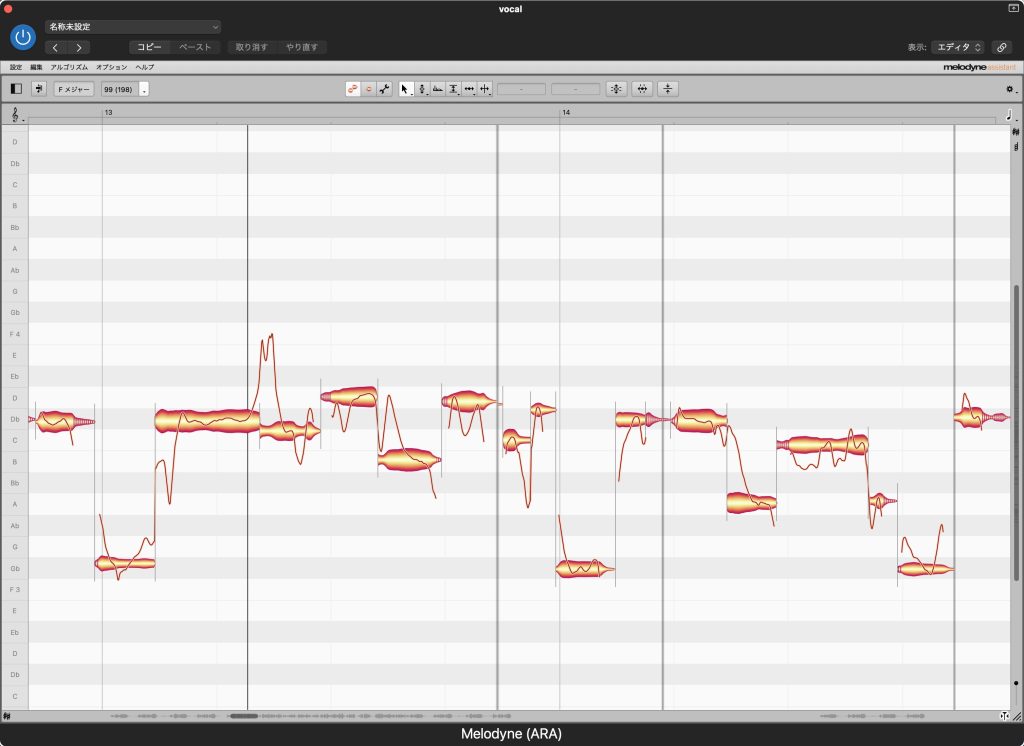
However, we were consulted by someone whose ARA plug-in did not appear in Logic.
Here is how to solve it.
How to Fix It
The fix is very simple.
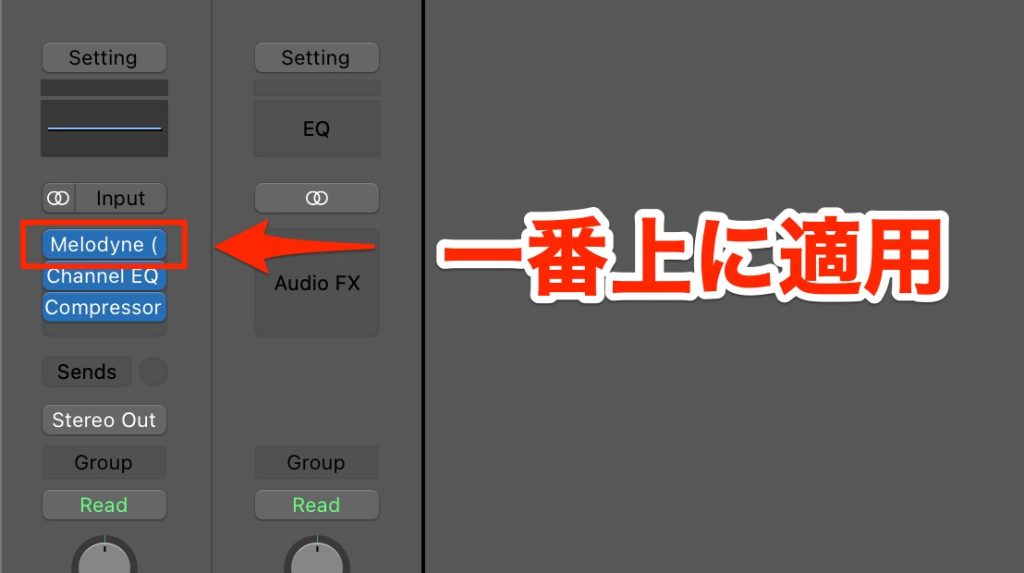
As shown, the ARA version appears when the plug-in is in the top insert slot.
If you are troubled by the same symptom, please give it a try.
Frequently Asked Questions
Q1. Why doesn't the ARA version of Melodyne appear in Logic?
ARA-compatible plug-ins depend on where they are placed in Logic's insert slots. Depending on the slot, the ARA version may not be recognized, so placing it in the correct position solves the problem.
Q2. What is an ARA-standard plug-in?
ARA (Audio Random Access) is a standard that enables seamless integration between a DAW and plug-ins. With ARA support, Melodyne and others can be operated as intuitively as Logic's built-in features.
Q3. What is the correct setup for the ARA version of a plug-in to appear?
Inserting the ARA-compatible plug-in in the top insert slot makes it appear correctly as the ARA version. For details, see the fix section of the article.
NEW ARTICLES
Latest English Articles











