
In music production with Cubase, group channel tracks, which let you process multiple tracks together, are a very handy feature. However, while audio tracks can easily be output to a group channel from the Inspector, instrument tracks can't be set directly from the Inspector. This problem is easily solved using the ROUTING section in MixConsole, which lets you assign an instrument track's output to a group channel. Using this method makes mixing in Cubase more efficient and complex sessions easier to manage.
Cubase routing settings
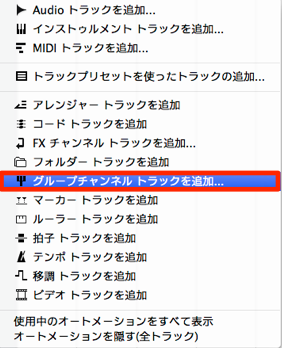
The "group channel track"
lets you combine multiple tracks. It makes production and mixing more efficient and is extremely handy.
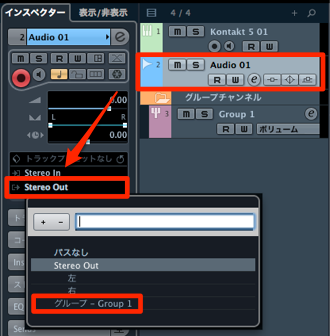
"Audio tracks" can be output to a "group channel track" like this,
but "instrument tracks" can't be set from this part of the Inspector.
This time, we explain how to solve this.
Solution
The solution is very simple.
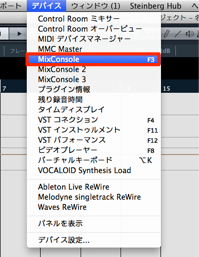
From the top menu, select "Devices" → "MixConsole."
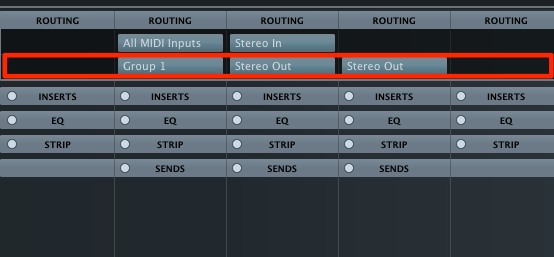
Click the "ROUTING" section, and from the output outlined in red,
you can assign the "instrument track" output to the "group channel."
Now you can route efficiently!
Frequently asked questions
Q1. How do I send a Cubase instrument track to a group channel?
Open MixConsole and select the output destination in the ROUTING section. Because it can't be set in the Inspector, this is the way to route instrument tracks. Accessing MixConsole lets you assign them to a group channel.
Q2. What are the benefits of using group channel tracks?
You can manage multiple tracks together, making effect processing such as EQ and compression more efficient. You can also adjust the volume balance all at once, saving time when mixing.
Q3. Why is the routing method different for audio tracks and instrument tracks?
Audio tracks and instrument tracks have different characteristics, so their routing functions are placed differently. Instrument tracks are managed consistently in MixConsole, so setting them there is recommended.
NEW ARTICLES
Latest English Articles











