
After updating to Logic Pro X 10.2.1, some users have reported that their MIDI keyboard stopped responding. This problem can be solved by deleting a folder in the MIDI Device Scripts folder inside the application. Specifically, compressing and keeping a copy of the folder for your keyboard model inside its manufacturer's folder and then deleting it restores MIDI keyboard recognition. Using a Roland keyboard as an example, this article explains in detail how to resolve the problem safely, giving music producers a practical way to deal with hardware recognition issues.
MIDI keyboard not recognized after the update

"Logic Pro X 10.2.1" was released recently.
It is a substantial update with new features.
However, after updating, some users have reported a problem in which
their MIDI keyboard stops responding.
A solution has been shared, so we describe it below.
How to restore MIDI keyboard recognition
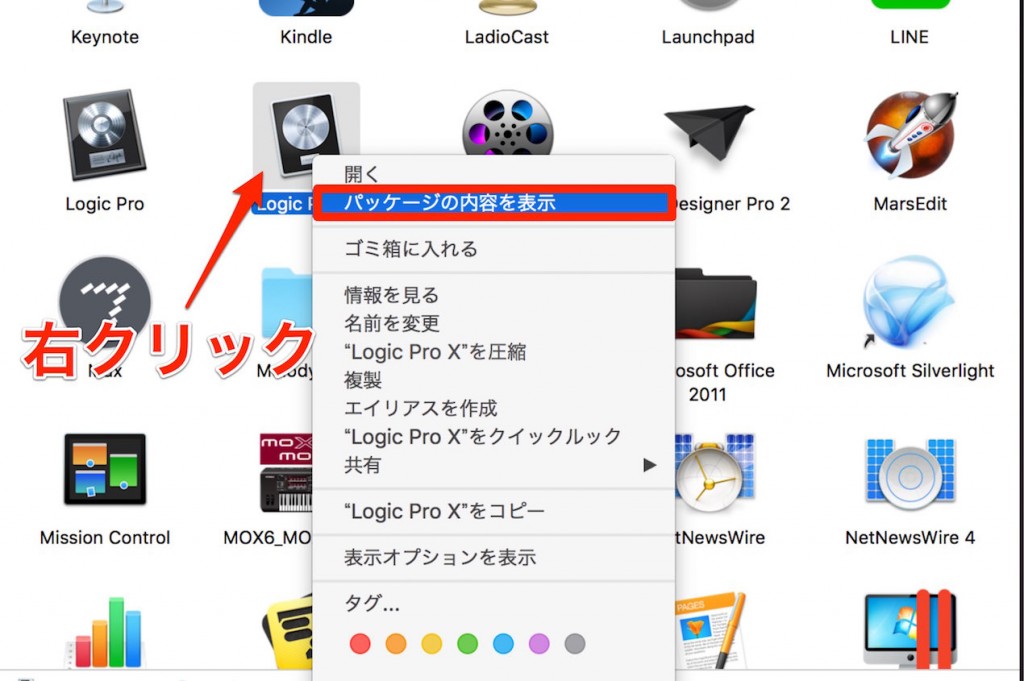
Go to the Applications folder and right-click Logic.
Select "Show Package Contents."
Go to "Contents" → "Frameworks" → "MACore.framework" → "Versions" → "A" →
"Resources" → "MIDI Device Scripts."
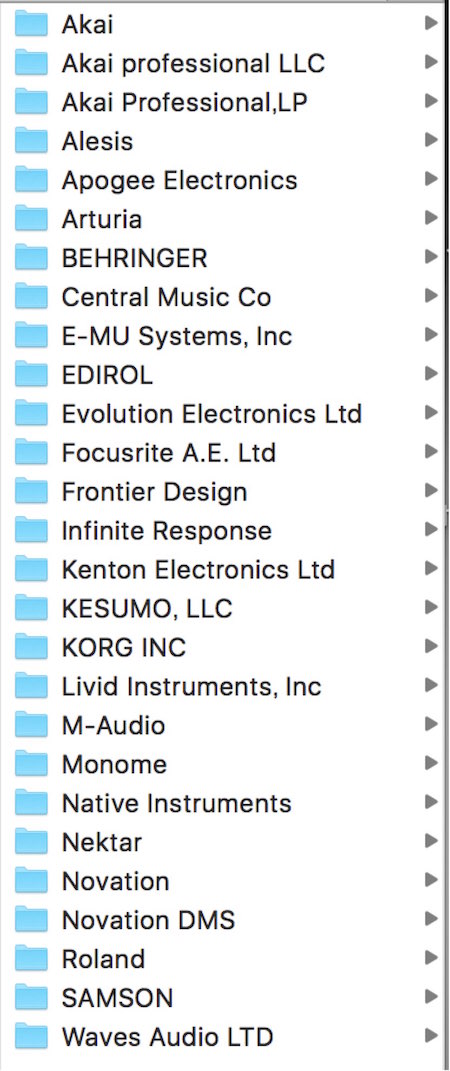
Manufacturers are listed like this,
so select the manufacturer of the MIDI keyboard you are currently using.
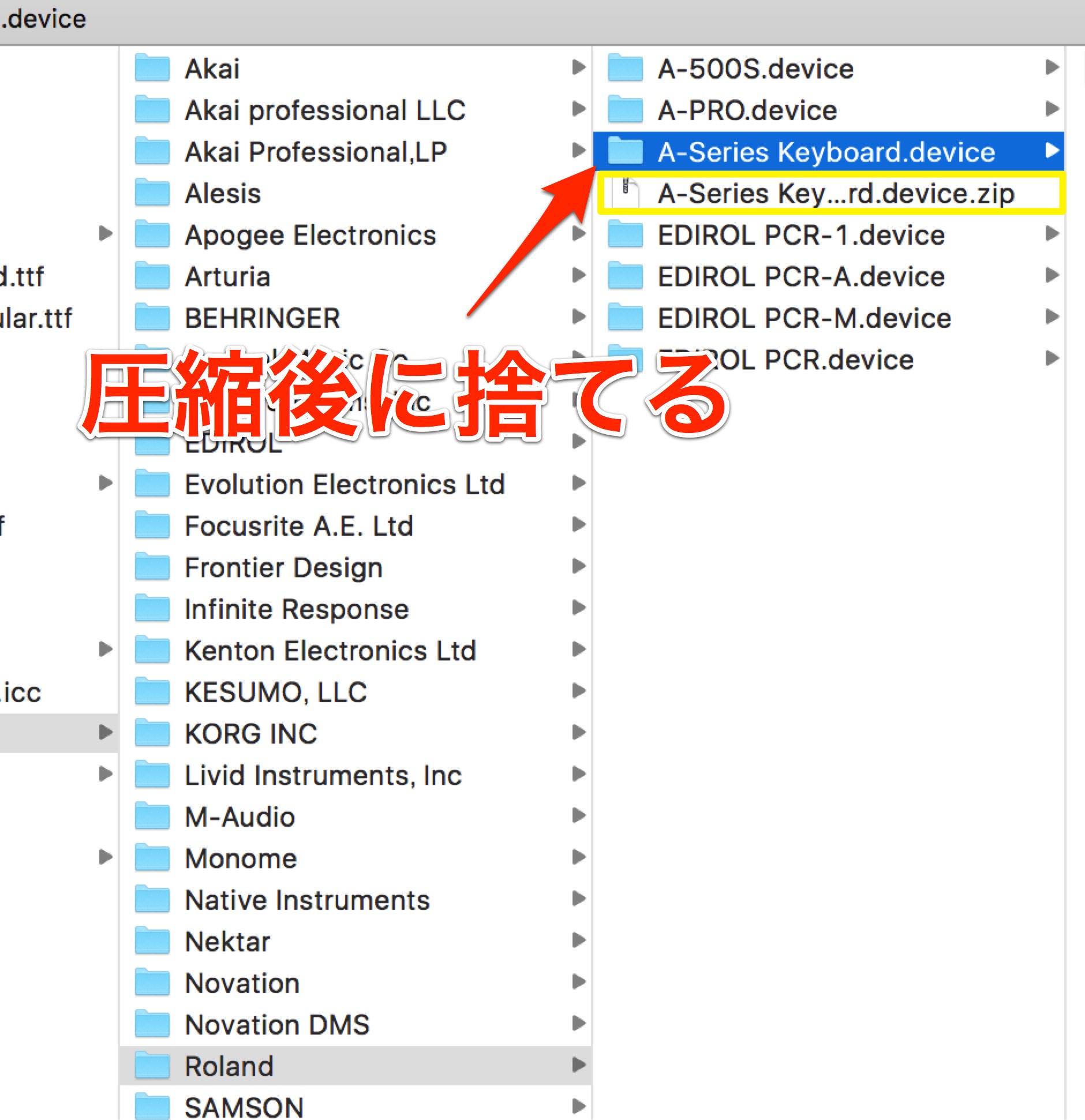
Here, we use Roland's "A-Series Keyboard" as an example.
You just need to delete the folder named after the model you are using,
but to avoid the risk of not being able to undo it, compress the folder and keep the archive.
After compressing it, move the folder to the Trash and delete it.
Your MIDI keyboard should now be recognized again.
Give it a try.
Frequently asked questions
Q1. What should I do if my MIDI keyboard doesn't respond in Logic Pro X 10.2.1?
Right-click Logic in the Applications folder and select "Show Package Contents." Then go to Contents → Frameworks → MACore.framework → Versions → A → Resources → MIDI Device Scripts and delete the folder named after your model inside your MIDI keyboard manufacturer's folder.
Q2. Is it safe to delete the MIDI Device Scripts folder?
Be sure to compress and keep a copy before deleting it. It is important to be able to restore it if any problem occurs. After compressing it, move the folder to the Trash and delete it.
Q3. Can I use the same method with MIDI keyboards from other manufacturers?
Yes. Each manufacturer has its own folder in MIDI Device Scripts, so select your manufacturer and follow the same steps. Compressing and deleting the model folder should restore recognition.
NEW ARTICLES
Latest English Articles











