
When mastering with Studio One, adjusting the start and end of each song, cutting noise, and setting fade-ins and fade-outs are important. This article explains how to adjust the length using the margin you left at the 2-mix stage, how to change the gap between songs (2 seconds by default), and how to join multiple songs smoothly with crossfades. By dragging the track index to set exactly where the next song starts, you can achieve a professional, polished result.
Song Length and Noise Removal
Check the start and end of each song and adjust its length.
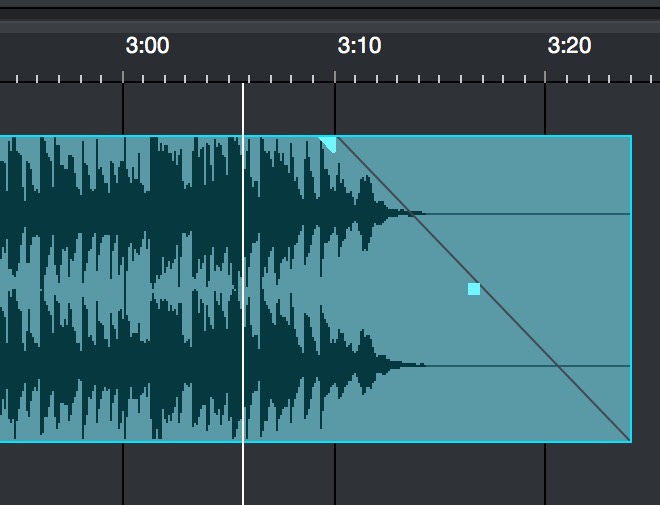
You should have left a little margin at the 2-mix stage,
so trim it to taste.
Watch out for noise, too, and it is a good idea to add a short fade-in and fade-out.

Adjusting the Gap Between Songs
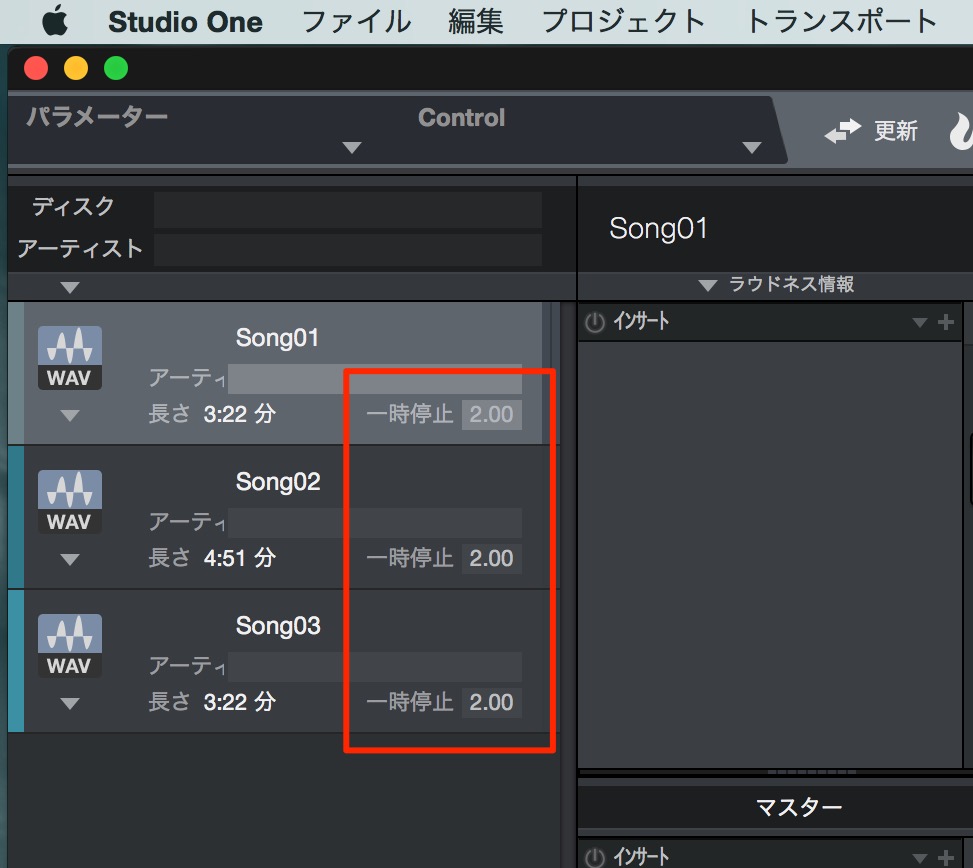
↑ You can change the gap between songs in the area outlined in red.
The unit is seconds, and the default is 2 seconds.
Setting Crossfades in Studio One
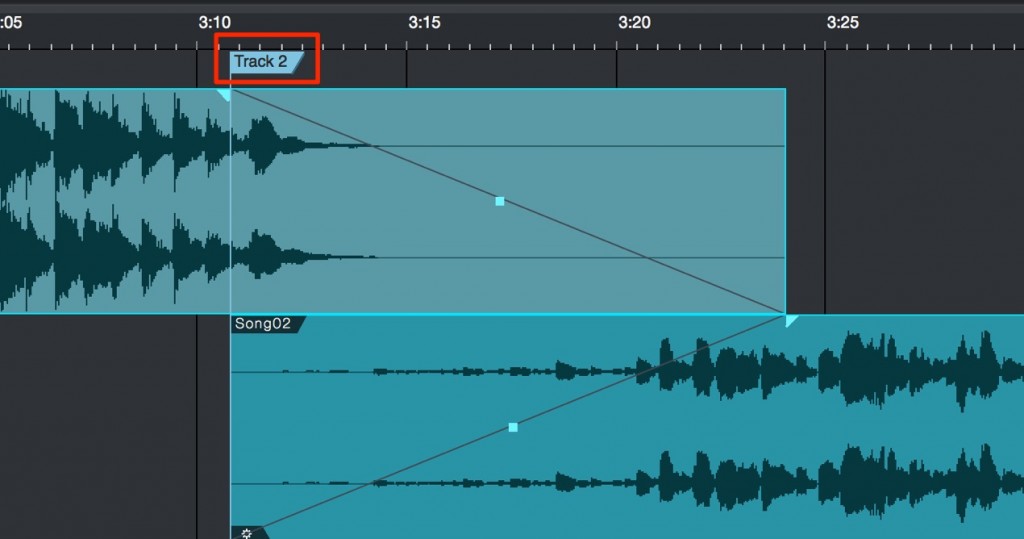
↑ You can overlap songs and join them with a crossfade.
Also, by dragging the track index outlined in red left or right,
you can set where the next song is considered to begin.

Frequently asked questions
Q1. How do I adjust the gap between songs when mastering in Studio One?
You can change the gap in seconds in the area outlined in red. The default is 2 seconds, and you can customize it to suit your project.
Q2. What processing is effective for reducing noise?
It is important to check the start and end of each song and set appropriate fade-ins and fade-outs. Using crossfades also prevents noise where files are joined.
Q3. When joining songs with a crossfade, how do I specify where the next song starts?
Drag the track index left or right to set where the next song is considered to begin. This creates smooth transitions between songs.
NEW ARTICLES
Latest English Articles











