
NEUTRINO is a groundbreaking singing voice synthesis application that automatically generates vocals by the AI singers Kiritan and Yoko from musical scores. It can create high-quality vocals without special singing settings and was distributed free of charge at the time of the original article. This tutorial explains the complete workflow: creating a score in MuseScore or Cubase, exporting it as MusicXML, and importing it into NEUTRINO to generate vocals. Even music production beginners can incorporate AI vocals into their own songs.
Groundbreaking Software That Uses AI to Synthesize Vocals from Musical Scores
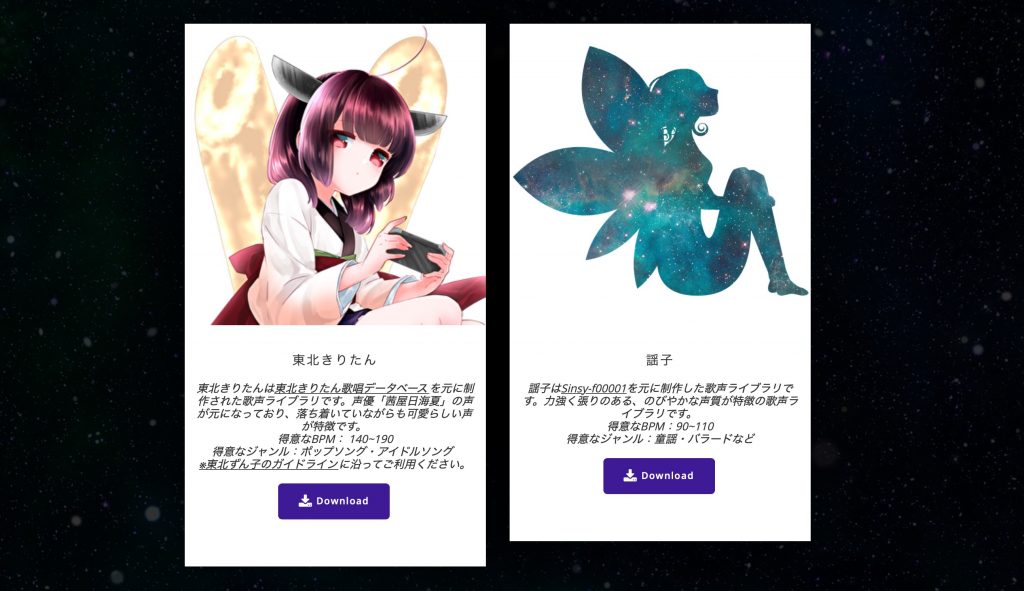
An application that automatically generates vocals by the AI singers Kiritan and Yoko from the score or melody you enter, NEUTRINO, has been attracting attention.
This revolutionary service can generate remarkably high-quality vocals without requiring special singing settings.
The version covered in this original 2020 tutorial runs only on Windows and has no graphical interface.
As a result, some users have reported getting stuck when trying to work out how to make it sing their songs.
Here, explain the steps needed to use NEUTRINO, from creating a score to exporting vocal audio.
How to Use NEUTRINO: Video Tutorial
Selected Questions and Answers from the YouTube Video

Can I download MuseScore and NEUTRINO onto a USB flash drive?
Do you mean installing and running the applications on a USB flash drive? We have not tested this, but neither requires much storage space, so we think installing them on your main drive (C:) would be better.
What should I do if I want to put two lyric syllables on one note?
In the version discussed here, only one lyric syllable per note is supported. It looks likely to keep evolving with future updates!
Are staccato markings and velocity reflected in the generated vocals?
The official website explains this here: https://n3utrino.work/332/ Supported score information: pitch; note and phrase lengths; ties and breath marks; key signatures. Breath marks are particularly effective because of the training data. Unsupported score information: slurs, staccato and accents; clefs; dynamics; time signatures; tempo markings. Please note that markings such as slurs have no effect. Therefore, the staccato and velocity mentioned in your question have no effect.
When I try to play the file in Windows Media Player, it says, "Windows Media Player cannot play the file. The Player might not support the file type or might not support the codec that was used to compress the file." I do not know how to fix this. What should I do?
Please try this free media player: https://www.videolan.org/vlc/index.ja.html
Note added March 3, 2020: Commercial use of the Tohoku Kiritan singing database may constitute enjoyment of the expression of a copyrighted work, in which case permission is required. Use that is strictly limited to research is permitted.
Please see the guidelines below for details.
https://zunko.jp/kiridev/login.php
Preparing a Melody File and Entering Notes
NEUTRINO synthesizes vocals from score data in MusicXML format.

MusicXML contains information needed for a performance, such as note durations, pitches, and lyrics. It is a file format commonly used by music notation software.

We will explain how to export MusicXML using the free notation application MuseScore, mentioned in the NEUTRINO manual, and the DAW Cubase.
- MuseScore
- Cubase
Download MuseScore: https://musescore.org/ja
Launch MuseScore and try entering a simple melody.
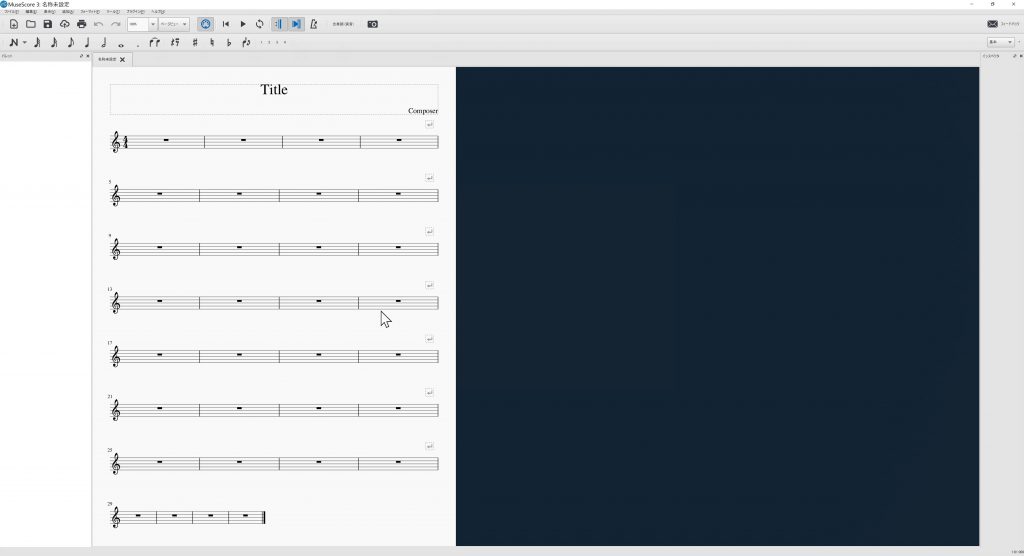
After launching MuseScore, set the key signature for the song.
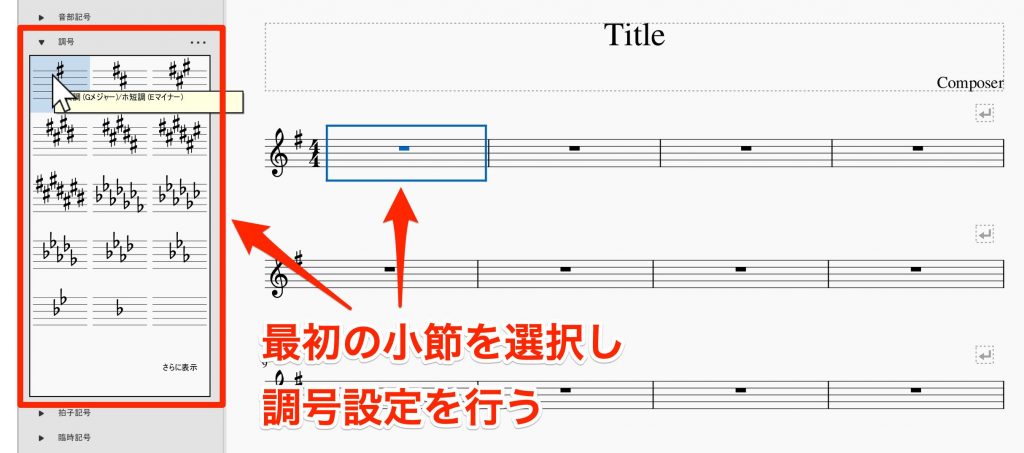
Click Key Signatures on the left side of the screen and select the key you want.
Next, enter the notes.
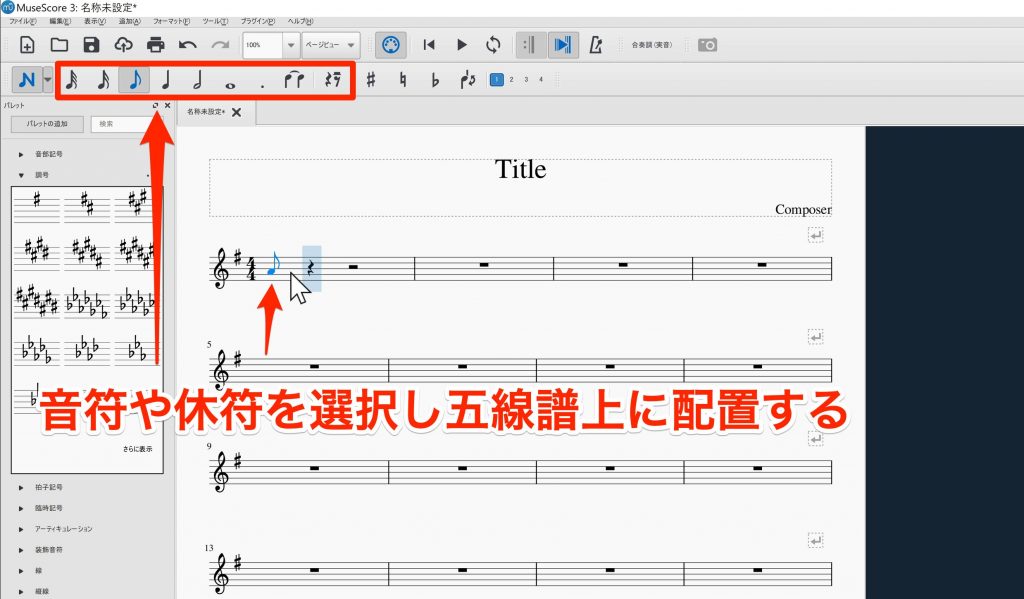
Select a note of the desired duration here, then enter it on the staff.
Next, enter lyrics for each note.
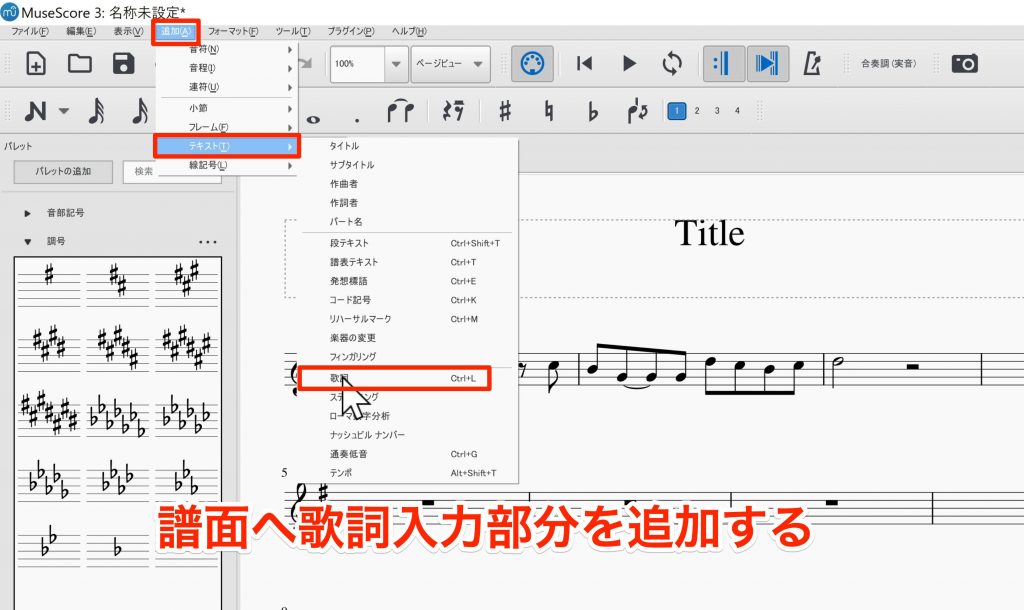
With a note selected, choose Add → Text → Lyrics from the menu.
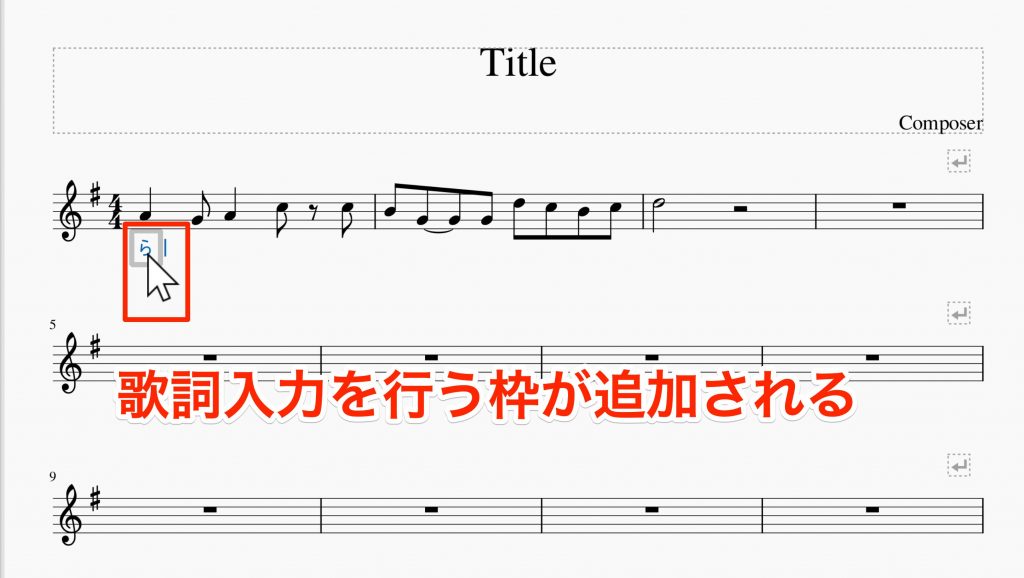
A box for entering lyrics appears. Enter the lyrics in hiragana.
The version of NEUTRINO covered here cannot sing two syllables on one note.
Here, always enter just one character per note.
Next, set the song tempo.
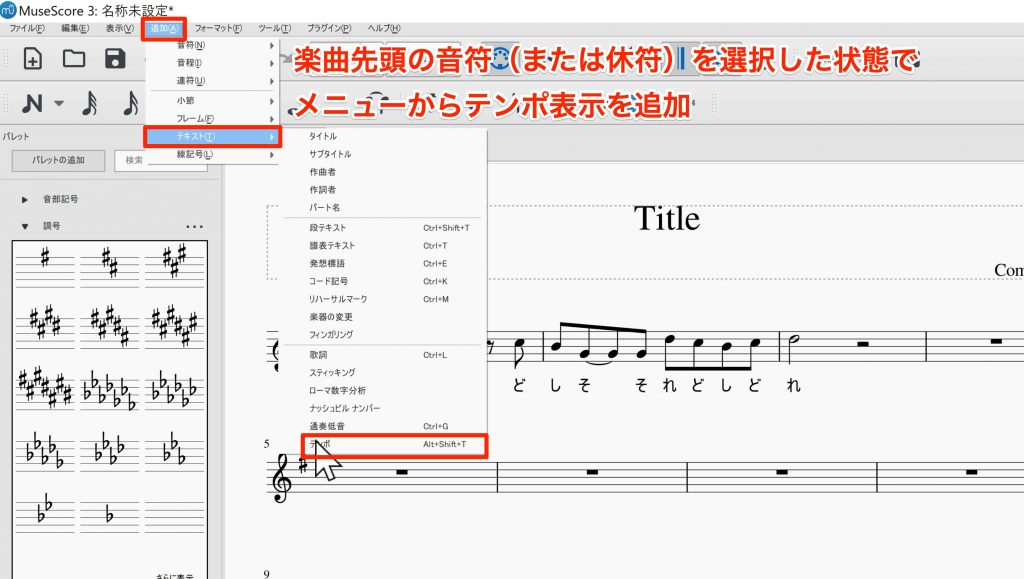
With the first note or rest selected, choose Add → Text → Tempo from the menu to add a tempo marking.
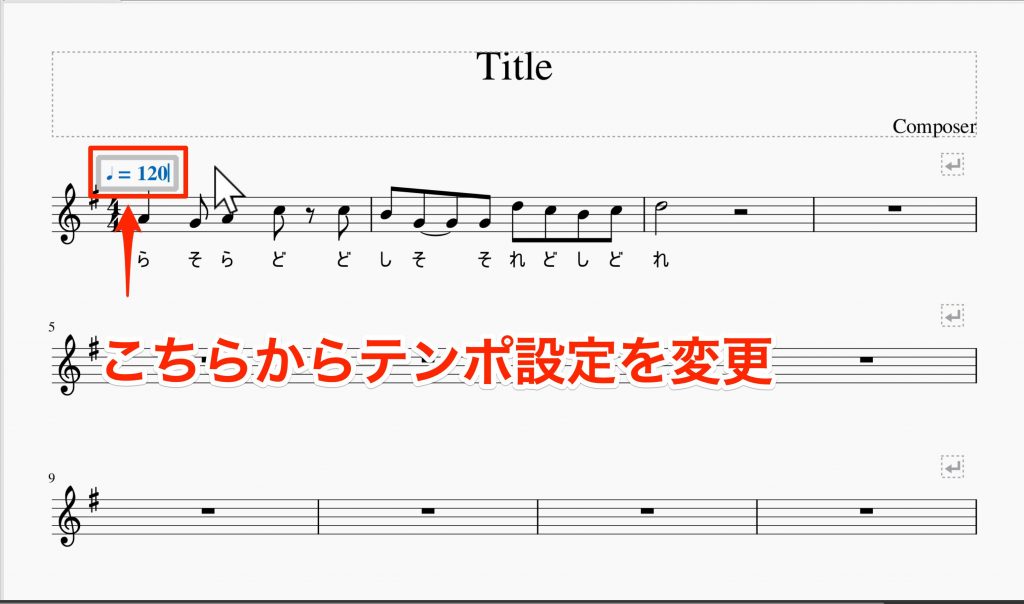
We will use 120 for this example.
Once you have entered everything, export the MusicXML file.
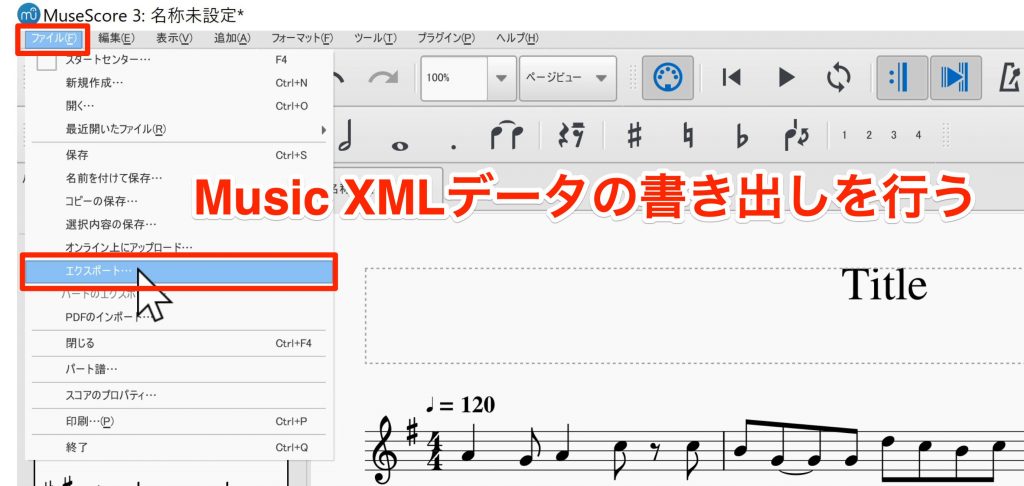
Choose File → Export from the menu and set the file type to Uncompressed MusicXML.
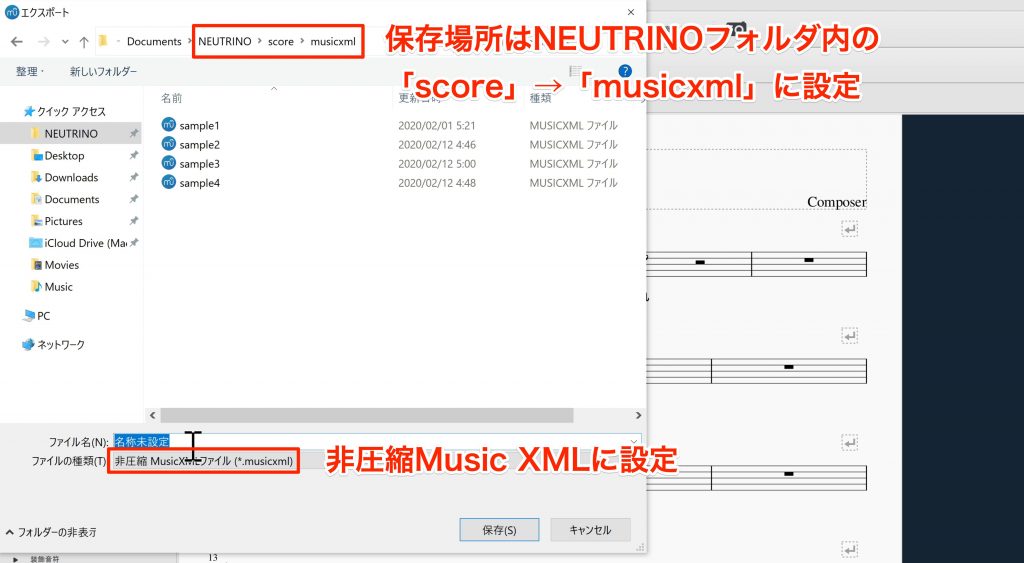
Save the file in the musicxml folder inside the score folder in your NEUTRINO folder.
For the steps explained later, we recommend a memorable filename using standard Latin letters and numbers.
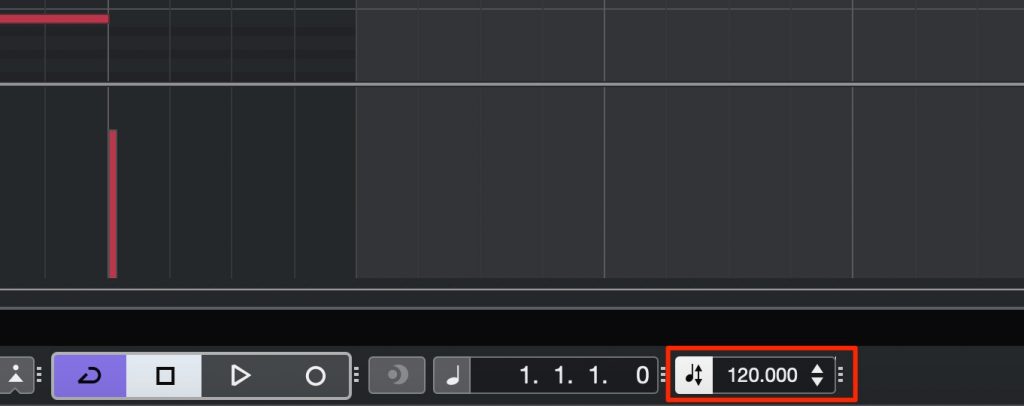
Set the song tempo.
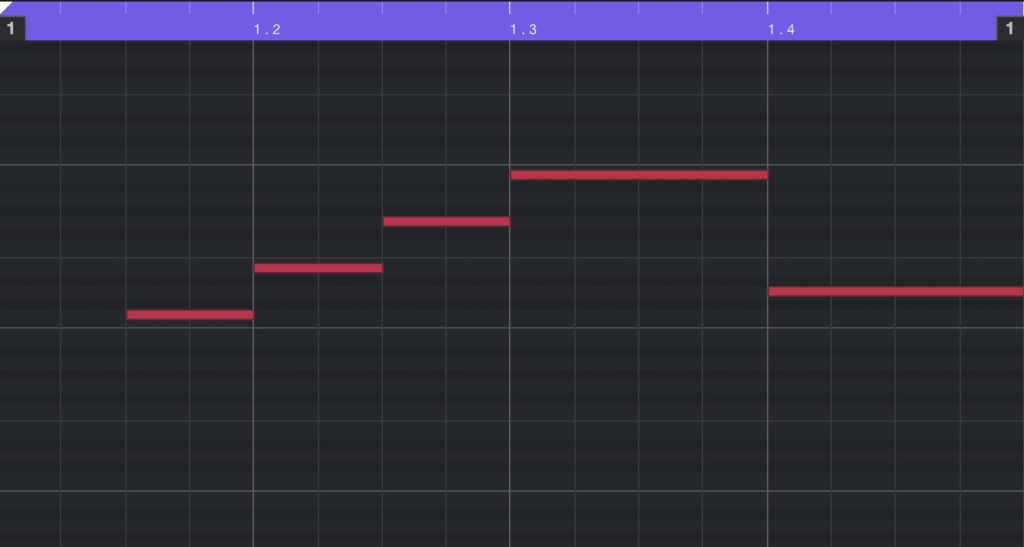
Enter the melody in the piano roll.
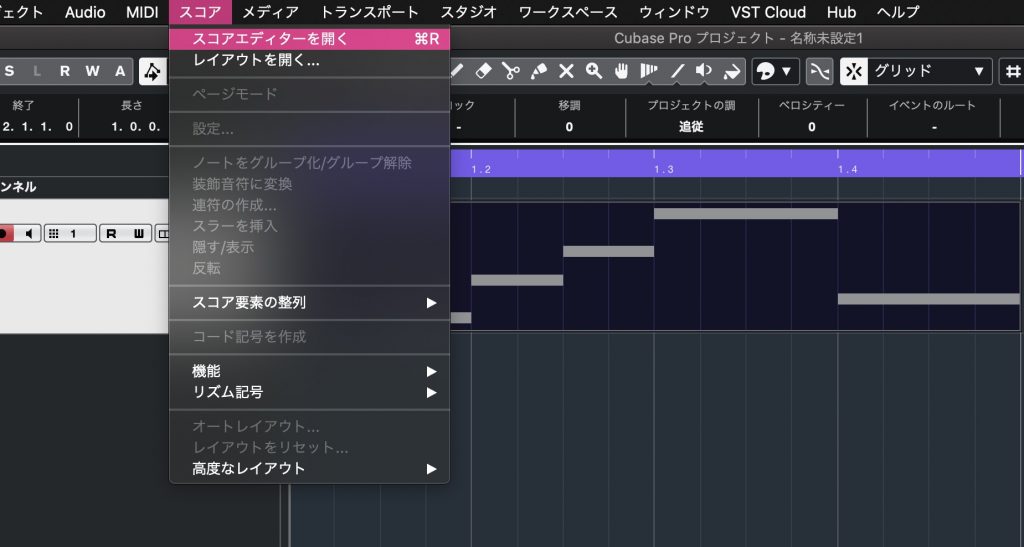
Select the MIDI event, then choose Open Score Editor from the top menu.
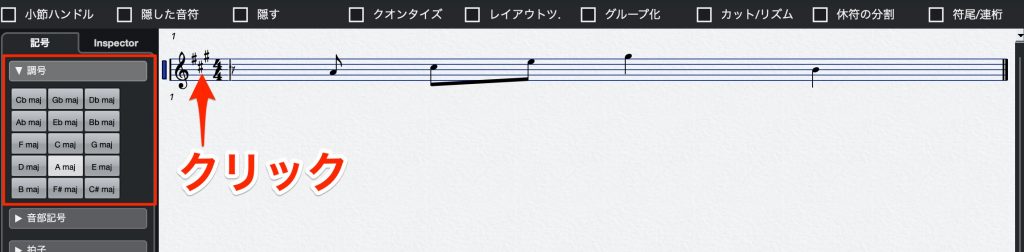
Select the song key in the key signature section, then click the bar.
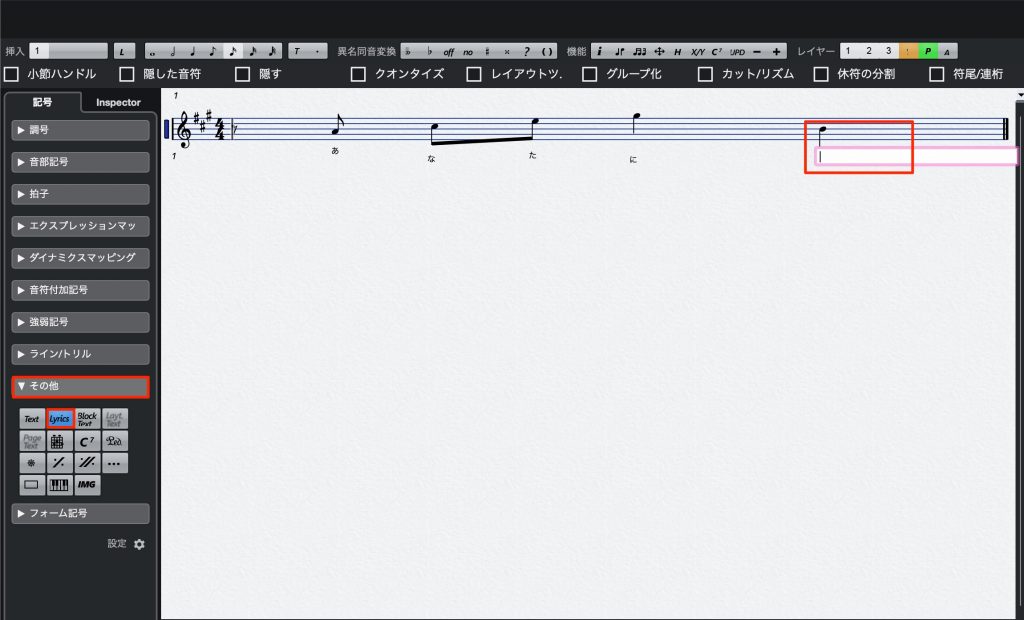
Click Lyrics in the Other section, then click a note and enter the lyrics in hiragana.
The version of NEUTRINO covered here cannot sing two syllables on one note.
Here, always enter just one character per note.
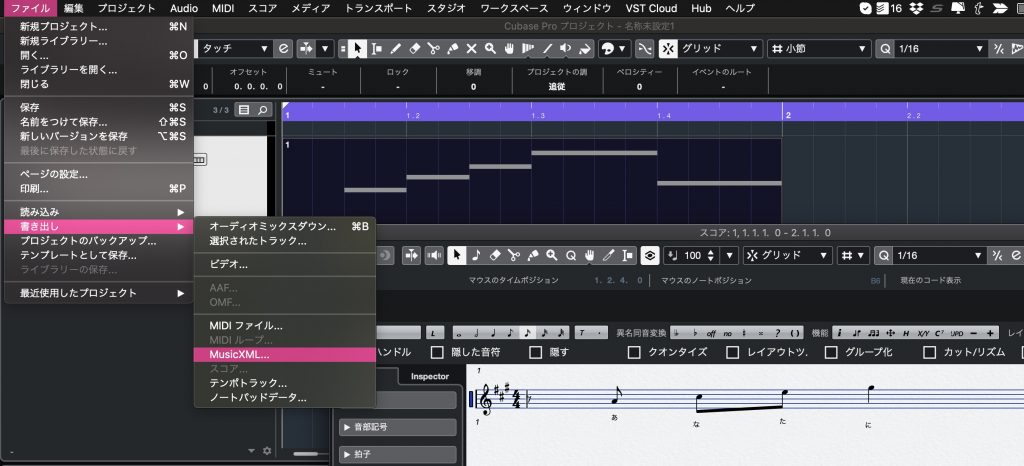
Once you have entered everything, select the MIDI event.
With the Score Editor in the foreground, choose File → MusicXML from the top menu.

Choose a filename using Latin letters and numbers and an export location, then save.
- MuseScore
- Cubase
Loading the Melody File into NEUTRINO
Next, configure NEUTRINO.
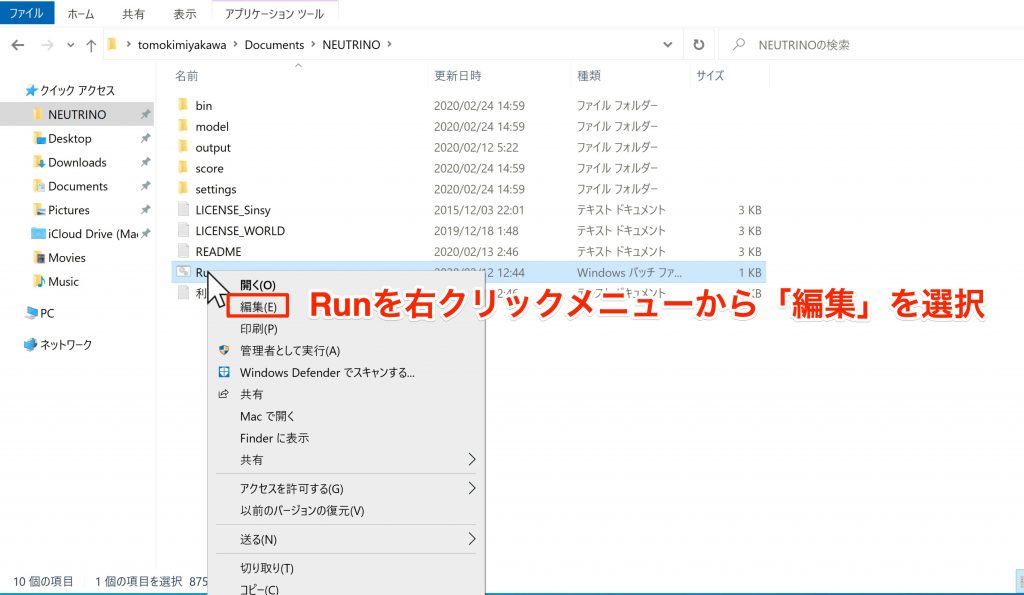
Download website: download NEUTRINO here.
Right-click the file named Run and choose Edit from the menu to open it in Notepad.

Edit this text to configure the settings.
First, specify the MusicXML file we exported earlier, named test.
Replace the value after "set BASENAME=" with the name of the MusicXML file you created.
Be sure to enter only the filename, without the .musicxml extension.
The version of NEUTRINO covered here includes two voice libraries, or singers: Kiritan and Yoko.
You can change the singer in the section labeled ": NEUTRINO".
The default singer is Kiritan. To switch to Yoko, replace KIRITAN with YOKO in the "set ModelDir=KIRITAN" setting.
The "set FormantShift=1.0" setting changes the vocal character. Increasing the value produces a more childlike tone, while decreasing it produces a more mature tone.
The manual recommends values between 0.85 and 1.15.
When you have finished configuring these settings, save the changes from the File menu and close Notepad.
Generating Vocals with NEUTRINO
Now it is time to generate the vocals.
Run the saved Run batch file from Command Prompt.
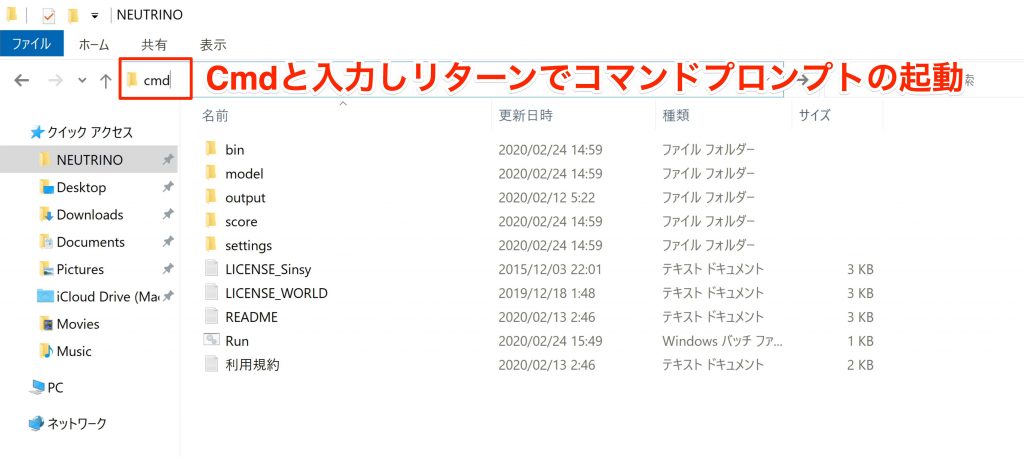
In File Explorer, open the NEUTRINO folder, type cmd in the address bar, and press Enter.
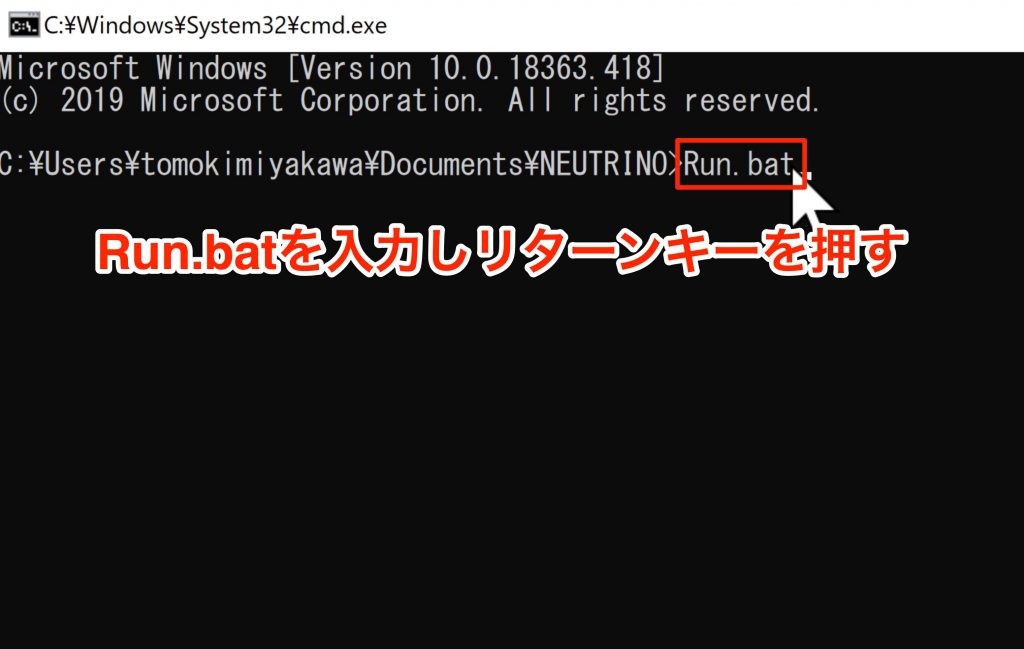
Command Prompt opens. Type Run.bat and press Enter to run it.
That completes the steps you need to perform.
The vocal audio is generated automatically; wait for it to finish.
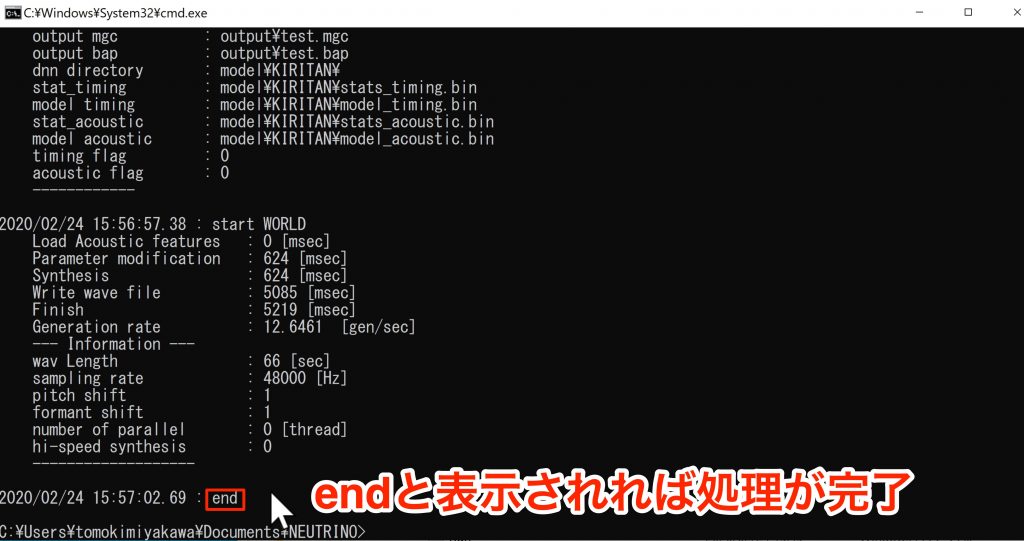
When you see the word "end," the entire process has completed successfully.
Close Command Prompt and check the Output folder inside your NEUTRINO folder.
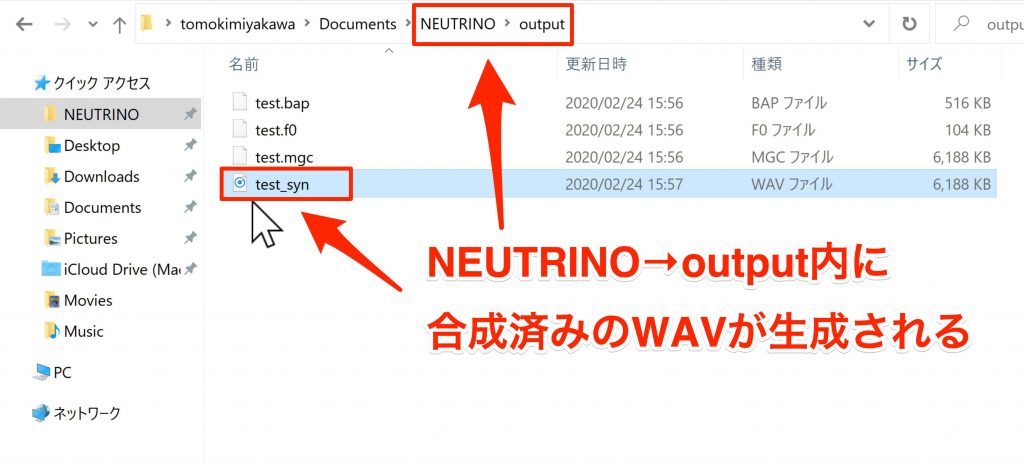
The vocal audio file appears as shown here.
NEUTRINO was distributed free of charge at the time of this original article. Give AI vocals a try in your own music!
How to Use NEUTRINO AI Singing Voice Synthesis Software
This tutorial introduces NEUTRINO, which was available as a free download when this post was published.
🎥 YouTube: https://t.co/0g0oxhTMsY⁰
📝 Article: https://t.co/W270IjI16o pic.twitter.com/TXJHIj4ZXY
— SLEEP FREAKS (@SLEEPFREAKS_DTM) February 28, 2020
Frequently Asked Questions
Q1. Can I use NEUTRINO on a Mac?
According to the original article, NEUTRINO supported only Windows at the time, and a Mac release was not planned, so a Windows computer was required.
Q2. Which voice libraries are available in NEUTRINO?
The version covered here includes two voice libraries: Tohoku Kiritan and Yoko. You can easily switch singers by changing ModelDir in the configuration file.
Q3. Which software can I use to create a score?
The original article recommends MusicXML export from MuseScore and the DAW Cubase, referring to the official manual. Both can export scores in MusicXML format.
Q4. Can I use vocals generated with NEUTRINO commercially?
Use for research is permitted, but commercial use requires permission from the copyright holder. Please check the official guidelines for details.
Q5. Can one note produce more than one syllable?
No. In the version of NEUTRINO covered here, each note can sing only one character. To produce multiple syllables, use multiple notes.
NEW ARTICLES
Latest English Articles











