In DTM production, when importing songs into a DAW, transferring them to devices or distributing them online, you need to convert music file formats according to the purpose. With Apple's free software iTunes, you can easily convert file formats and specify sound quality settings such as sampling rate and bit depth in detail. This article explains in detail how to convert files in iTunes and how to efficiently find the converted files, giving practical knowledge for everyone from DTM beginners to advanced users.
Convert Music File Formats to Suit Your Purpose
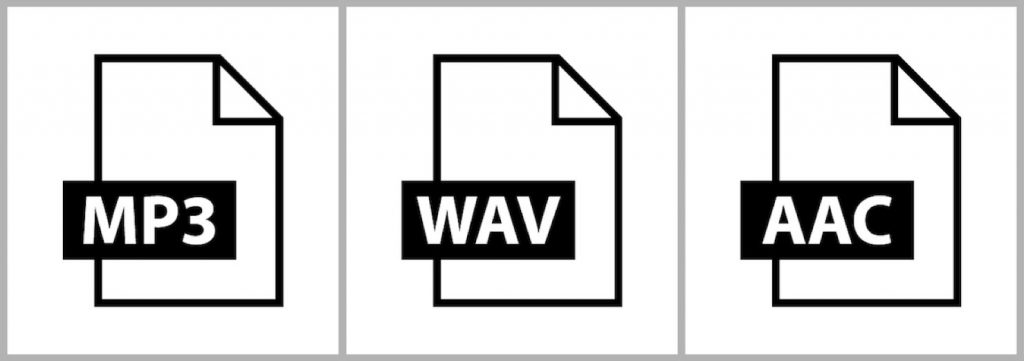
Whether or not you are producing songs, there are many situations where you want to convert the format of a music file.
Importing songs into a DAW, moving songs to a device, adding music to a video, uploading songs to the web: you need to convert to the optimal file for each use.
There are various programs and services for converting music files, but if you want to do it easily, Apple's free software "iTunes" is recommended.
Many of you probably already use iTunes for listening to music, and some of you may use it to manage songs for work.
Now let's explain how to convert music files in iTunes.
Converting Music File Formats with iTunes: Tutorial Video
*The explanation starts at 2:39
How to Convert Music Files Using iTunes
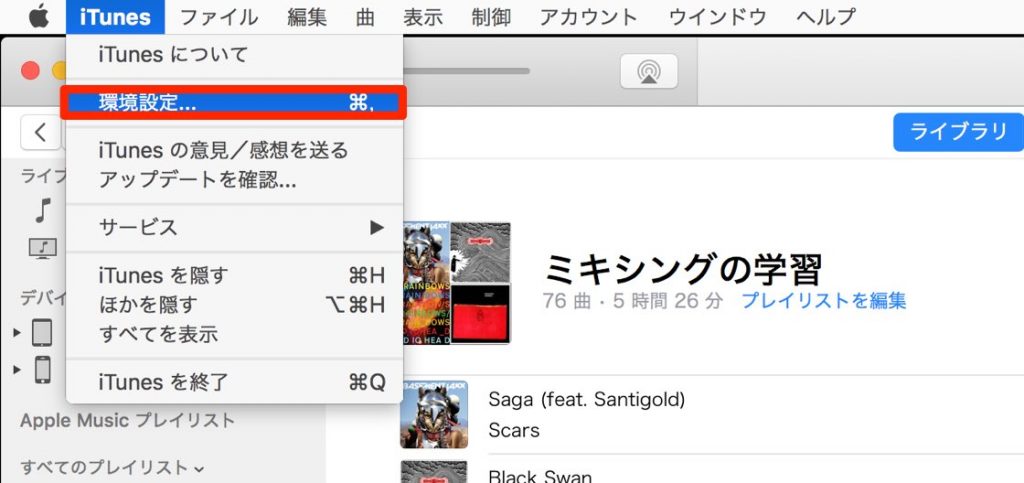
Select "iTunes" > "Preferences" from the top menu.
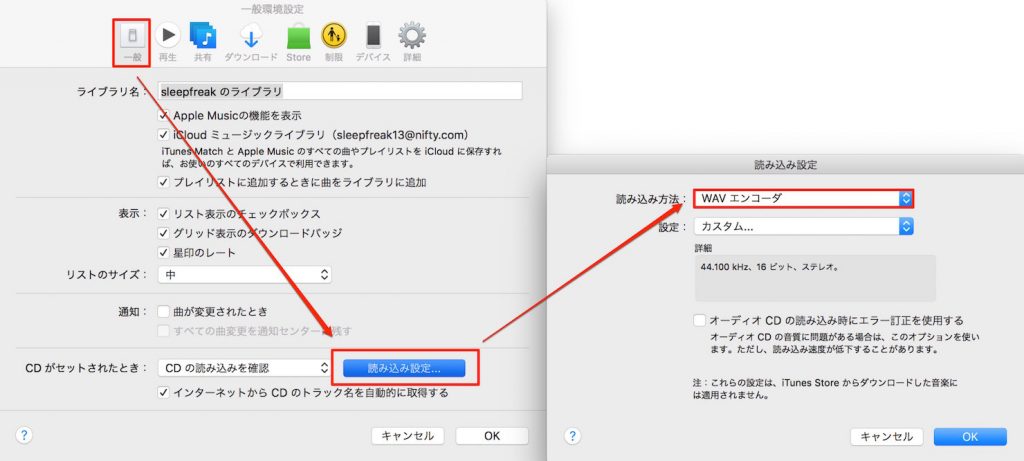
Select the "General" tab > "Import Settings" > "Import Using" and specify the music file format you want to convert to.
Also, if you select "Custom" below it,
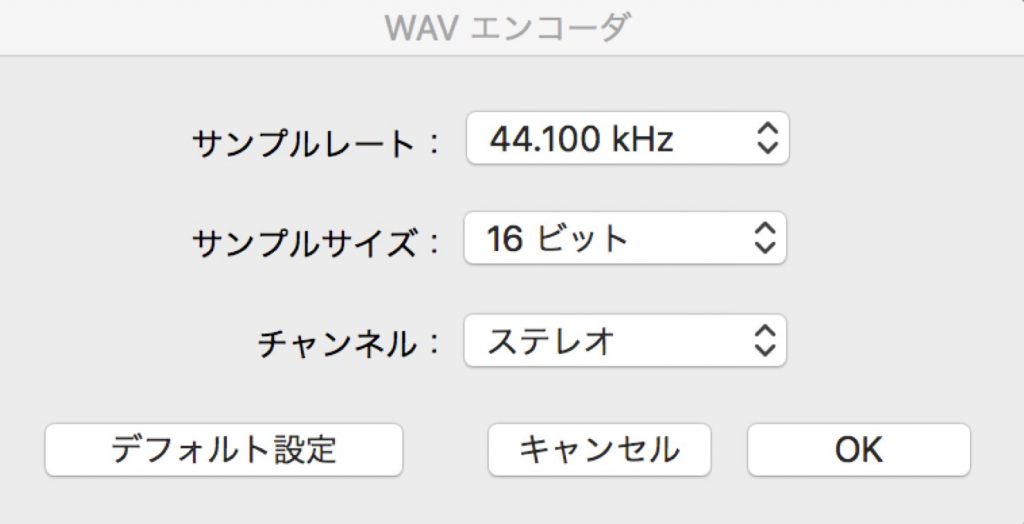
you can specify the sound quality after conversion.
Sampling Rate Explained
Bit Depth (Sample Size) Explained
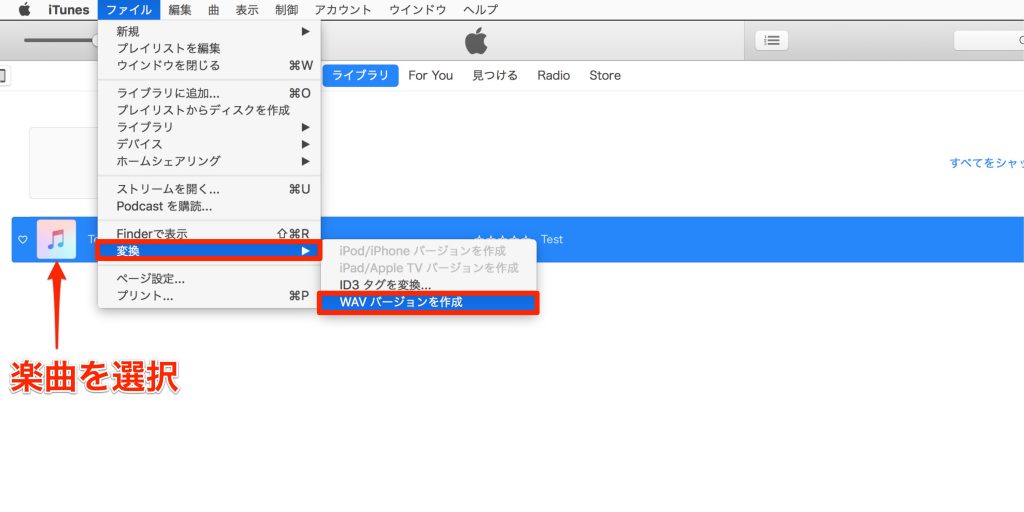
Select the song you want to convert and go to "File" > "Convert" in the top menu.
You can create the file format you specified above.

If you can't find the converted file..., in the library,
- Mac: Command + J
- Windows: Control + J
press these keys.
Check "Date Added."
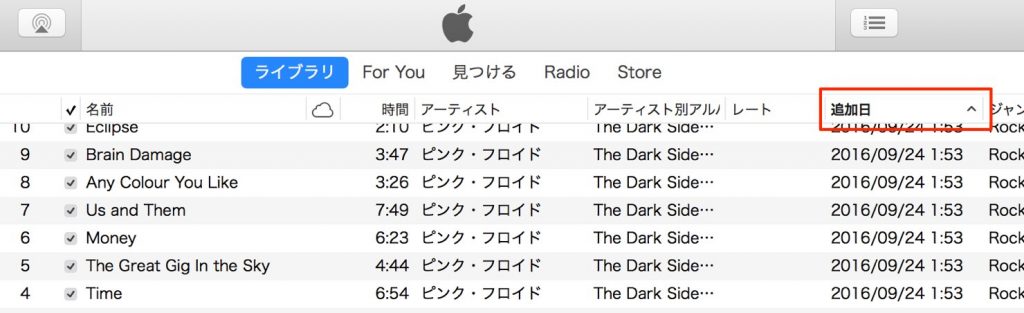
In the library, you can now sort the newest files by "Date Added."
You should be able to find the converted file right away.
Frequently Asked Questions
Q1. What music file formats can iTunes convert to?
iTunes can convert to multiple file formats, such as MP3, AAC, WAV, FLAC and Apple Lossless. You can specify the target format in the import settings in Preferences and choose the best format for your project's requirements.
Q2. Which settings should I choose to convert files without losing sound quality?
If you want high-quality conversion, we recommend setting the sampling rate to 44.1 kHz or higher and the bit depth to 16-bit or higher with the "Custom" option in Preferences. For mastering purposes, choosing a lossless format is best.
Q3. What should I do if I can't find the converted file in the library?
Press the shortcut Command+J on Mac or Control+J on Windows and check "Date Added" in the library view options. You can then sort the latest converted files by date and find them quickly.
NEW ARTICLES
Latest English Articles