
Flow Machines Professional, an AI composition plug-in developed by Sony Computer Science Laboratories, is a desktop version made up of several plug-ins that can generate melody, bass, chords and rhythm as separate MIDI tracks. By choosing a genre with a StylePalette and adjusting three parameters, Harmony, Duration and Complexity, you can automatically generate original melodies. It offers plenty of templates such as J-Pop and anime songs, and can even learn your own style, making it a tool that can greatly boost the creative efficiency of DTM users.
A Next-Generation Plug-in That Generates Melodies with AI

Flow Machines Mobile is an iPad app, developed by Sony Computer Science Laboratories, that lets you compose with AI.
This time we were able to borrow Flow Machines Professional, the desktop plug-in version currently in development, so we will review it while actually using it to see what this latest AI composition tool is like.
Flow Machines (Plug-in Version) Tutorial Video
The iPad version is reviewed on composer Takafumi Wada's channel, "Sakkyokuka Wada Takafumi no Niwa," so be sure to watch that as well.
Flow Machines (iPad Version) Tutorial Video
Differences from the iPad Version of Flow Machines
Let's look at how the desktop plug-in in development that we use here differs from the iPad app currently available on the App Store.
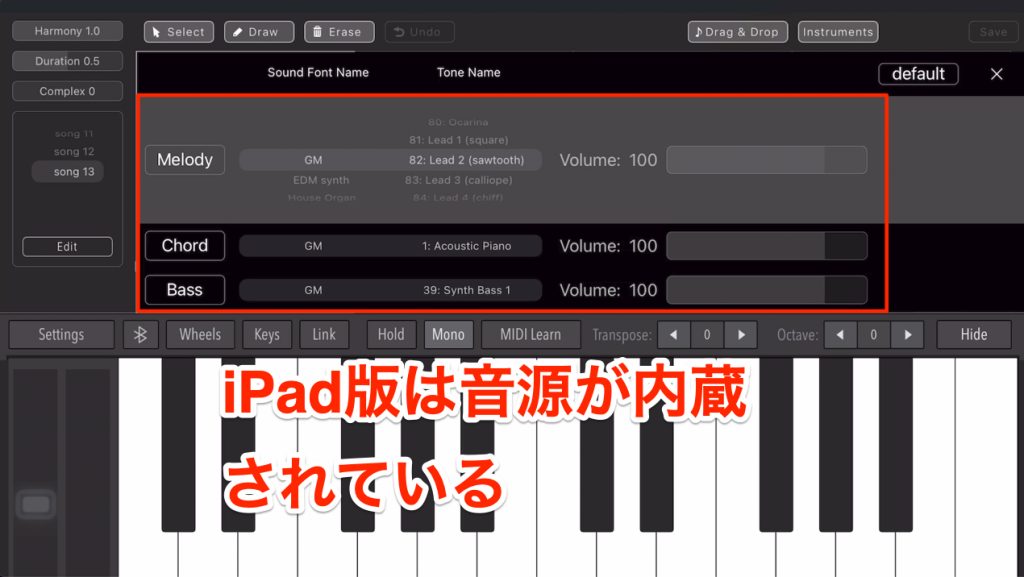
First, the iPad version generates melody, bass, chords and rhythm within a single app and plays them with the app's built-in sounds.
The desktop plug-in version, by contrast, provides a plug-in called Flow Machines Pro Control plus four plug-ins that output the generated melody, bass, chord and rhythm MIDI data separately.
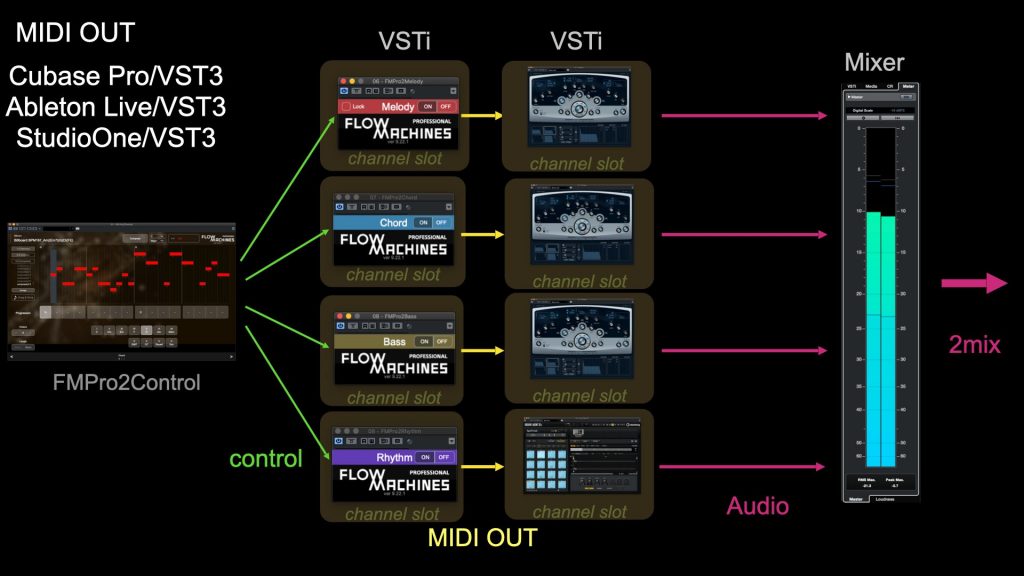
With these four plug-ins, you can route the MIDI output from each to its own instrument track and preview it, which makes it easier to use for DTM users who work mainly on a computer.
Other aspects are the same as the iPad version, although since it is still in development, the specifications may change by release.
Setting Up the Desktop Plug-in Version
Let's set up a few instruments so we are ready to make sound.
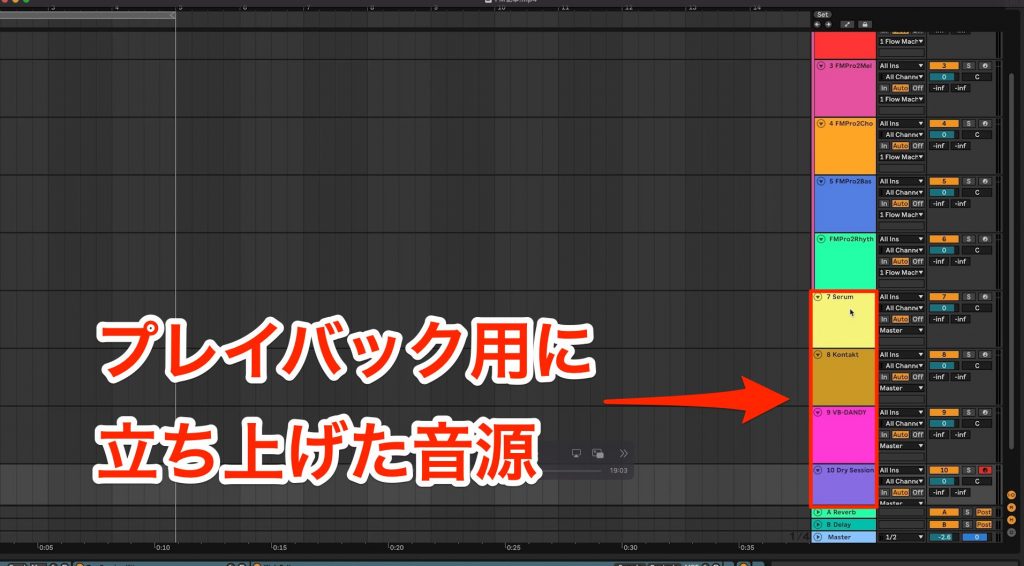
This time we create a synth track for the melody, an electric bass instrument for the bass, an acoustic guitar instrument for the chords and a drum instrument for the rhythm.
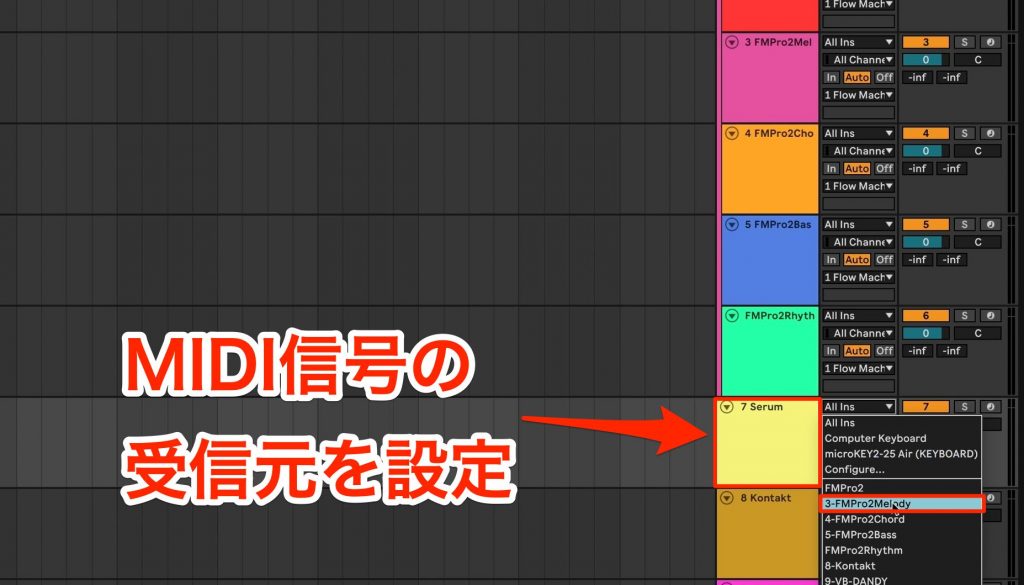
The setup differs by DAW, but once you connect the MIDI input of each instrument track to the corresponding one of the four Flow Machines plug-ins, you are ready.
Creating a Melody with Flow Machines
Now let's have Flow Machines Pro generate a melody.
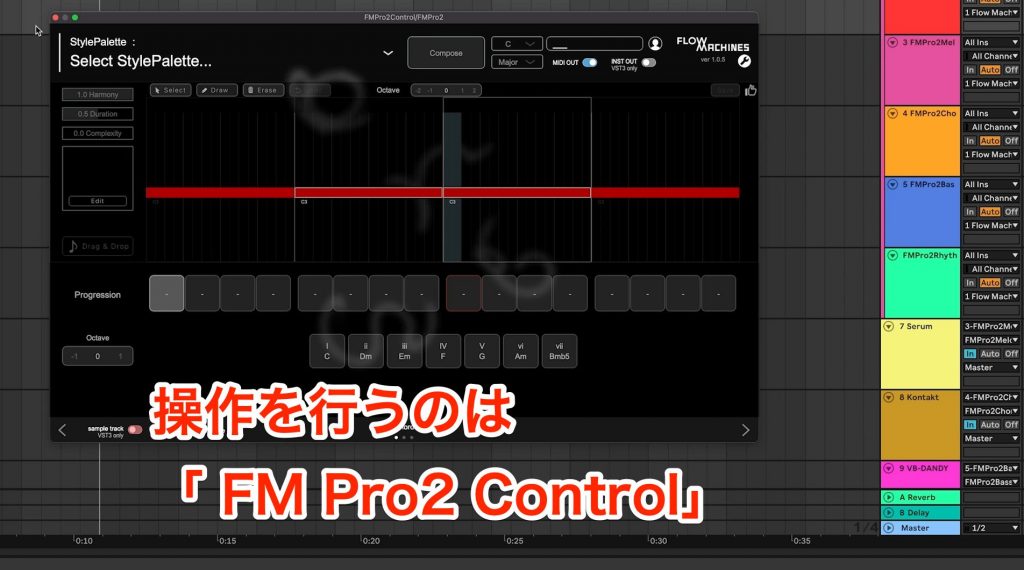
The four plug-ins above only handle MIDI output; all operation of Flow Machines Pro is done from the Flow Machines Pro Control plug-in.
Choosing a StylePalette
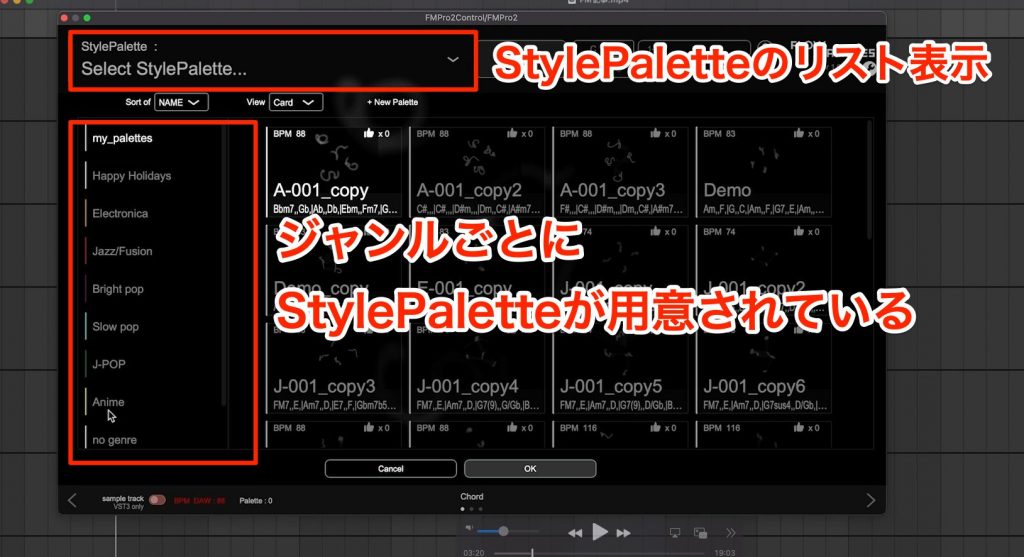
When you open the window, you start by choosing a StylePalette, a template provided for each genre.
There are many genres, and a notable feature is that many of them, such as J-Pop and anime songs, match the Japanese music scene.
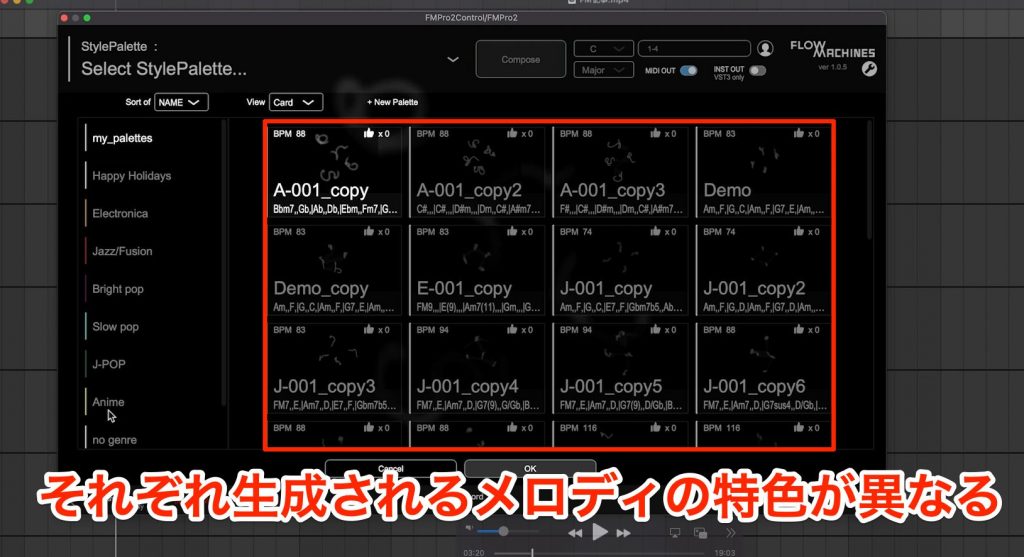
The StylePalette determines the character of the melodies generated, so it is best to decide on the image of the song you want to make and choose one as close to it as possible.
In addition to the preset StylePalettes, you can also create your own.
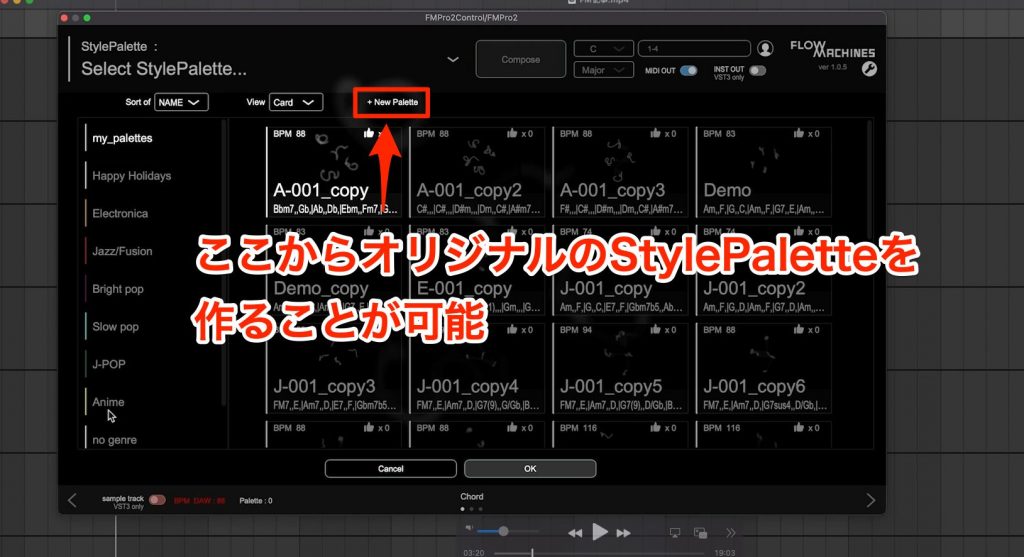
In that case, you load five melody lines you have prepared, and it learns the tendencies of those melodies to generate new ones.
Since we are using Flow Machines here to see what kinds of melodies it creates, we will not use this feature, but having AI learn your own melodic tendencies sounds interesting.
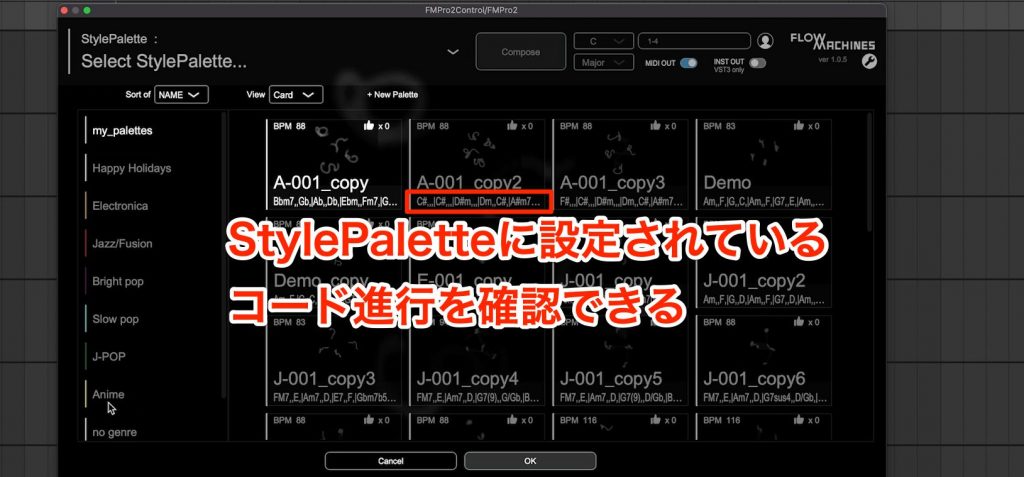
Each StylePalette also shows its chord progression like this, and you can preview its content instantly by switching the selection while the DAW plays, without loading it.
Let's preview a few from the J-Pop category.
StylePalette [J-002]
StylePalette [J-003]
StylePalette [J-008]
StylePalette [J-100-C]
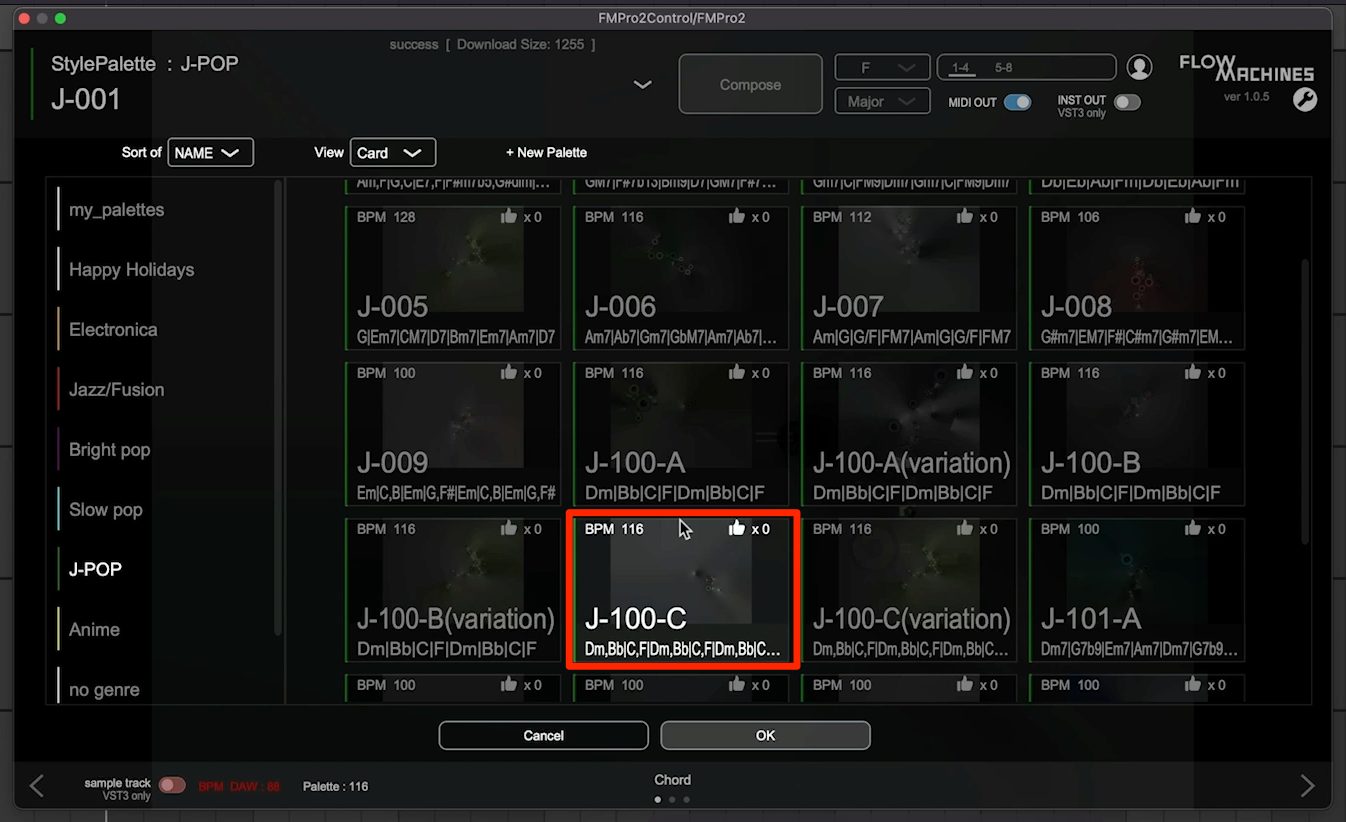
This time we will choose the StylePalette J-100-C and edit it.
Generating a Melody
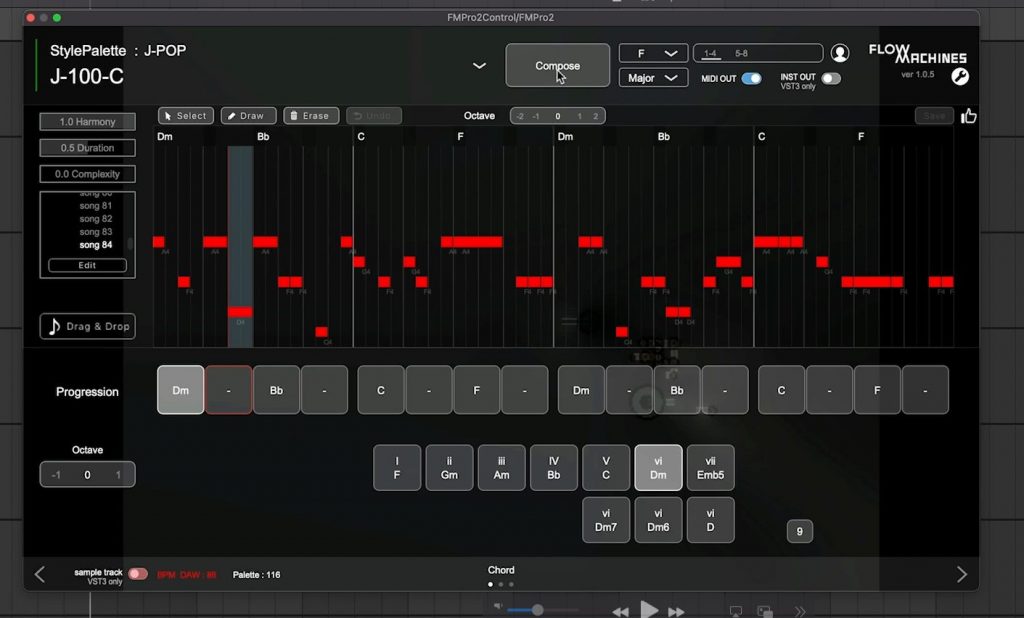
Once loading is complete, the screen switches, and at this point the AI has already suggested a melody.
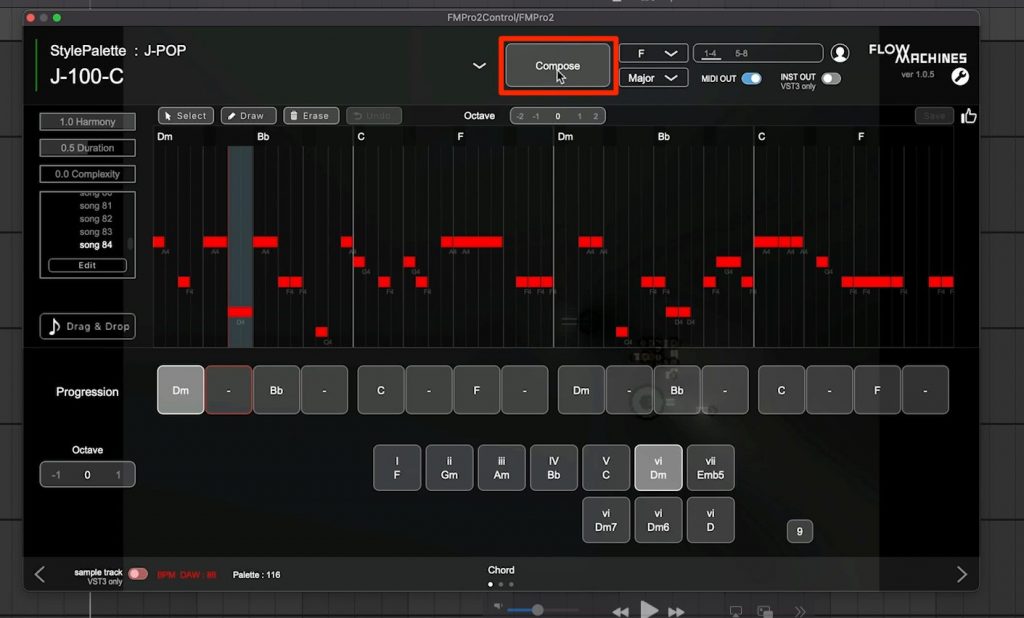
It is simple to use: press Compose to generate a new, different melody.
Let's listen to melodies generated with Compose.
Melody generated on loading
Melody generated again with Compose
Even when the melodic contour differs, you can feel a sense of consistency in how the notes are used.
This character changes with the StylePalette, so if you want to generate very different melody lines, try changing the StylePalette.
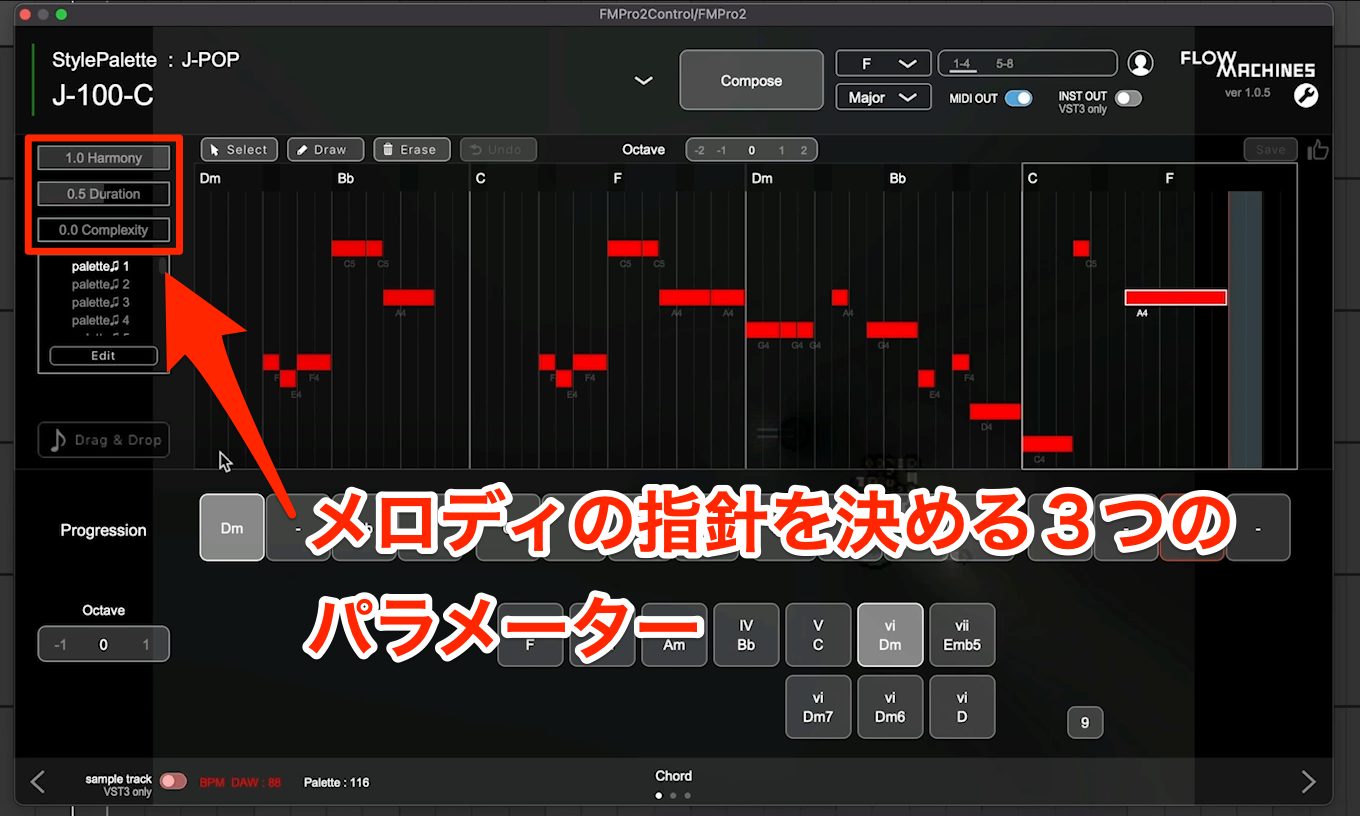
The three parameters at the upper left of the window, Harmony, Duration and Complexity, specify what kind of melody to generate when you press Compose.
Harmony sets how closely the melody matches the chords; higher values give a more stable melody that sticks to the chord tones.
Duration sets the average note length; higher values generate melodies with longer notes.
Complexity sets the mixing probability of the StylePalette; higher values generate more complex melodies.
Let's generate and listen to a few melodies while changing the settings.
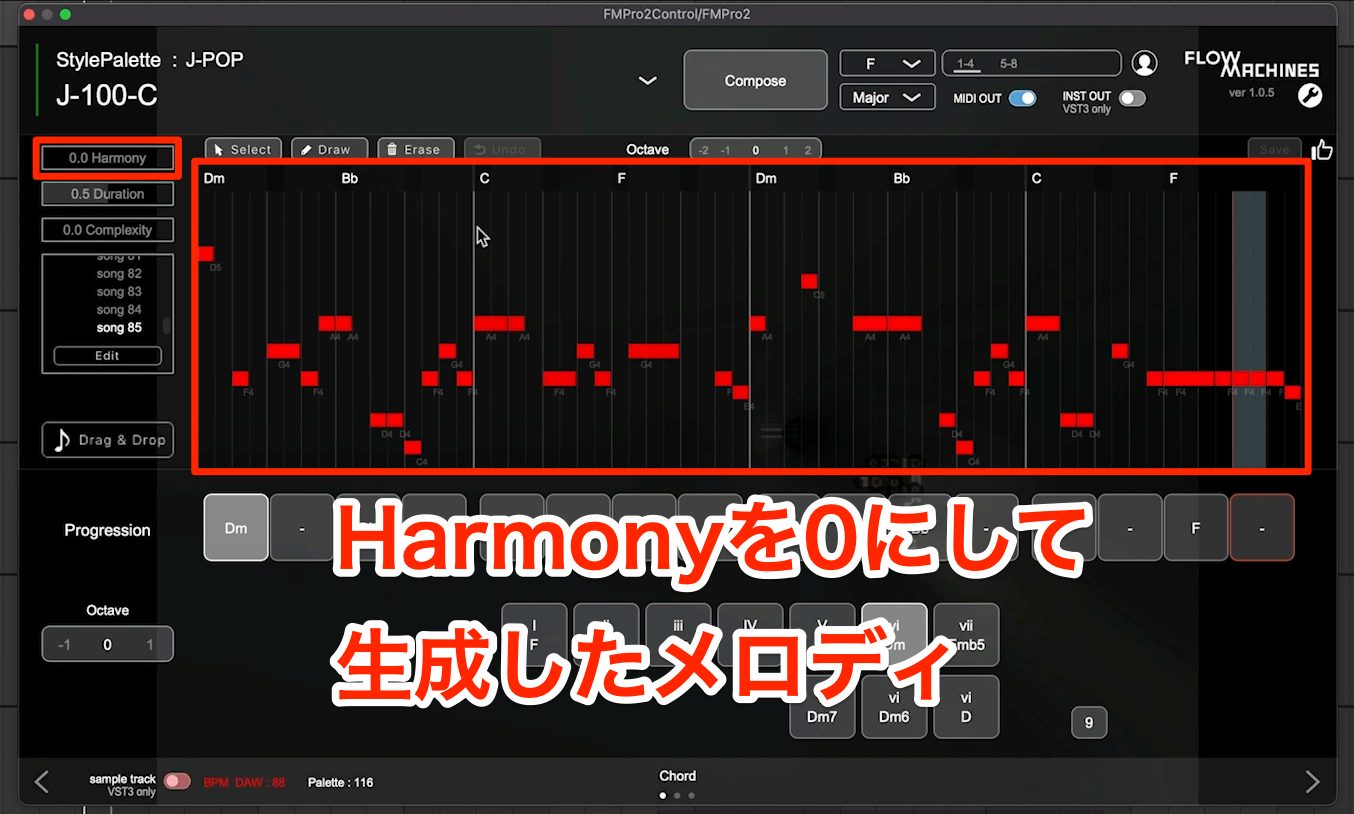
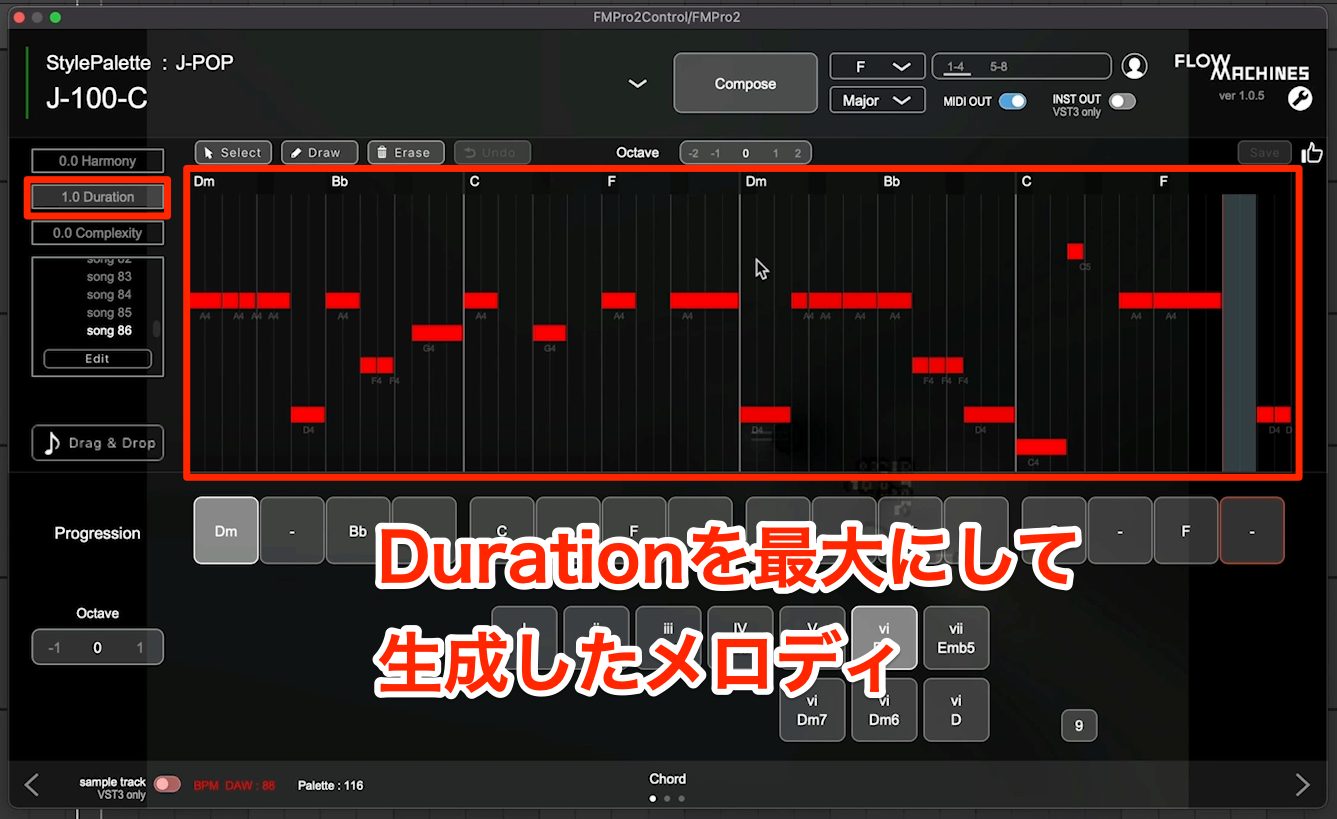
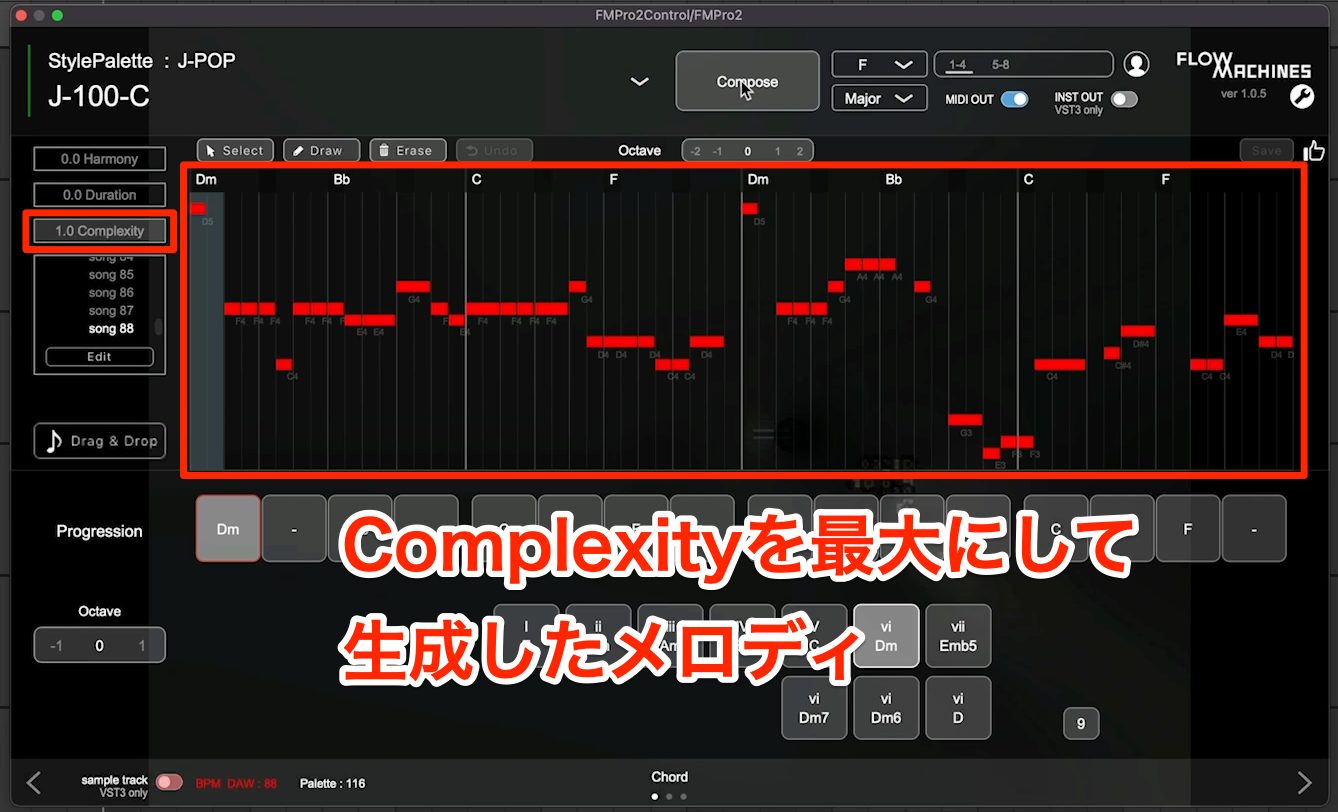
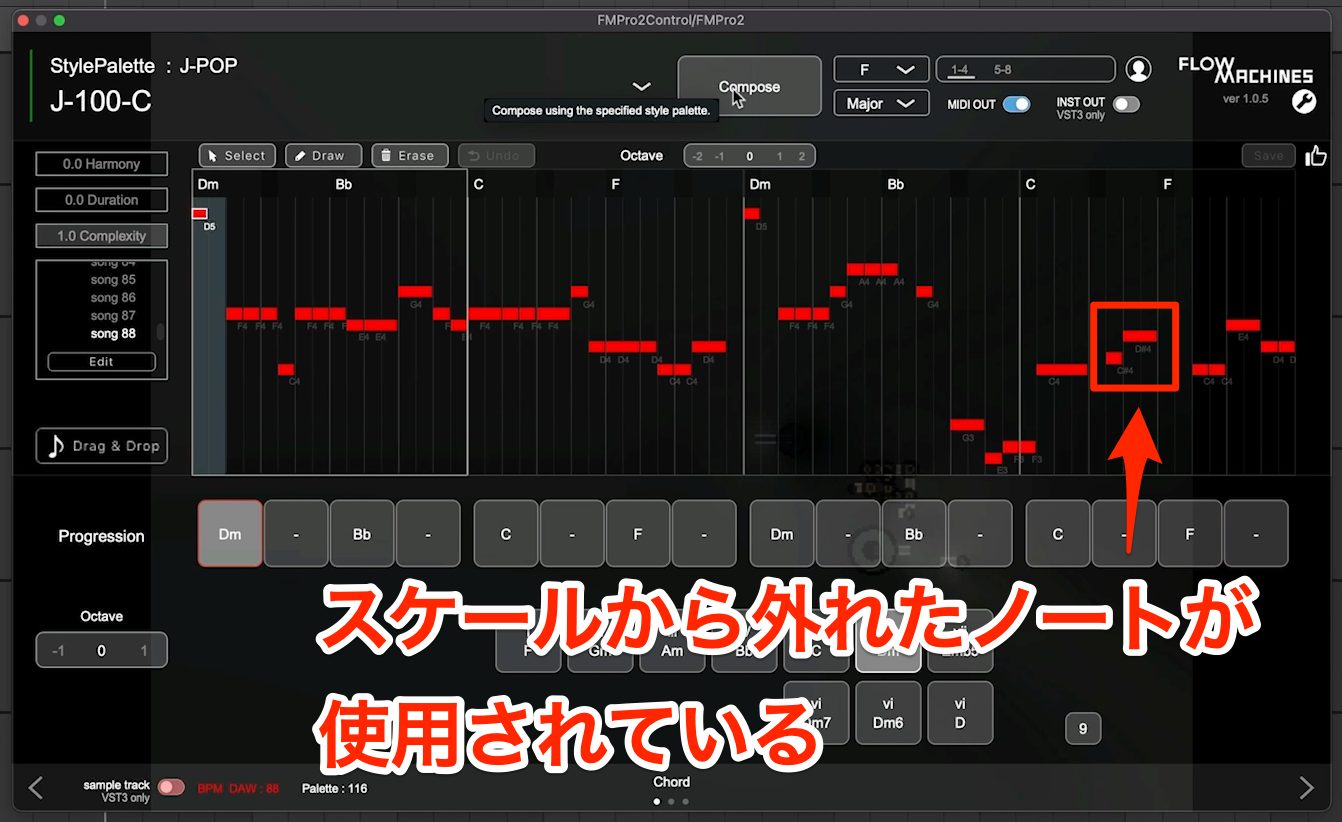
Harmony and Duration still sound natural when changed, but raising Complexity introduces notes outside the set scale.
These are not notes you must never use, but for typical pop music they can sound a bit odd, so it seems best to use this sparingly.
Apart from that, overall I felt it suggested melodies that capture the genre, true to the name of the J-Pop StylePalette we chose.
Using every generated melody as is seems difficult, but incorporating parts of them as motifs looks like a good approach.
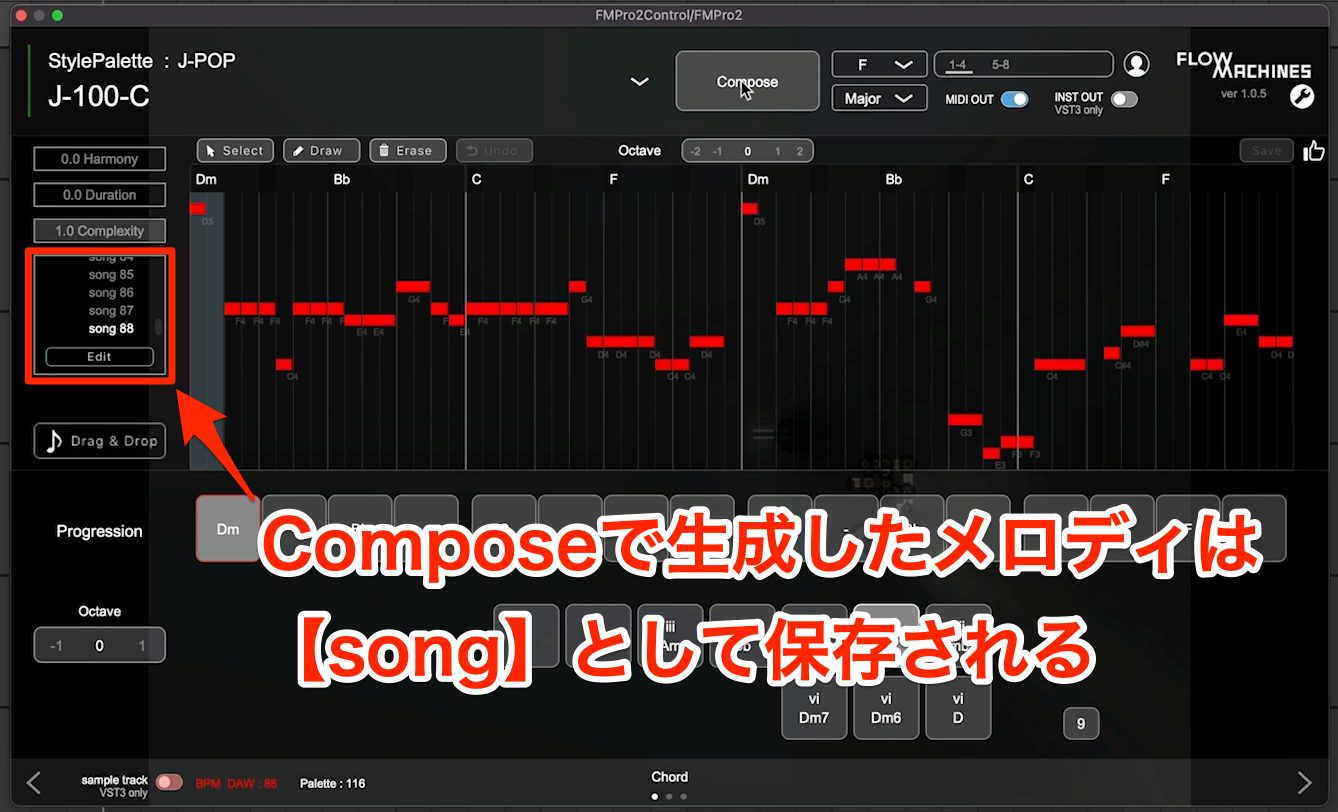
Each time you generate a melody with Compose, the result is added to and saved in the Song list shown on the left of the window.
So even if you think the previous melody was better, you can recall it right away.
Regenerating the Melody in a Specific Section
You can also run Compose again to change the melody in a specific section only.
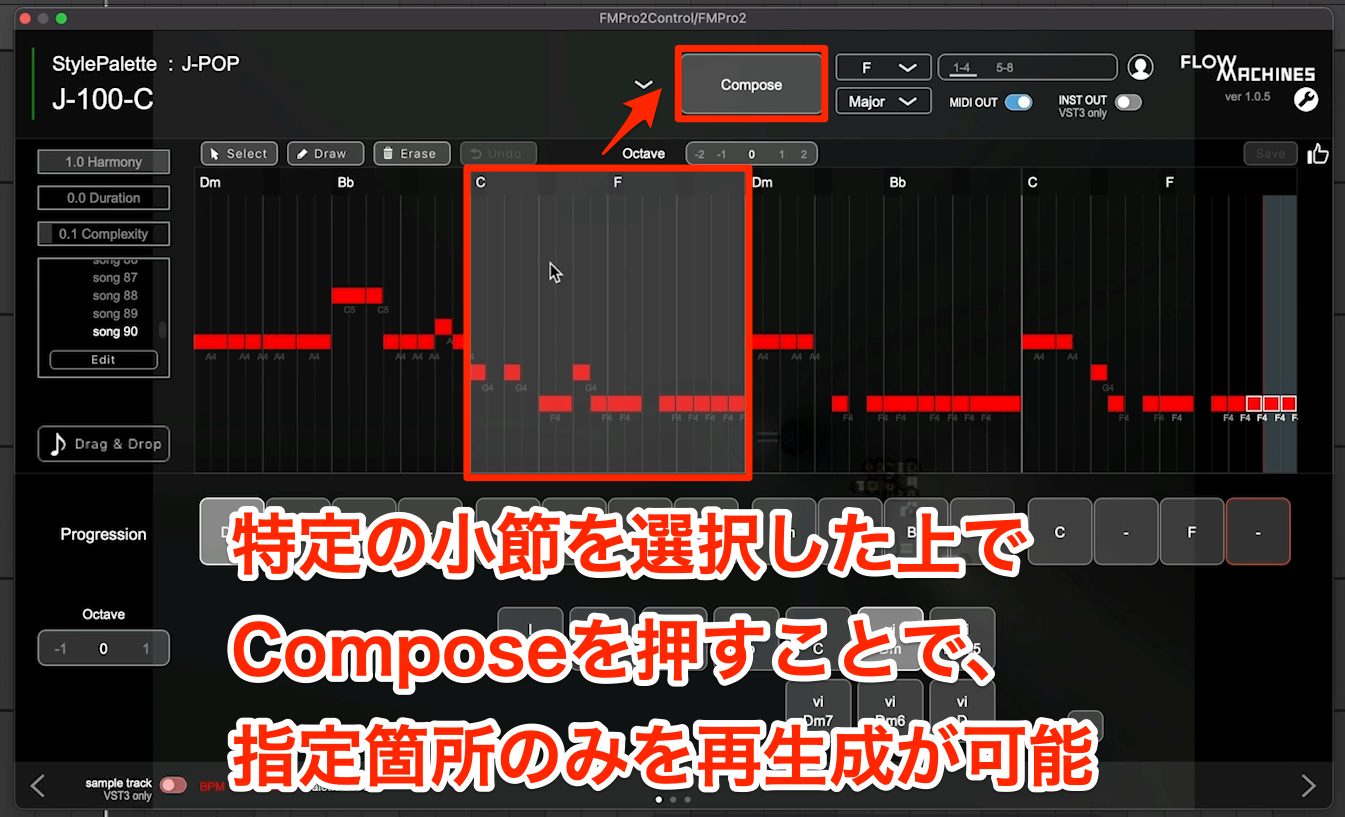
Click any section to select a range bar by bar, then press Compose to regenerate the melody for just that part.
The three settings at the upper left also apply here, so you can keep regenerating section by section until each part takes the shape you like.
Chord, Bass and Rhythm Features
Next, let's change the chord, bass and rhythm accompaniment.
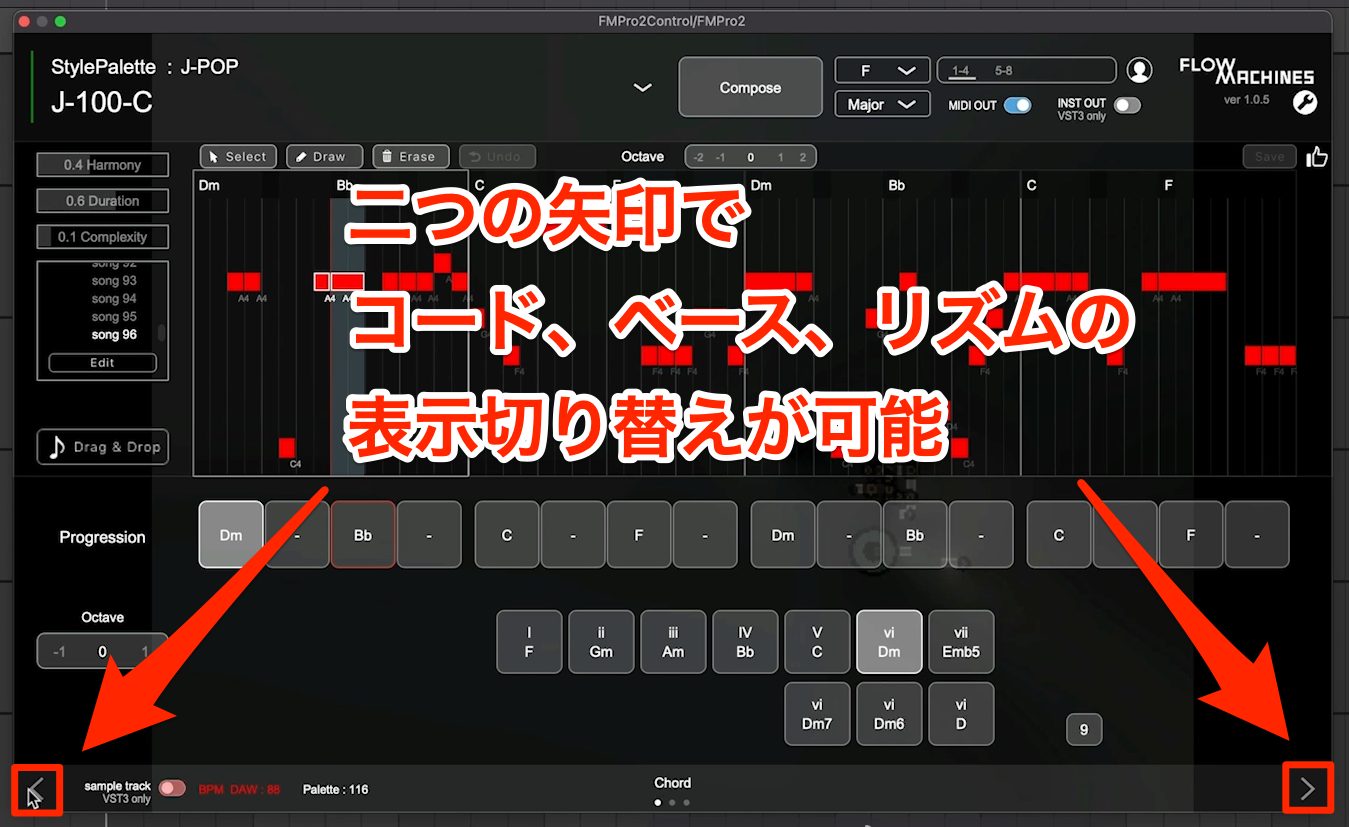
To configure them, switch the display with the left and right arrows in the lower part of the window and change the content.
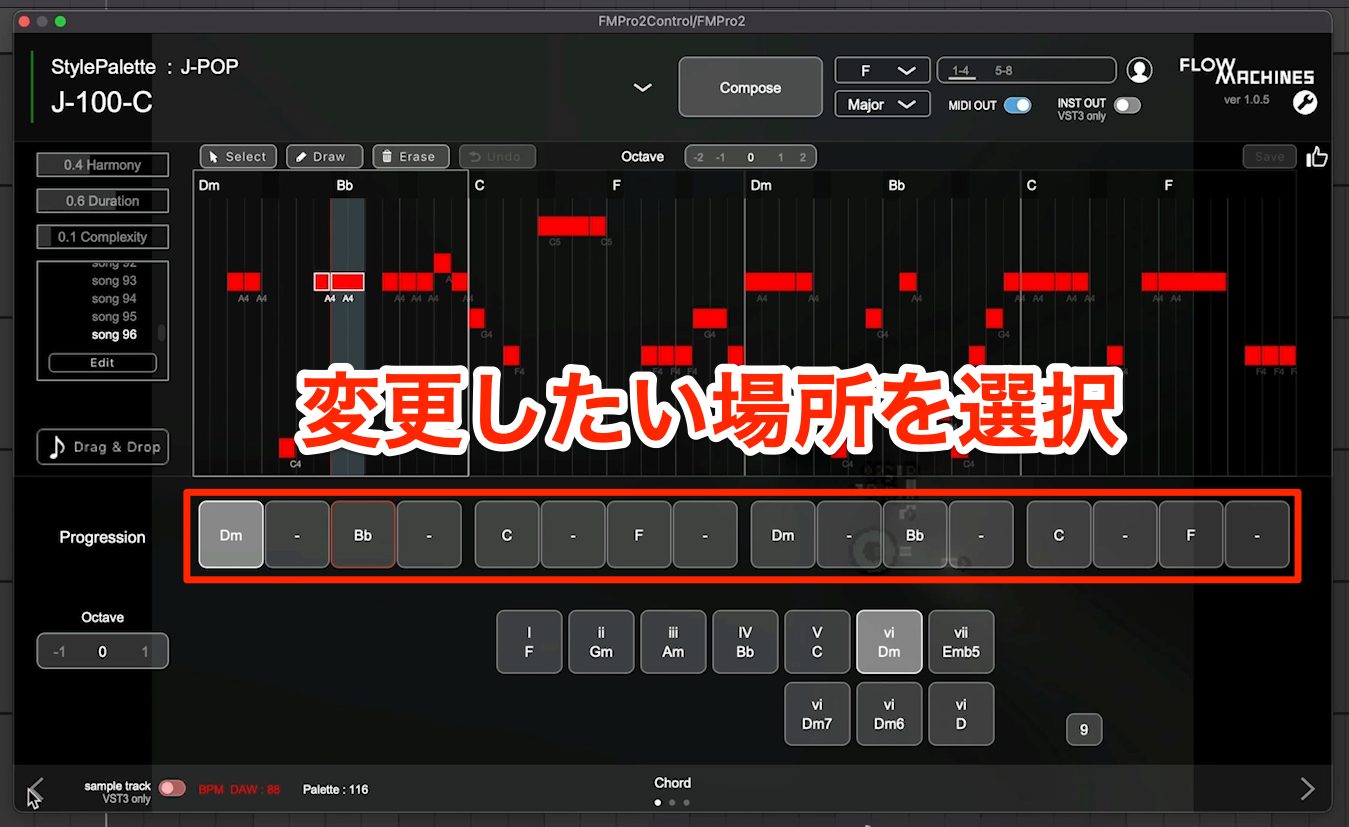
To change a chord, select the section you want to change in the upper row.
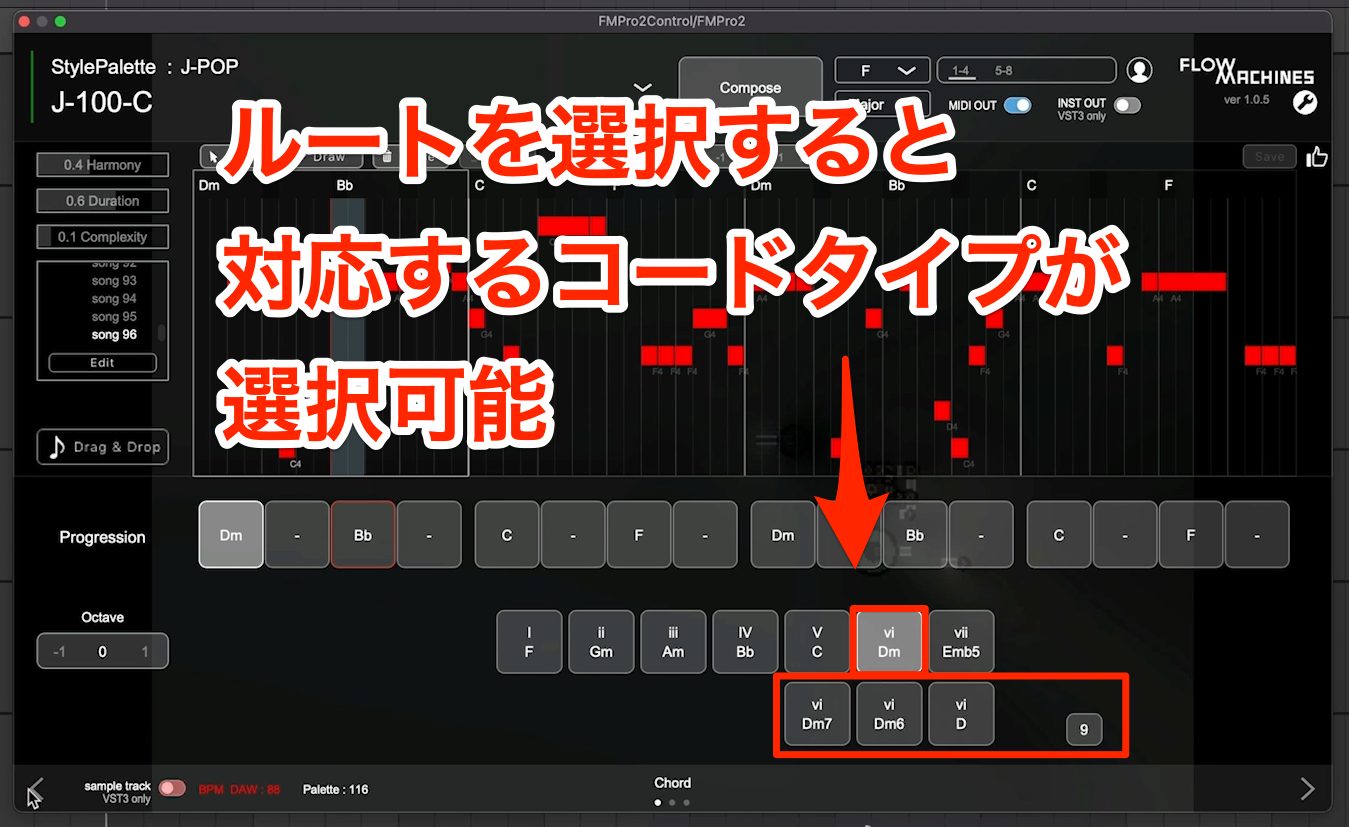
Then select each root to show candidate chords and tensions, which you can choose to switch to.
However, most choices come from diatonic chords, so it is hard to handle songs that use non-diatonic chords or partial modulation.
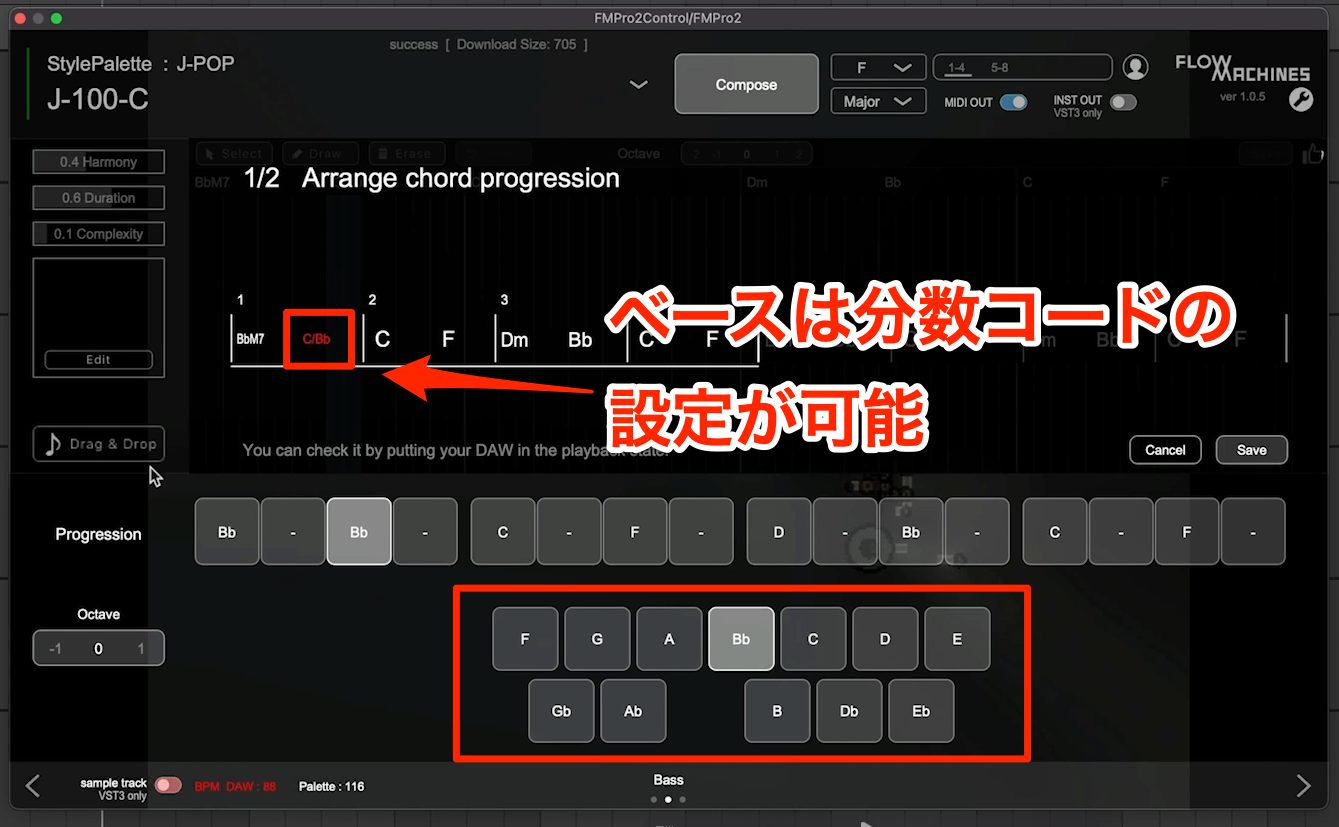
From the bass, you can set slash chords.
Unlike chords, you can choose from all 12 notes, not just those in the scale.
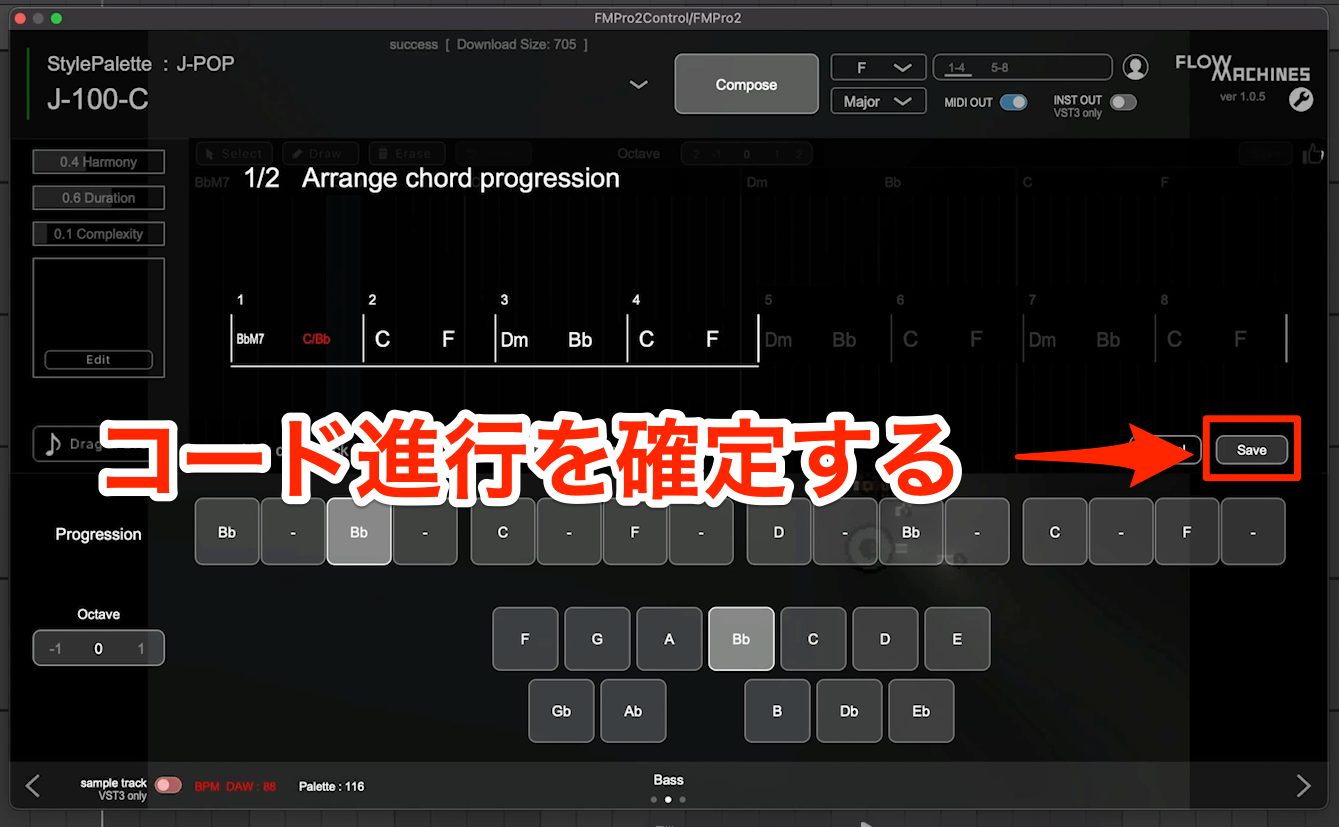
When you click Save to confirm the changed chord progression, it is saved as a new StylePalette, and a melody matching the new progression is generated automatically.
Note that you cannot change the chords while keeping the melody line.
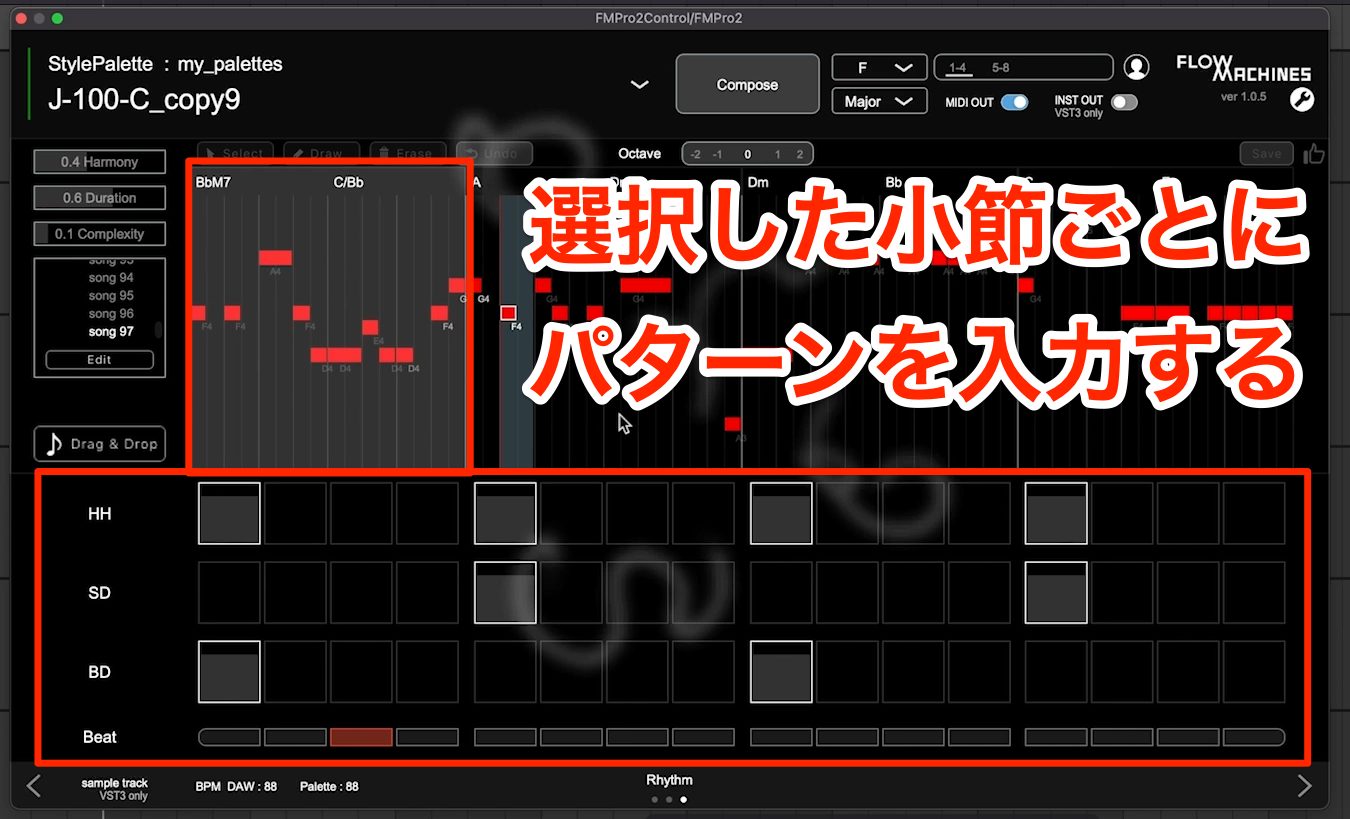
As with chords, rhythm is not generated automatically; you enter patterns manually in the provided MIDI step sequencer.
So at this stage, the accompaniment is intended only as a simple guide.
If you already have a clear idea for the accompaniment parts, it is best to prepare separate drum, bass and chord tracks and use Flow Machines only to generate the melody.
This time we had the AI suggest several melodies using existing StylePalettes, and the results ranged from ideas that could partly serve as motifs to ones that sounded musically unnatural.
So, if you use it for composing at this stage, it seems best as a support tool, for example to explore melodies you would not come up with yourself.
Having actually tried the product, I am curious how far AI composition can evolve, so I plan to keep an eye on Flow Machines.
Finally, the desktop plug-in version, Flow Machines Pro, is still in development, but it generates the same content as the iPad version, so if you are interested, please try the iPad version.
Review of the AI composition plug-in Flow Machines Professional
We were able to borrow Flow Machines Professional, a desktop plug-in in development at Sony Computer Science Laboratories, so we review it here.Details: https://t.co/JpUGgNC1a7#DTM #AI #ArtificialIntelligence pic.twitter.com/HL7B0pYdkr
— SLEEP FREAKS (@SLEEPFREAKS_DTM) January 17, 2022
Frequently Asked Questions
Q1. How does Flow Machines Professional differ from the iPad version?
The desktop version consists of multiple plug-ins that integrate with your DAW, and each element (melody, bass, chords, rhythm) can be routed to its own track. The iPad version is a standalone app that plays with built-in sounds.
Q2. How should I choose a StylePalette?
It is important to choose the StylePalette closest to the genre and image of the song you want to write. You can compare options such as J-Pop and anime songs using the preview feature.
Q3. Can I customize the generated melodies to my taste?
You can control the melody's character by adjusting three parameters: Harmony, Duration (note length) and Complexity. You can also create your own StylePalette.
Q4. How practical are the melodies generated by Flow Machines?
It generates stable, harmonious melodies, and raising Complexity lets you deliberately include notes outside the scale, so it has a wide range of uses. For pop production, however, you may need to adjust the balance.
NEW ARTICLES
Latest English Articles











