
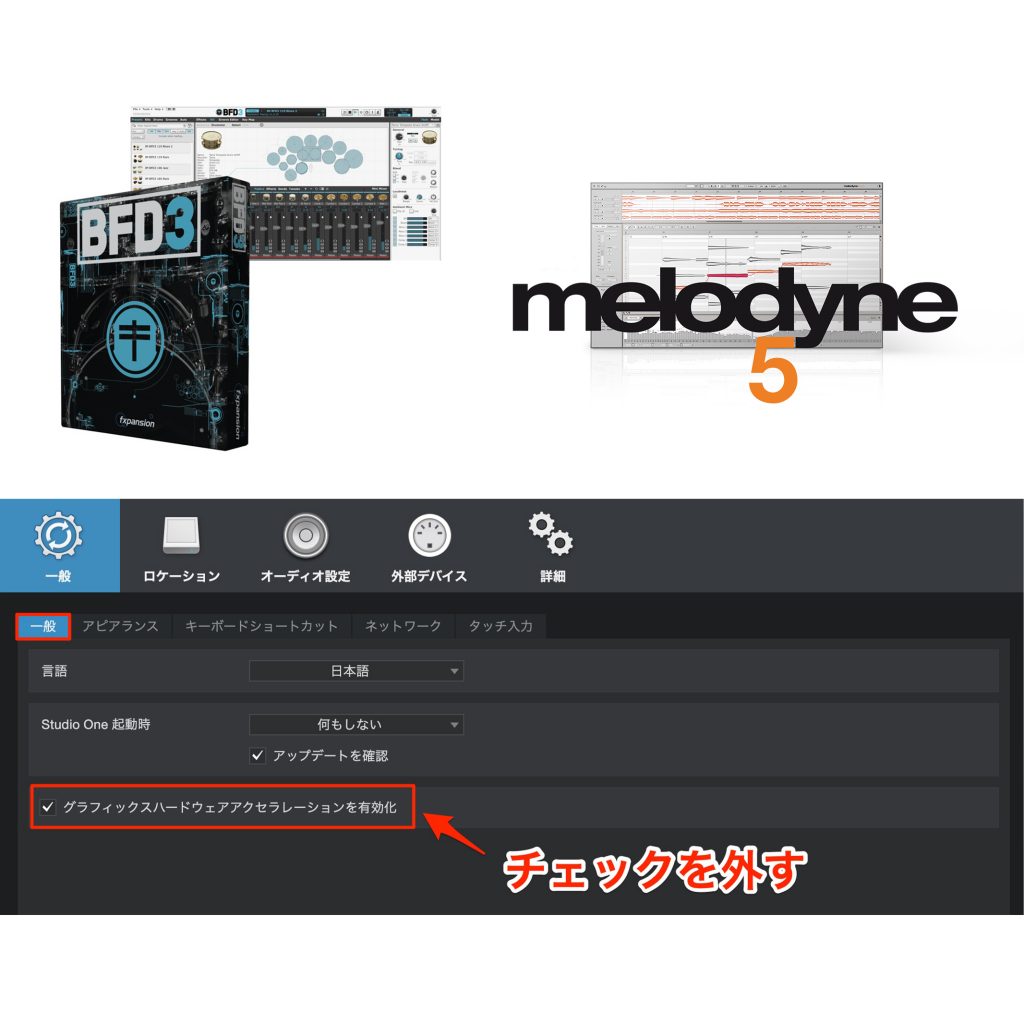
In Studio One, problems can occur where certain third-party plug-ins, even when installed, show a black screen or freeze the application. This article introduces a way to fix display problems with plug-ins such as Melodyne and BFD3. Disabling graphics hardware acceleration in the Options is a simple fix that makes the plug-ins display properly, and it is a useful solution for music producers troubled by the same symptoms.
Installed Instruments and Effects Do Not Display Properly
When launching certain plug-ins installed in Studio One, we encountered symptoms where the plug-in window (interface) "turns completely black" or "Studio One freezes".
Here is how to solve it.
The environment where these symptoms occurred was "Melodyne" and "BFD3" installed on macOS 10.13.
The Solution
It is very simple.
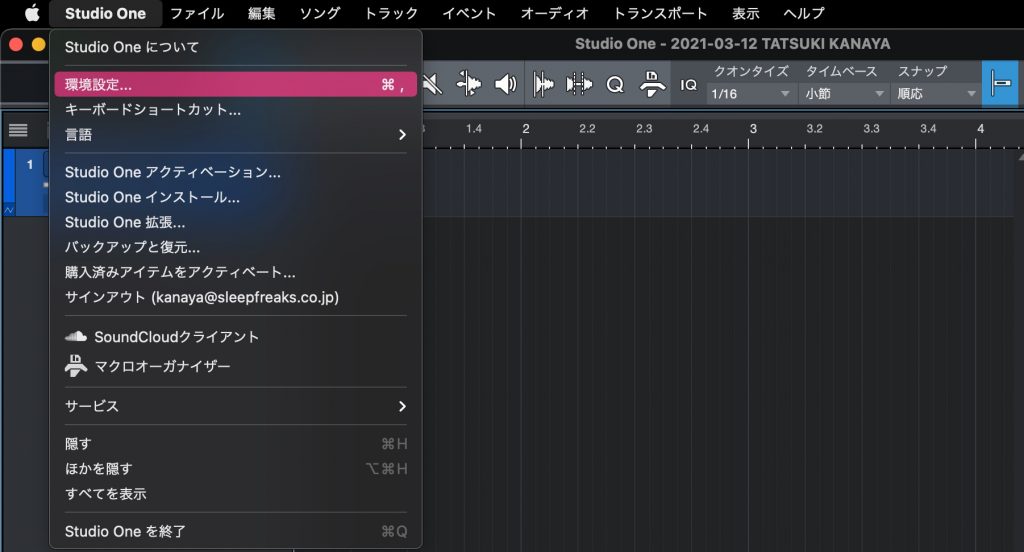
Open "Options" from the "Studio One" menu.
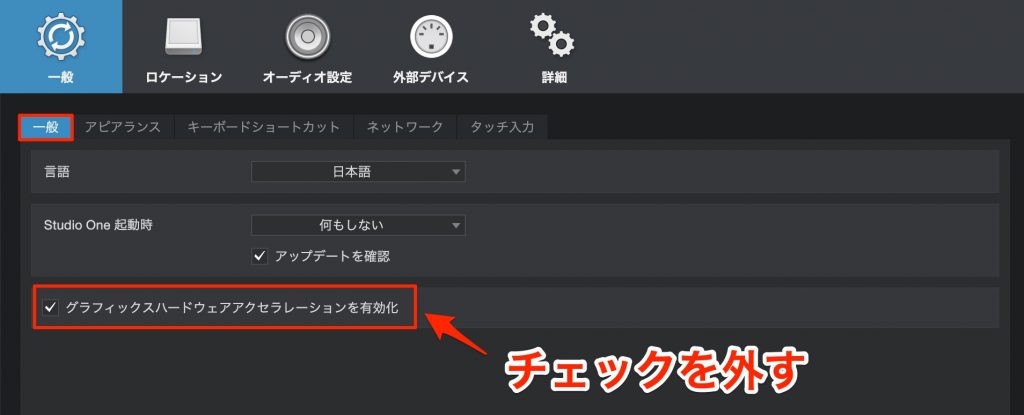
On the "General" tab, uncheck "Enable graphics hardware acceleration."
This made each plug-in display properly.
If you are troubled by the same symptoms, please check this setting!
Frequently Asked Questions
Q1. What should I do if a plug-in appears completely black in Studio One?
Uncheck "Enable graphics hardware acceleration" on the "General" tab in Options. This setting change makes the plug-in display properly.
Q2. Does this method work for all plug-ins?
The article reports confirming it with Melodyne and BFD3, but it is worth trying for any plug-in showing similar symptoms. It is often effective for other plug-ins as well.
Q3. Does disabling graphics hardware acceleration affect performance?
In environments where plug-in display does not work well with graphics hardware acceleration, disabling it may actually improve stability and overall performance.
NEW ARTICLES
Latest English Articles











