
The reverse function is a standard technique that flips a waveform to create unique sounds that don't exist in nature. Reverse cymbals in particular are used in many genres, but it can be applied not only to cymbals but to various instrument material, such as guitars, rhythm parts, and vocals. In Ableton Live, you can flip a waveform simply by selecting a clip and clicking the "Rev" button, so you can learn reverse sounds, which may seem complicated, as an effective arrangement technique.
A standard technique for every genre
Reverse flips the waveform
to create mysterious effects that don't exist in nature.
A well-known example is the "reverse cymbal," made by reversing a "cymbal."
This time, we show how to create this reverse cymbal.
Arrangement techniques using reverse
How to create a reverse in Live

Import audio material into a clip.
Here, we've imported a cymbal.
"Sound"
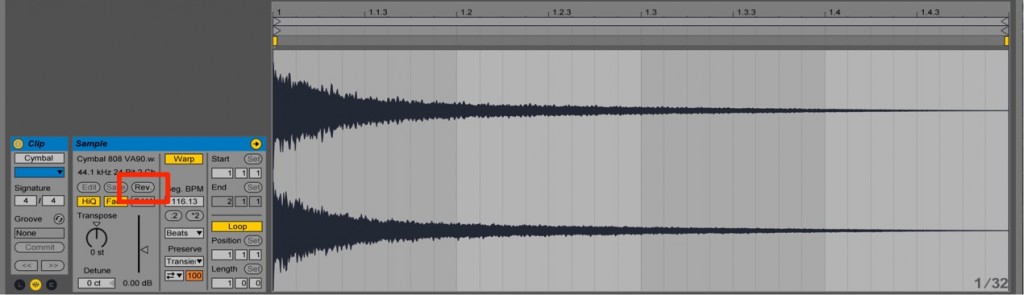
Select the clip you want to reverse,
and click "Rev" in the area outlined in red.
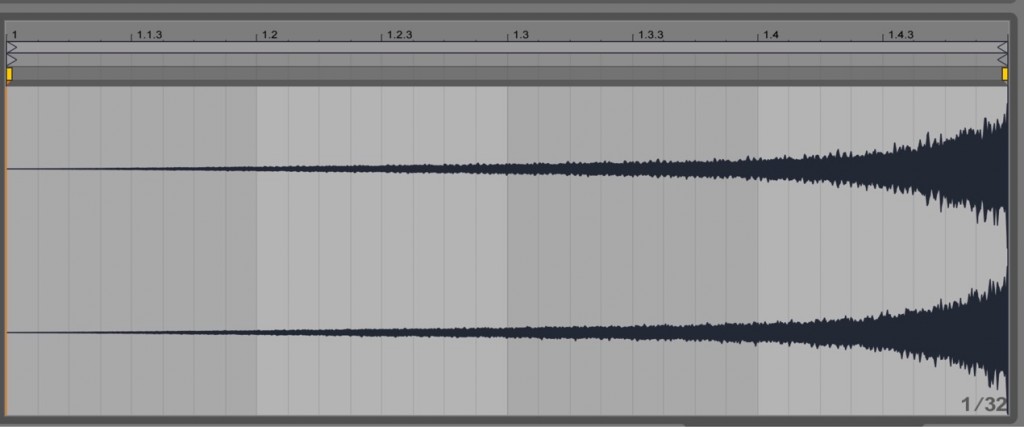
The waveform is now reversed.
"Sound"
This time we used a "cymbal" as an example,
but you can use it on all kinds of tracks, such as guitar, rhythm, and vocals,
so experiment in various ways.
Frequently asked questions
Q1. What kind of effect is the reverse function?
The reverse function plays the waveform backward, creating mysterious, dreamlike sounds that don't exist in nature. The reverse cymbal in particular is a standard arrangement technique used in many music genres.
Q2. How do I use reverse in Ableton Live?
Just select the audio clip you want to reverse and click the "Rev" button in the area outlined in red to flip the waveform. It's a very simple operation, so it's easy even for beginners.
Q3. Can reverse be used on instruments other than cymbals?
Yes, it can be used on various instrument material, such as guitar, rhythm tracks, and vocals. Trying reverse effects on different instruments enriches the overall world of your song.
NEW ARTICLES
Latest English Articles











