
Playback control and looping in Ableton Live are basic yet important operations in DTM production. You can easily start and stop playback with the space bar, and freely set where playback starts by clicking anywhere in the track display. The loop function in particular lets you repeatedly play a specific range, so you can edit clips, adjust effects, and check details of the song efficiently, dramatically speeding up your production. Just drag the loop brace in the ruler to set the range and turn on the loop switch, and the range plays repeatedly.
Playback and Looping in Arrangement View
Let's firm up a few more basic concepts.
Here, we introduce play and stop
, and the essential DTM tool, looping.
Live_25_Video on Cutting and Pasting Clips and Looping
Go to the product details page

Smooth Playback and Stopping
Playback is the most frequently used operation in Live.
The method is extremely simple.
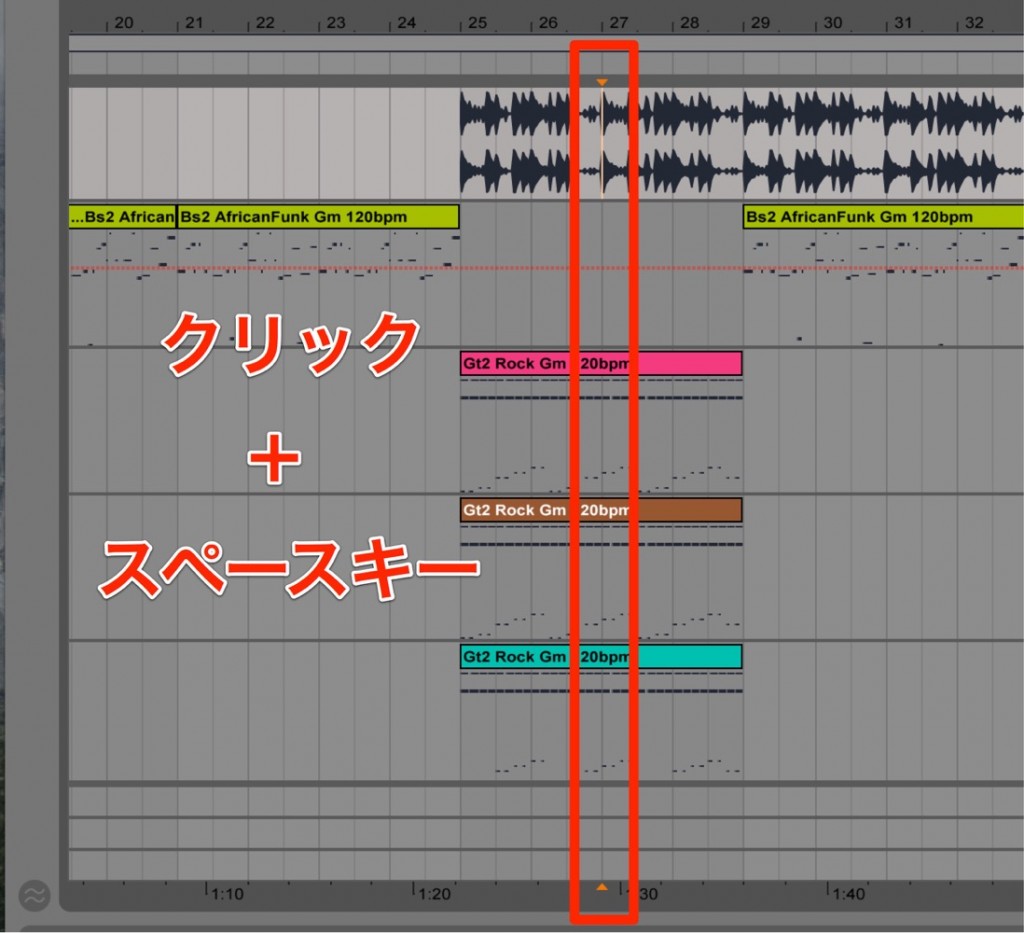
- Anywhere in the track display is fine.
Click where you want playback to start.
The playback point moves to that position. - Press the space bar on your keyboard.
Playback starts from the position you set.
Pressing the space bar again during playback stops it.
This lets you work while checking specific sections.
Loop Playback
By using loops, you can:
- Edit clips in a specific section
- Check a specific section carefully over and over
- Adjust effects
and more.
Your work speed improves dramatically.
First, you need to decide the range to loop.
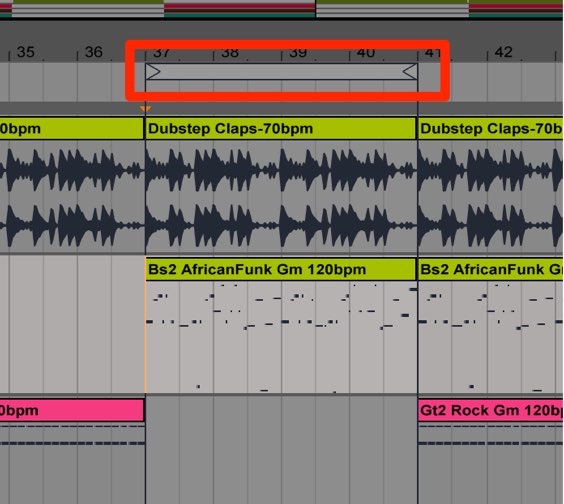
Drag the loop brace, located below the bar numbers in the ruler, to set the range.
*Hold Option (Mac) / Alt (Windows) and drag over the range you want to
quickly set the loop range.
After setting the loop range,
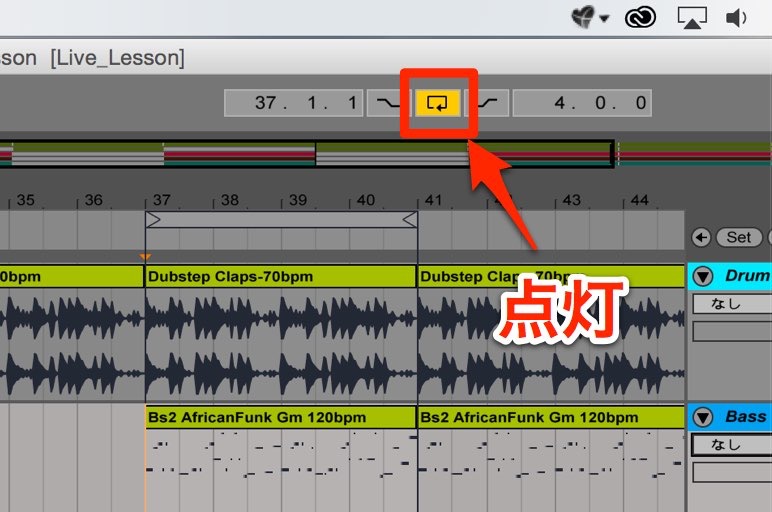
turn on the loop switch at the top of the window.
The loop range now repeats until you stop playback.
Frequently asked questions
Q1. How do I change the playback position in Ableton Live?
Click anywhere in the track display, and the playback point moves to that position. Then press the space bar, and playback starts from there.
Q2. What are the benefits of using the loop function?
The loop function lets you focus on editing clips and adjusting effects in a specific section, greatly improving your efficiency. Because you can check the same range carefully over and over, it is ideal for fine-tuning sound and timing.
Q3. Is there a trick for setting the loop range quickly?
Hold the Option key on Mac or the Alt key on Windows and drag the loop range below the ruler to set it quickly.
NEW ARTICLES
Latest English Articles











