
Ableton Live 12.1 introduces a new device, "Auto Shift," which greatly expands the possibilities for audio processing in DTM production. It offers scale-aware pitch correction, automatic generation of multi-voice harmonies and integration with MIDI information, making vocal editing and melody production more efficient. With its built-in LFO, creative sound design is also possible, making it a professional music production tool that can be used in a wide range of genres, from pop to electronic music.
The Evolved Ableton Live 12.1 Introducing Auto Shift, Drum Sampler and More!
Ableton Live 12 made headlines with its major update in March this year, and already 12.1 has been announced.
New features have been added, further expanding the possibilities of music production, and existing devices have been enhanced and improved.
We explain in detail how it has evolved, focusing on the new features.
Advanced Pitch Correction and Harmony Creation: Auto Shift
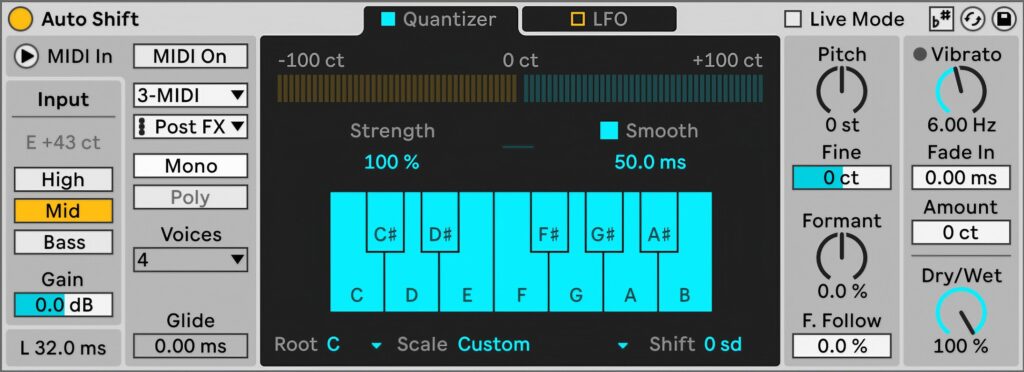
There have been devices that can change pitch before, but Live now has its first device for scale-based pitch correction: "Auto Shift".
Pitch Correction
First, to check the accuracy of the pitch correction, please listen to samples before and after correction.
Before pitch correction
After pitch correction
Before correction, the vocal pitch was a little unstable, but with Auto Shift applied, it is firmly corrected.
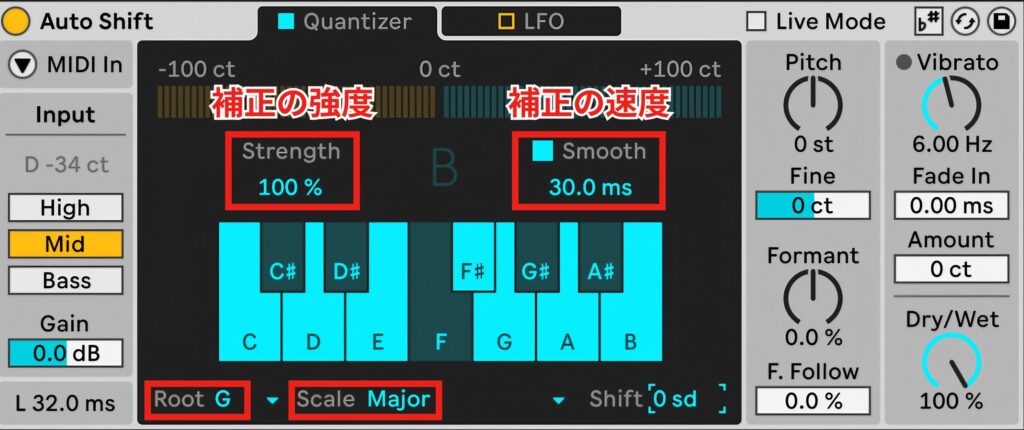
From here, we explain the correction procedure.
The sample you just heard is in G major.
So choose "G" for "Root" and "Major" for "Scale" to set the key.
The "Strength" function determines how much correction is applied between the input and the target pitch (the pitch judged to be correct).
The higher the value, the stronger the pitch correction.
The "Smooth" function fine-tunes the strength and speed of pitch correction, balancing naturalness and accuracy.
The lower the value, the more instantly pitch correction is applied and the faster the correct pitch is reached, but depending on the input audio, it may sound mechanical.
This time, for more accurate pitch correction, we set Strength to 100% and Smooth to 30%.
Creating Harmonies
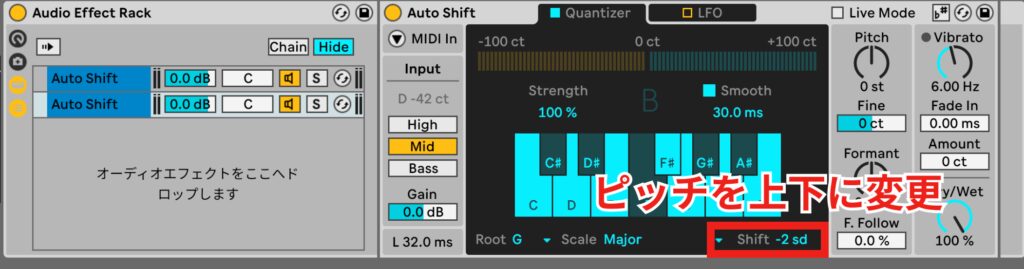
A feature of Auto Shift is that it supports chord input, making it possible to quickly create multi-voice harmony parts from the main vocal.
"Shift" is a function that moves the pitch up or down within the set scale.
This time, we set Shift to "-2" to create a harmony.
After creating the harmony
The sample is in G major, so a harmony a third below has been created.
Creating Harmonies from MIDI Information
Auto Shift can also receive MIDI notes from an external source and, based on what is played, force the pitch to match.
Here is an actual example of creating a harmony from MIDI information.
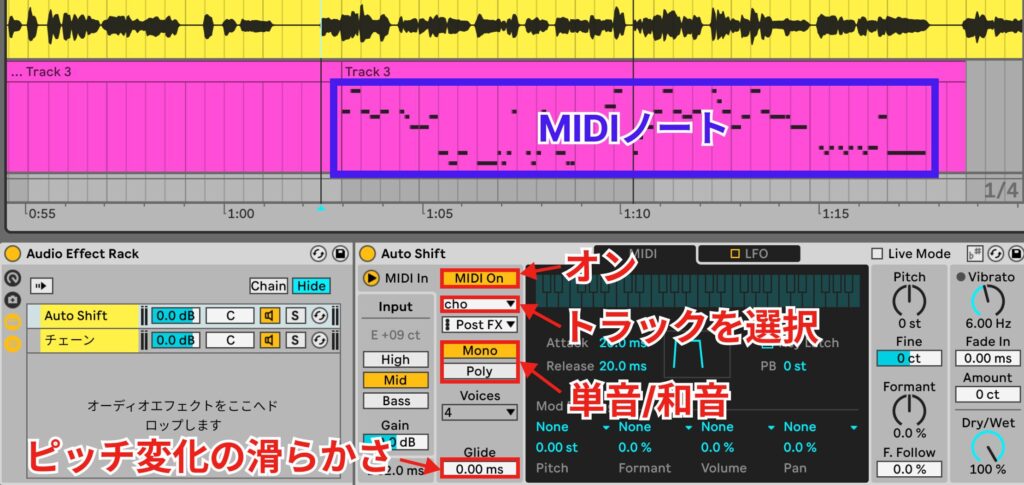
The image above shows the audio waveform of the melody used and the MIDI information for the harmony prepared in advance.
Turn on "MIDI On" and select the "track name (Cho in this case)" of the MIDI notes.
"Mono/Poly" is a function that switches between monophonic and polyphonic processing.
The MIDI information we prepared is a single-voice harmony, so we choose "Mono."
The "Glide" function adjusts the time it takes to move completely from one pitch to the next.
It can be used to imitate portamento, guitar slides or synthesizer glide effects.
These effects are obtained where MIDI notes overlap.
This time, we did not use "Glide."
Below are a sample of the melody used and the result of sending the harmony information created in MIDI to Auto Shift and adding it to the melody.
Sample of the melody only
Sample with the harmony created from MIDI added
The MIDI information is converted into vocal audio, and a solid harmony is created against the melody line.
In this way, by sending MIDI information to Auto Shift, it is possible to add harmonies efficiently even to complex melodies.
Creating Harmonies with Two or More Voices
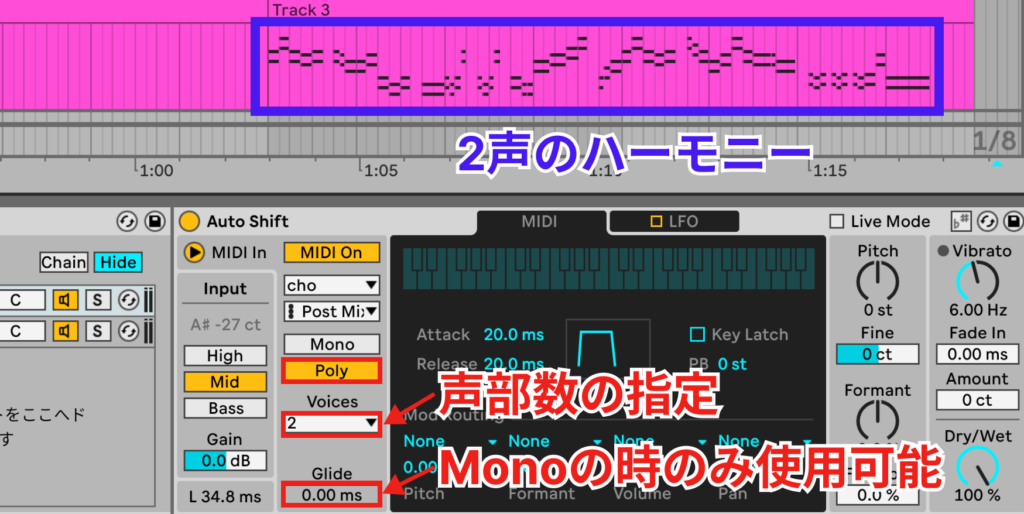
To create a harmony with two or more voices, choose "Poly" after setting the key and selecting the track.
Next, specify the number of voices with "Voices."
By specifying the number of voices, input notes up to that number are detected individually and pitch correction is applied to each.
Note that the "Glide" function cannot be used when "Poly" is selected.
Other Features
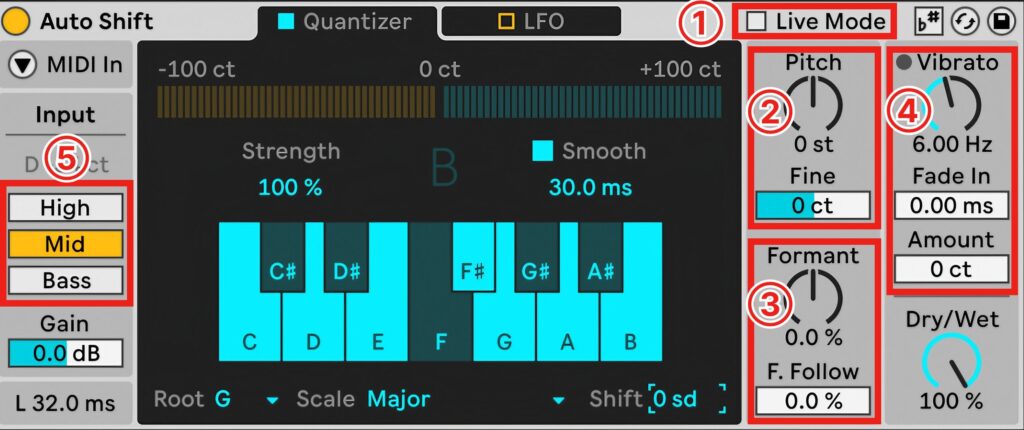
Here is a brief explanation of the other features.
- 1.Live Mode: a function for real-time pitch correction.
Its low-latency design is especially useful in situations that need immediate feedback, such as live performance and monitoring while recording. - 2.Pitch: changes the pitch of input vocals or instrument sounds up or down.
The Fine setting lets you adjust pitch in units finer than a semitone. - 3.Formant: changes vocal character and timbre.
The higher the F. Follow (Formant Follow) value, the more fully the formants follow pitch changes, simulating natural changes in voice pitch. - 4.Vibrato: adds periodic variation to the pitch to give the sound movement and expression.
Fade-in adjusts the time over which the vibrato intensity builds, and Amount adjusts the strength of the vibrato effect. - 5.High/Mid/Bass: splits the input audio into three frequency bands, high (High), mid (Mid) and low (Bass), and controls how much of the pitch-shift effect is applied to each band.
The LFO Built into Auto Shift
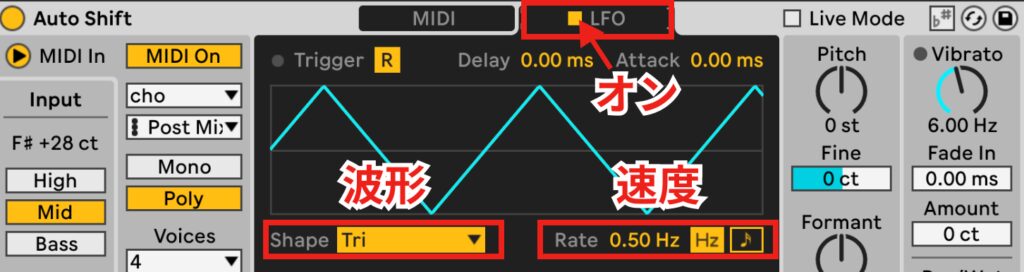

Unusually for a pitch correction tool, Auto Shift has a built-in LFO, so you can also do more creative audio processing.
The main parameters are as follows.
- Shape: selects the LFO waveform.
- Rate: adjusts the LFO speed and selects whether to sync it to the project tempo.
- Mod Routing: applies the values of the waveform generated by the LFO to parameters (Pitch, Formant, Volume, Pan) to create effects.
In this way, Auto Shift has features that cover everything from basic pitch correction to advanced sound design.
It looks set to be used in a wide range of genres, from pop to innovative electronic music.
Auto Shift is available in all Live editions.
Flexible Drum Sound Design: Drum Sampler
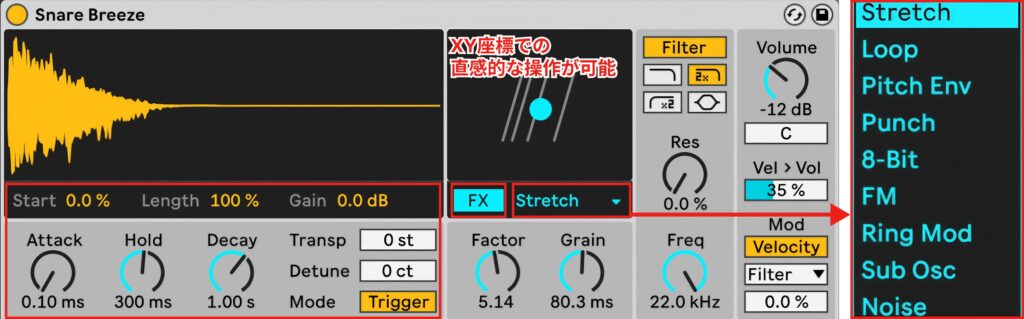
Drum Sampler has arrived as a new instrument dedicated to Drum Racks.
This sampler offers time-domain sample manipulation (start point and length adjustment, time stretching, looping) and timbre adjustment (AHD envelope, pitch manipulation, filtering), providing a versatile set of functions in a comprehensive package.
In addition, the FX section can process sounds in a variety of characteristic ways, and timbre control on an XY pad allows intuitive operation.
This makes detailed sound design possible, from emphasizing the low end of a kick drum to subtle tonal adjustments of a snare drum.
Drum Sampler is also available in all Live editions.
Automatic Tagging of User Content
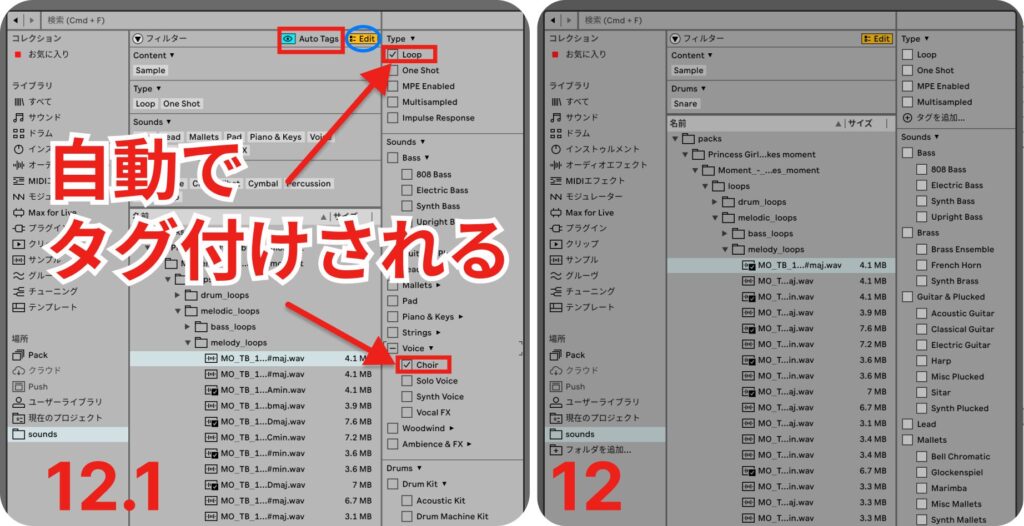
Using AI-powered audio analysis, a function that automatically tags samples of 60 seconds or less has been added.
The new "Auto tags" in the browser analyzes the acoustic characteristics of samples and automatically assigns the most appropriate sound category tags.
Its display can be turned on and off, and the "Edit" option lets you edit or delete tags, making it very flexible.
It is a feature that promises more efficient sample management and better searchability.
New Automation and Modulation Features
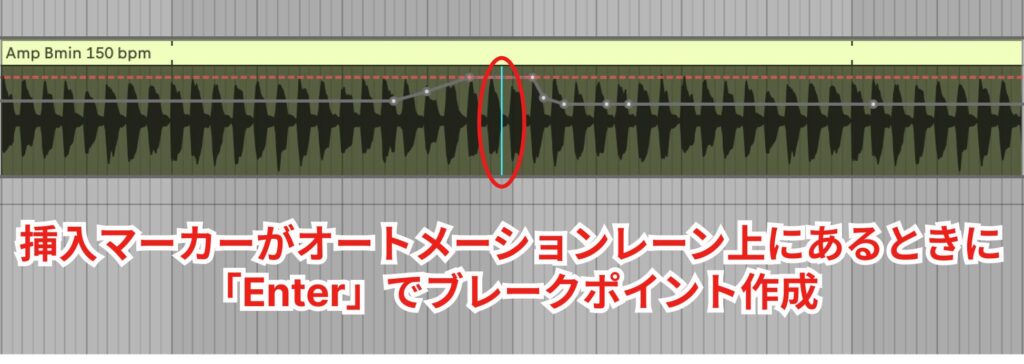
In the envelope display mode of Arrangement View and Clip View, a function for controlling automation and modulation with the keyboard has been added.
The Enter key creates and selects breakpoints, the up/down arrow keys change breakpoint values, and the left/right arrow keys change breakpoint times.
The Tab key moves to the next breakpoint on the right, and Shift+Tab moves to the left.
Improved MIDI Editing and Expressiveness
The new "Find and Select Notes" option lets you search for and select MIDI notes, making complex editing more efficient.
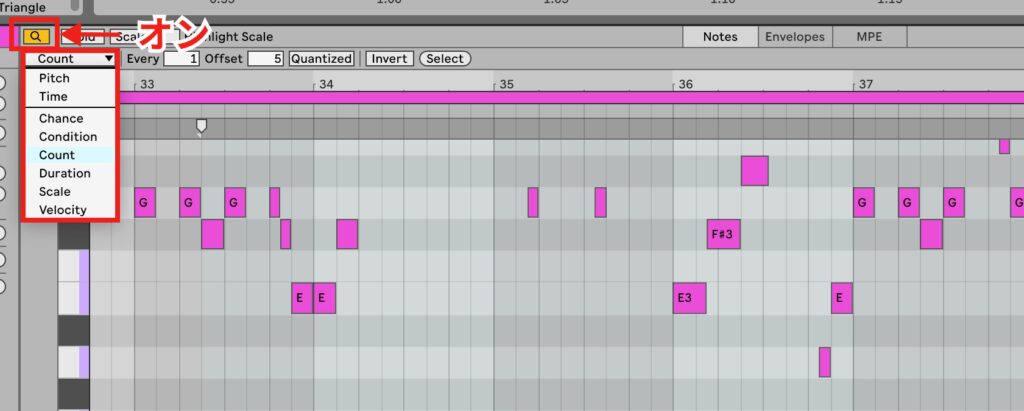
When you enable the magnifying glass button in the Clip View settings, you can search for and select notes using each filter.
- Pitch / Time: select notes at specific pitches or timings
- Velocity / Chance / Duration: select by note strength or characteristics
- Condition: select based on specific conditions or characteristics of MIDI notes
- Count: select every nth note or chord (with 3, every third note is selected, skipping two)
- Scale: select notes belonging to a specific scale
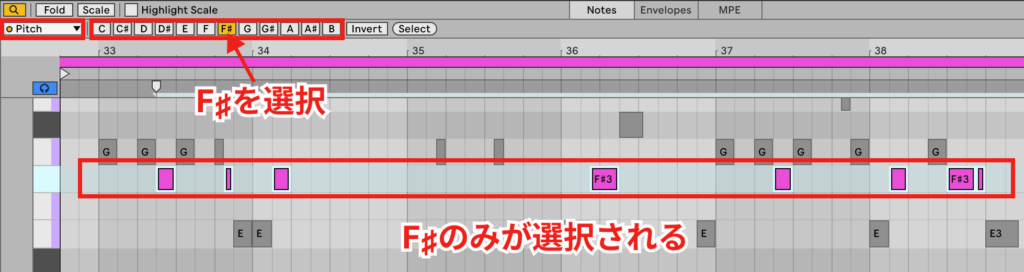
For example, when you choose "Pitch," a row of note names appears to the right of Pitch.
Choosing "F♯" selects only the "F♯" notes, as shown in the image.
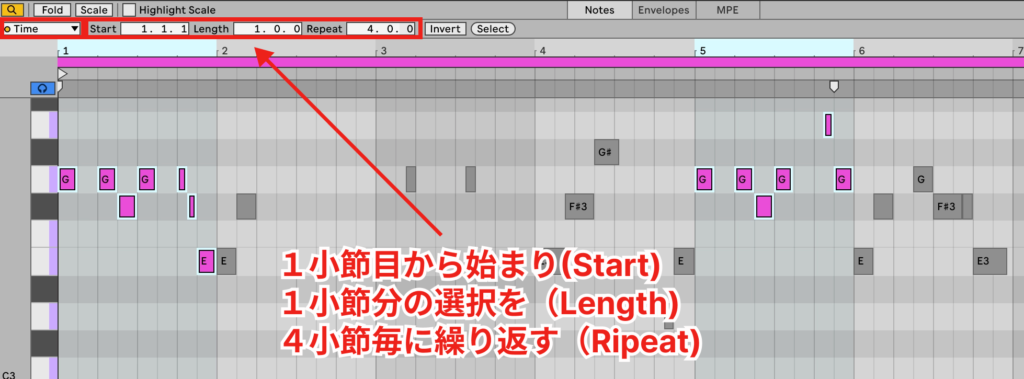
When you choose "Time," notes at the specified timing are selected.
Set the timing with "Start, Length, Repeat."
These filters can be used in combination for more advanced note selection.
The Chop MIDI Tool
With the addition of the "Chop MIDI tool," splitting and restructuring MIDI notes has become easier.
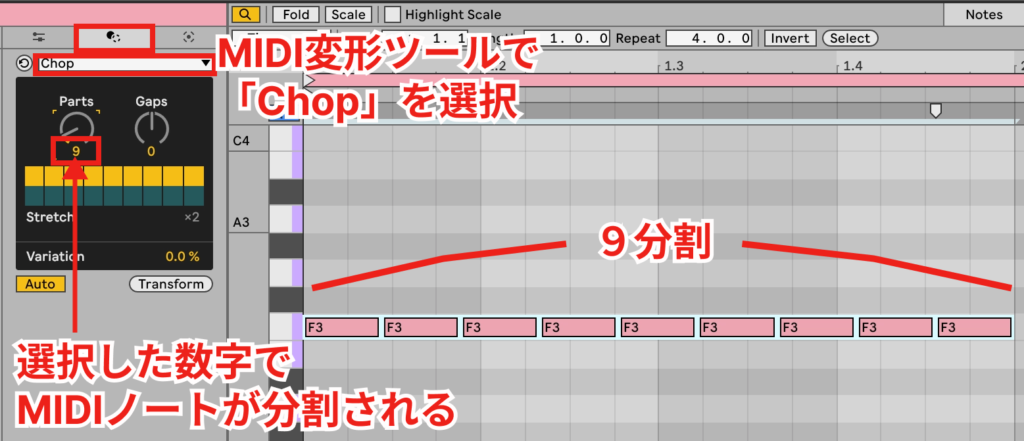
First, choose "Chop" in the MIDI Transformation tools.
Select the notes you want to split.
"Parts" lets you specify how many times to split the notes.
Up to 64 divisions are possible.
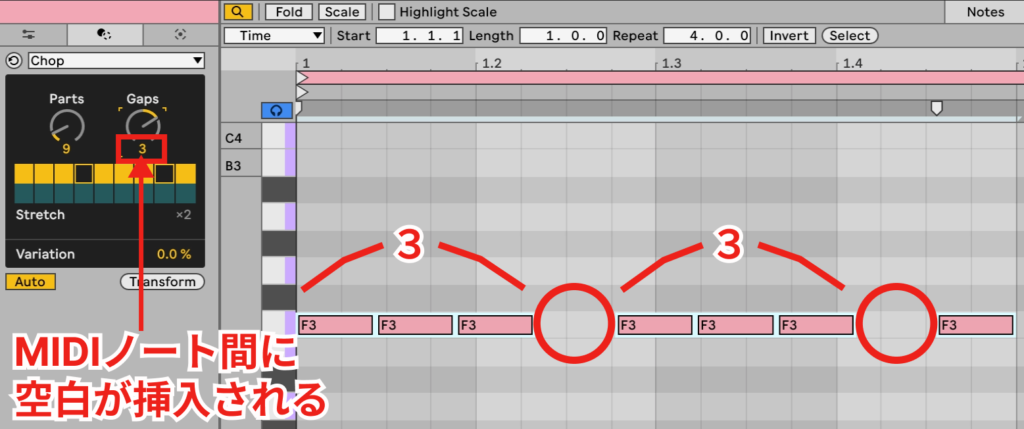
"Gaps" specifies the empty time inserted between the split MIDI notes.
The closer the value is to the negative side, the more space there is.
These functions let you create staccato effects and build complex rhythm patterns efficiently, promising greater flexibility and creativity in music production.
MPE MIDI Tools
In addition, new tools for creating curves for MPE (MIDI Polyphonic Expression) parameters have been added, and two tools, Glissando and LFO, now enable expressive MIDI performances.
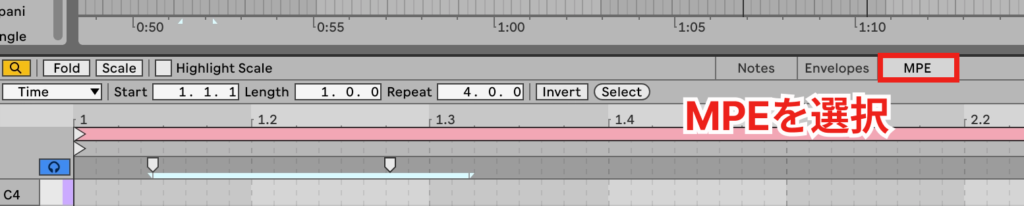
When using the MPE MIDI tools, switch to the MPE display mode in Clip View.
Glissando (MPE)
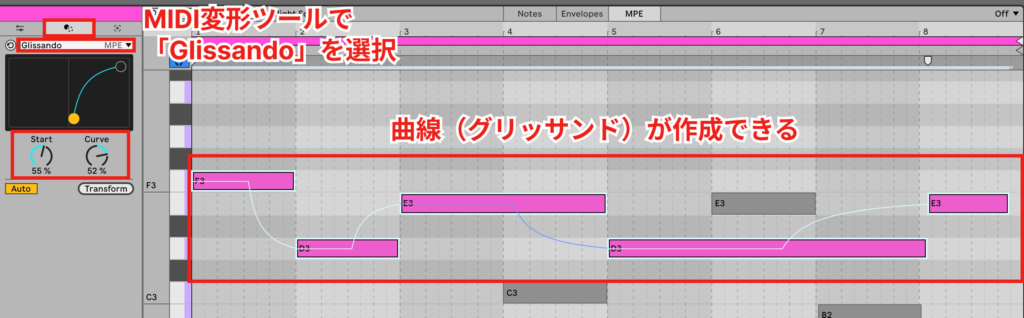
Choose "Glissando MPE" in the MIDI Transformation tools.
Select both notes to connect with a glissando (notes with different pitches).
You can also select two or more notes and apply glissandos to them at the same time.
Set the shape of the glissando with "Curve" and adjust its start position with "Start."
LFO (MPE)
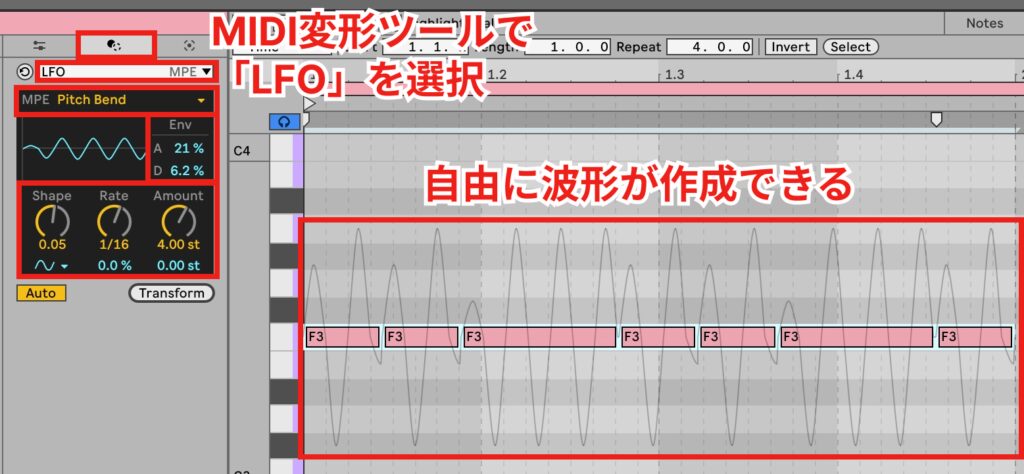
Choose "LFO MPE" in the MIDI Transformation tools.
Select the notes to apply it to, then choose the parameter you want to modulate (pitch bend, pressure, slide) from "MPE" above the waveform.
Set the LFO waveform, rate and depth with "Shape, Rate, Amount" below the waveform.
Adjust Attack and Decay with "Env" to the right of the waveform to change the overall strength of the LFO.
Improved Limiter and Saturator
Live 12.1 significantly enhances the Limiter and Saturator, effects at the core of audio processing.
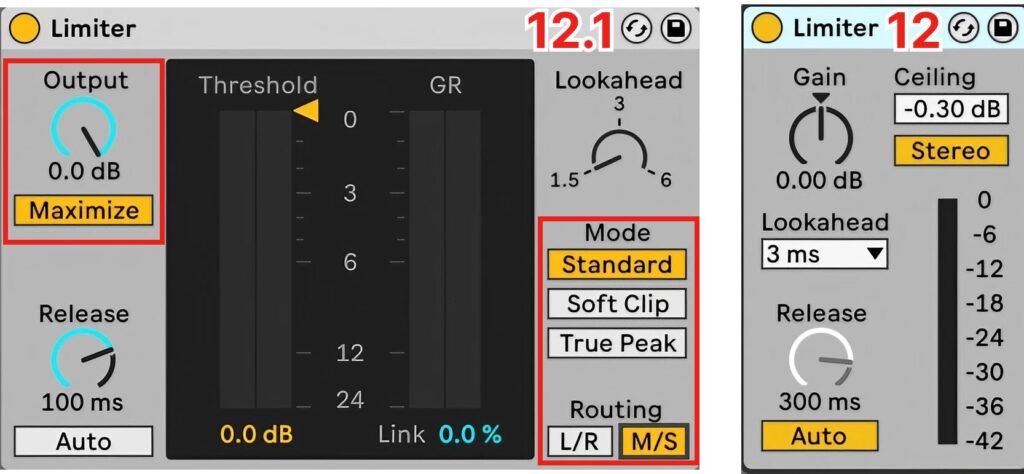
The Limiter adds Mid/Side routing and improves gain reduction linking, making precise loudness adjustment possible while maintaining the stereo image.
Soft clip and true peak modes have also been added, delivering more musical sound suited to distribution.
The new Maximize function optimizes dynamic range and loudness with a single threshold, letting you easily achieve professional loudness.
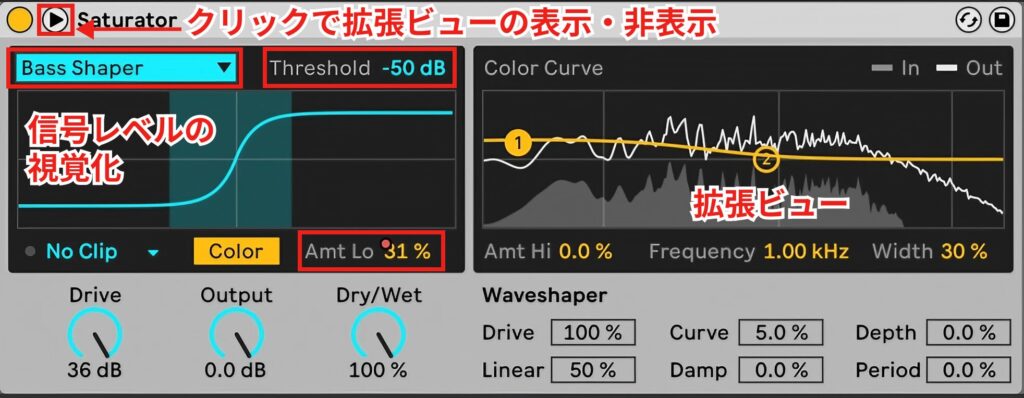
The Saturator, meanwhile, has become a more intuitive and powerful tool.
The main view focuses on the key parameters, and real-time visualization shows the signal level on the curve.
The new Bass Enhancer curve is ideal for processing low-end signals such as 808 kick drums and synth bass lines.
A dedicated Threshold parameter lets you distort only signals above a certain level, and you can adjust smoothly from gentle to abrupt distortion.
The Amt Lo parameter further controls saturation in the low range, making it possible to emphasize bass or add warmth.
A clipping mode has also been added to the second stage, so you can now choose a hard clipping stage in addition to soft.
The expanded view shows a pre-shaper EQ curve, allowing finer tonal adjustment.
It could be called an update tailored to genres where low end plays an important role, especially electronic music and hip-hop.
What did you think?
In addition to the interesting new features, the improvements in user-friendly operation that directly benefit music production are very appealing.
We can hardly wait for the official release!
Live 12 users can try the free update by joining the beta program.
If you are interested, please visit the Live beta testing portal and join.
Frequently Asked Questions
Q1. What is Auto Shift in Ableton Live 12.1?
Auto Shift is a device that automatically corrects the pitch of input audio to a specified scale (major, minor, etc.) and can generate harmonies. You can adjust the strength and naturalness of the pitch correction, and it can also work with MIDI information.
Q2. What do I need to create harmonies with Auto Shift?
You need the main vocal or melody track, the key setting (Root and Scale) and the number of harmony voices. Harmonies can also be generated automatically from MIDI notes, so you can create harmony parts efficiently even for complex melodies.
Q3. What role does the Strength parameter in Auto Shift play?
Strength is a parameter that adjusts the strength of pitch correction from 0 to 100%. The higher the value, the stronger the correction and the closer to the exact pitch.
Q4. What features does Auto Shift have besides Live Mode?
It offers pitch adjustment, Formant (changes in vocal character), Vibrato, band-specific pitch-shift control for High/Mid/Bass, and an LFO, covering everything from basic pitch correction to advanced sound design.
Q5. What happens if I set the Smooth parameter low?
Setting Smooth low makes pitch correction instant, reaching the correct pitch quickly. However, depending on the input audio, it may sound mechanical, so adjust it with naturalness in mind.
NEW ARTICLES
Latest English Articles











