
After finishing a song in your DAW, exporting it as a WAV file can degrade the sound quality because of differences in bit depth. Converting from today's standard 24-bit down to 16-bit for distribution or CD introduces noise and blurring, so it is important to apply dithering. This article explains how bits work and the difference in the number of steps, and introduces how to use dithering to prevent quality loss in each DAW, giving you essential knowledge for exporting songs professionally.
Optimizing Bit Depth When Exporting
After finishing a song in your DAW,
you need to export it as a WAV file.
What you need to watch out for at that point is
loss of sound quality caused by differences in bit depth.
What Is Bit Depth?
It is the range of volume steps used to represent the song,
and the higher the bit depth, the more finely the volume can be represented.

*The volume ratios in the image are for illustration only.
Today, 16, 24, and 32 bits are used,
and 32-bit (float) theoretically does not clip (distort).
Because it is calculated as a power of 2:
16-bit = 2 to the 16th power: volume is represented in 65,536 steps.
24-bit = 2 to the 24th power: 16,777,216 steps
32-bit = 2 to the 32nd power: 4,294,967,296 steps
That's how it works out.
The mainstream bit depth for songs today is 24-bit.
In most cases, including software synths, you are probably working at 24-bit.
However, when a song goes on CD, it is always converted to and stored as 16-bit.
In other words, limits are placed on the volume detail the DAW could represent.
This is what causes noise, blurring, and severe loss of sound quality.
To prevent this, we use dithering.
Using Dithering
Selected questions and answers from the YouTube video

In FL Studio, where can I check the bit depth set for a song?

FL Studio uses audio that has already been digitized by the audio device, so the recording bit depth is not set in the DAW. Audio is therefore recorded at the setting of the recording device in your OS.
This is from the "Dithering effects" section of the Cubase Operation Manual (both PDF and online). It recommends using a dithering plugin when mixing down to a lower resolution than the current one, and a supplementary note says, "Cubase uses 32-bit floating-point processing internally. This means that all integer resolutions are lower." Does this have anything to do with the bit resolution (record format) in Project Setup?
We explain this in the following article. https://sleepfreaks-dtm.com/dtm-mix-technique/32bit-float/ Thank you.
If I produce a song at 48 kHz/24-bit and export it at 44.1 kHz/16-bit, dither takes care of lowering the bit depth, but is there anything I can do about lowering the sample rate?
Down-converting the sample rate always degrades the sound quality (the very high frequencies are cut). There is no function equivalent to dithering for this. However, the converter (DAW or conversion software) you use will probably make a difference in performance (sound quality).
The following are branch articles.
We have written an article for each DAW, so please refer to them.
Dithering in Each DAW

 Logic
 Cubase
 StudioOne
 FL_Studio
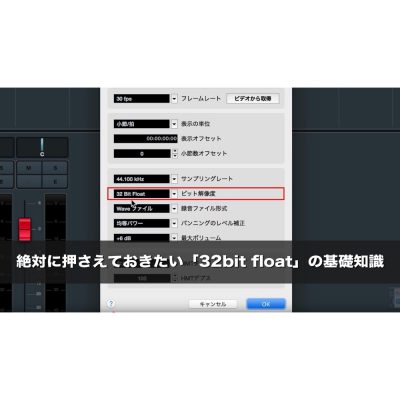
The Basics of "32-bit Float" You Absolutely Need to Know
Frequently asked questions
Q1. Does a higher bit depth mean better sound quality?
Yes, a higher bit depth can represent volume in finer detail. 16-bit represents volume in 65,536 steps, 24-bit in 16,777,216 steps, and 32-bit in 4,294,967,296 steps, so the higher the bit depth, the less nuance is lost.
Q2. Why are songs converted to 16-bit for CD?
The CD format standard is 16-bit, so even songs produced at 24-bit must ultimately be converted to 16-bit. This conversion limits volume resolution and produces noise.
Q3. Can dithering be used in every DAW?
Yes, all the major DAWs, including Pro Tools, Logic, Cubase, Studio One, and FL Studio, have dithering features. It is important to check how to set it up for your particular DAW.
NEW ARTICLES
Latest English Articles











