
Xpand!2 is a multi-timbral instrument developed by AIR Music Technology. Originally included with Pro Tools, it also supports VST and AU for use in major DAWs. Its more than 2,500 presets span synthesizers, acoustic instruments and rhythms. Combine up to four sounds, use effects, the arpeggiator and editing controls, and assign separate MIDI channels for layered arrangements.
Extensive presets and simple controls
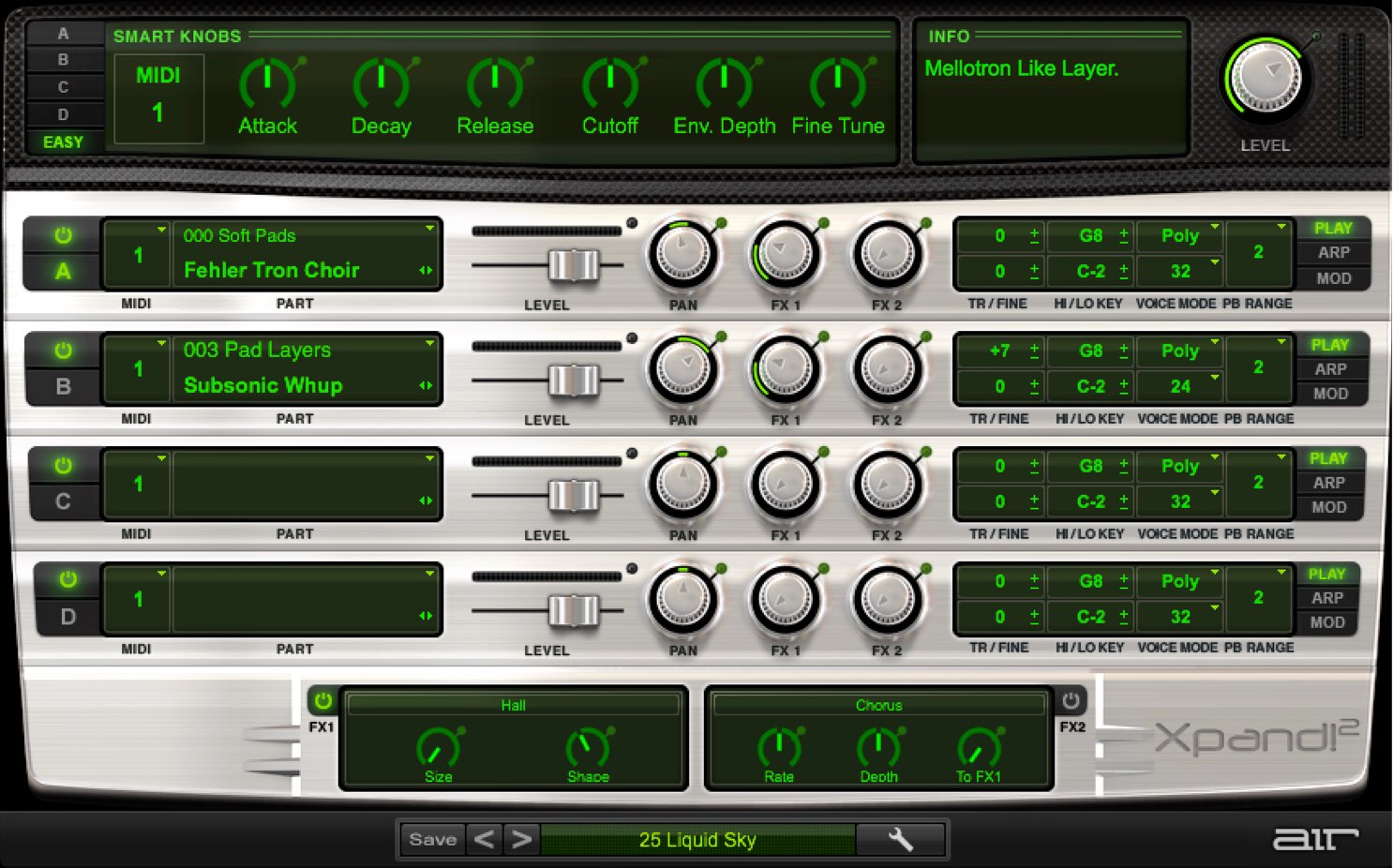
In this article we explore Xpand!2 from AIR Music Technology.
Originally included with Pro Tools, this software instrument also supports VST and AU, making it usable in other DAWs.
It is an all-purpose instrument with synthesizers, acoustic instruments, rhythms and more. Choose sounds from its extensive presets and bring them straight into a song.
Video: How to use the Xpand!2 multi-instrument
Questions and answers from the YouTube video

I am using Logic Pro X, but pressing the keys produces no sound from Xpand. How can I get it to play?

Do other software instruments produce sound? Can you hear sound when step-recording in the piano roll? Try changing the instrument’s MIDI channel to 1, 2 or another channel as shown in the image. https://app.box.com/s/t4bv2azg70h8mx6ow4f43c0o9stwnf67

Using and configuring Xpand!2
The instrument is designed to be straightforward, even for music production beginners.
Let’s explore its sections and parameters to expand your sound-design options.
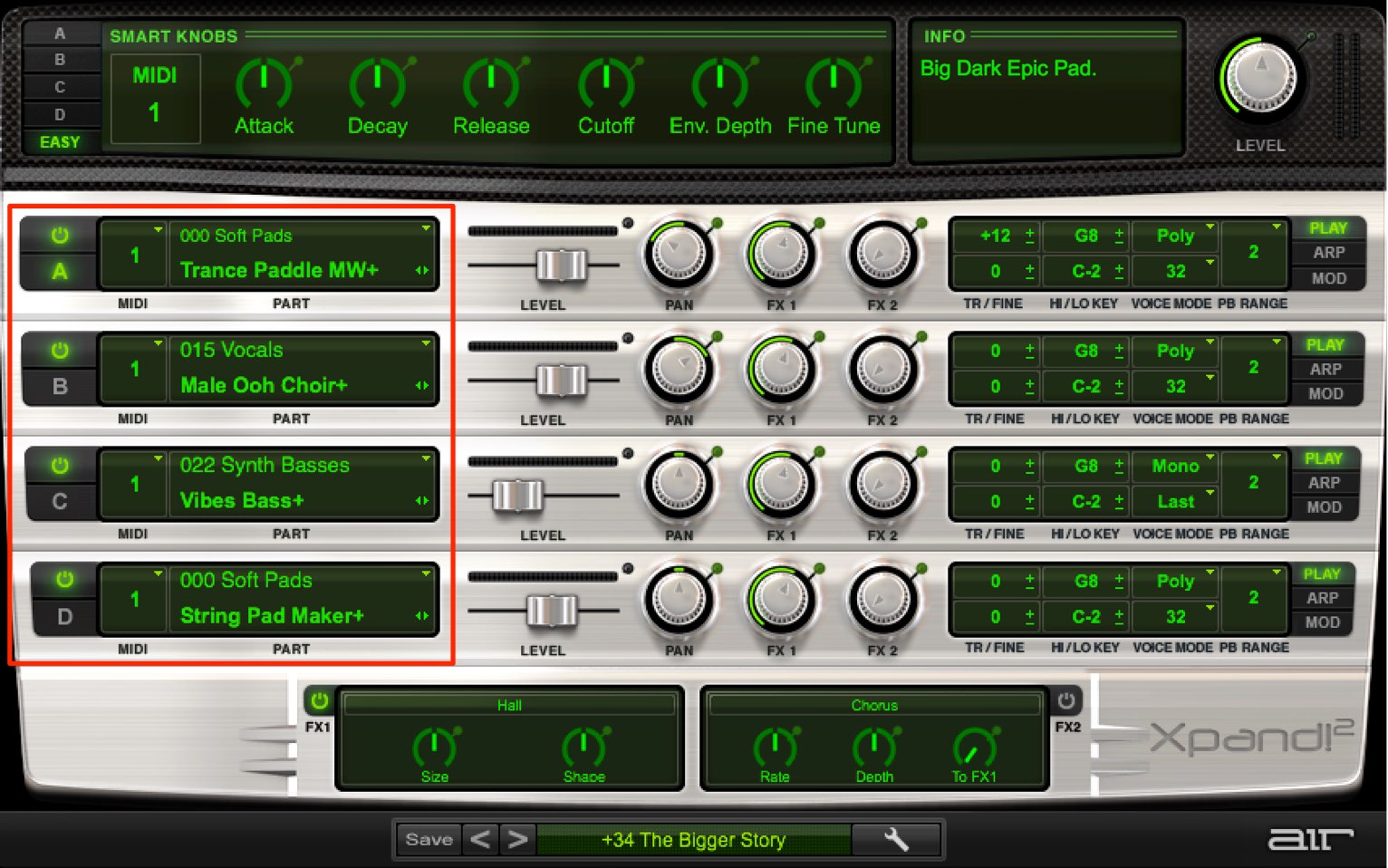
Xpand can combine up to four sounds in parts A–D.
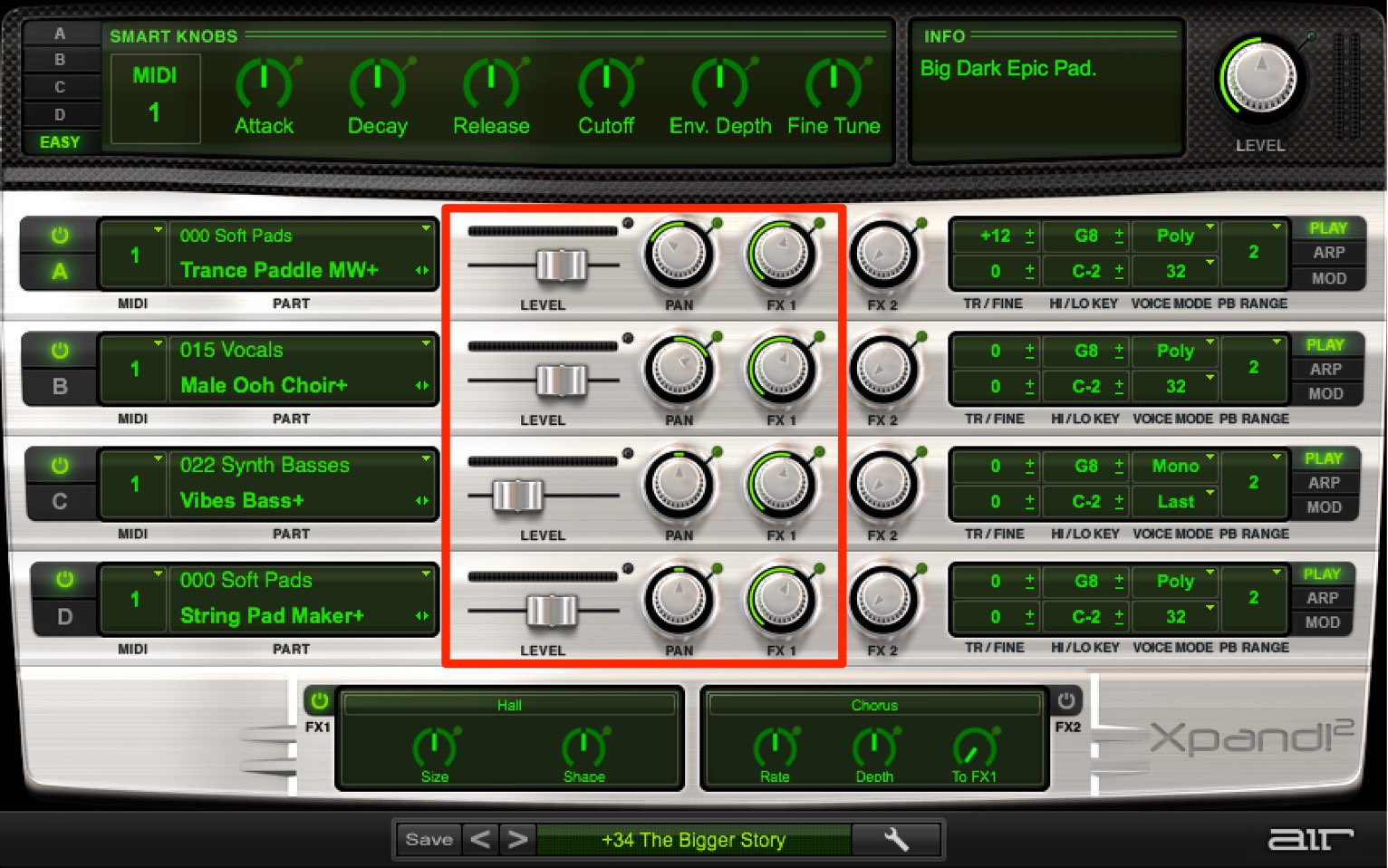
You can set volume and pan separately for each part.
Balance their volumes to adjust the character of the sound, or pan them to create width.
Loading presets
There are two ways to load presets.
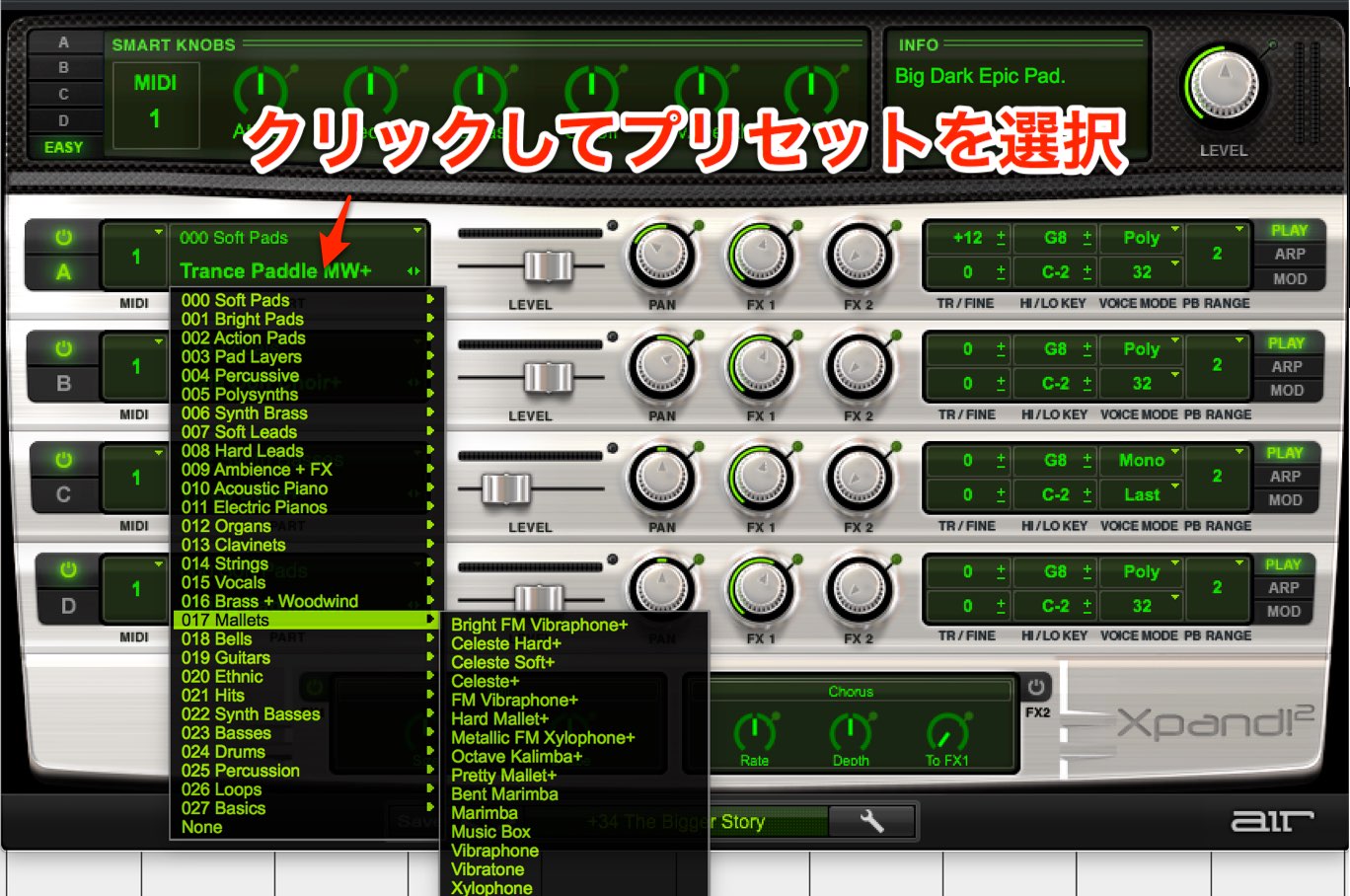
Click the preset name in each part A–D to select an instrument individually.
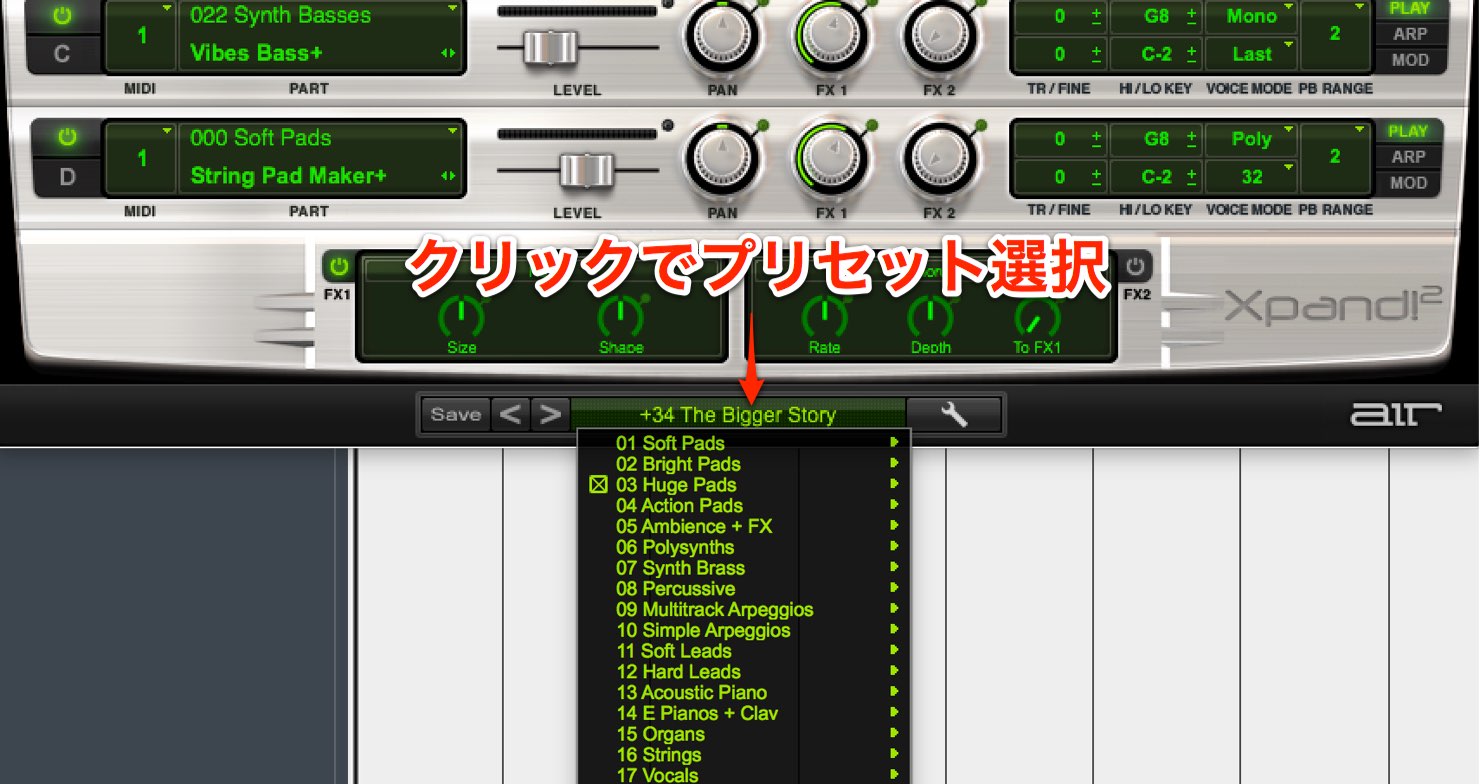
The lower window lets you select an overall preset containing a combination of multiple presets.
Applying effects
You can apply up to two effects.
Add spatial effects such as reverb or delay to give the sound more depth.
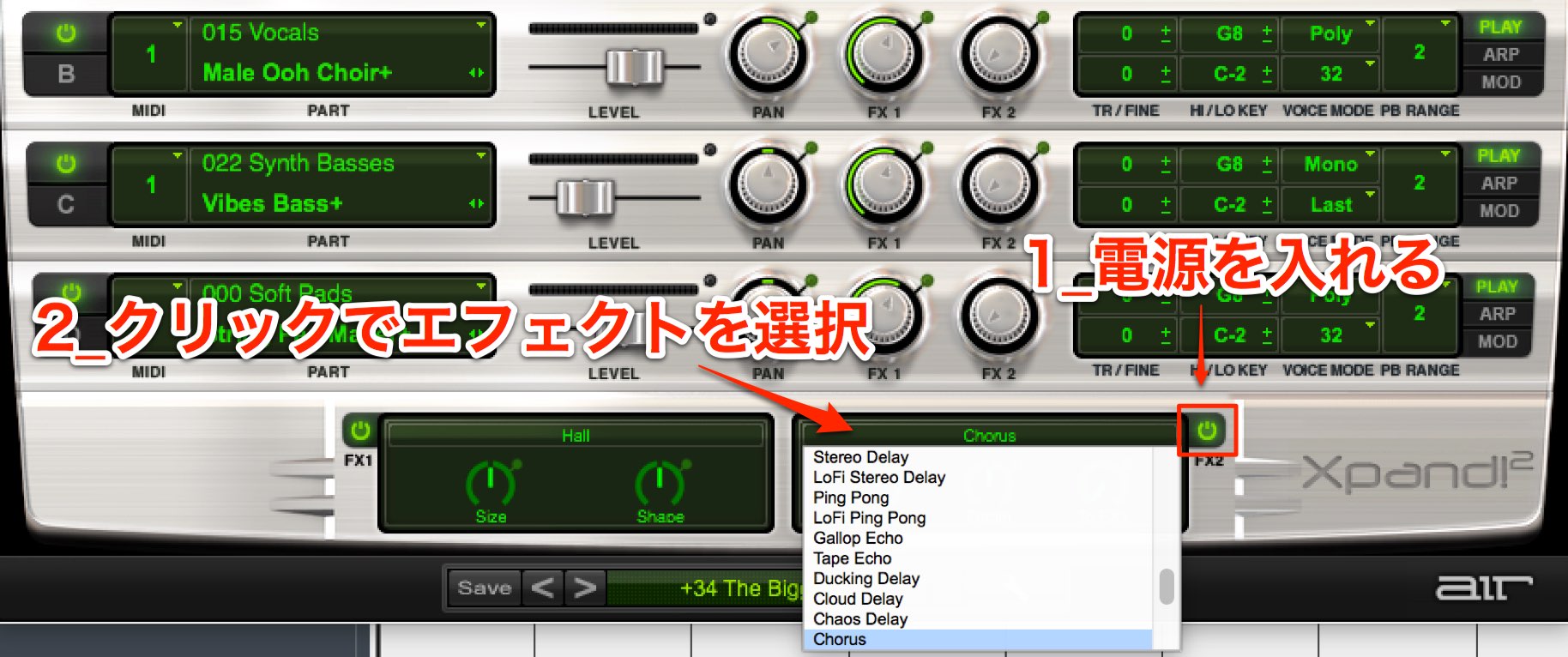
Turn an effect on and click its name to select the effect you want.
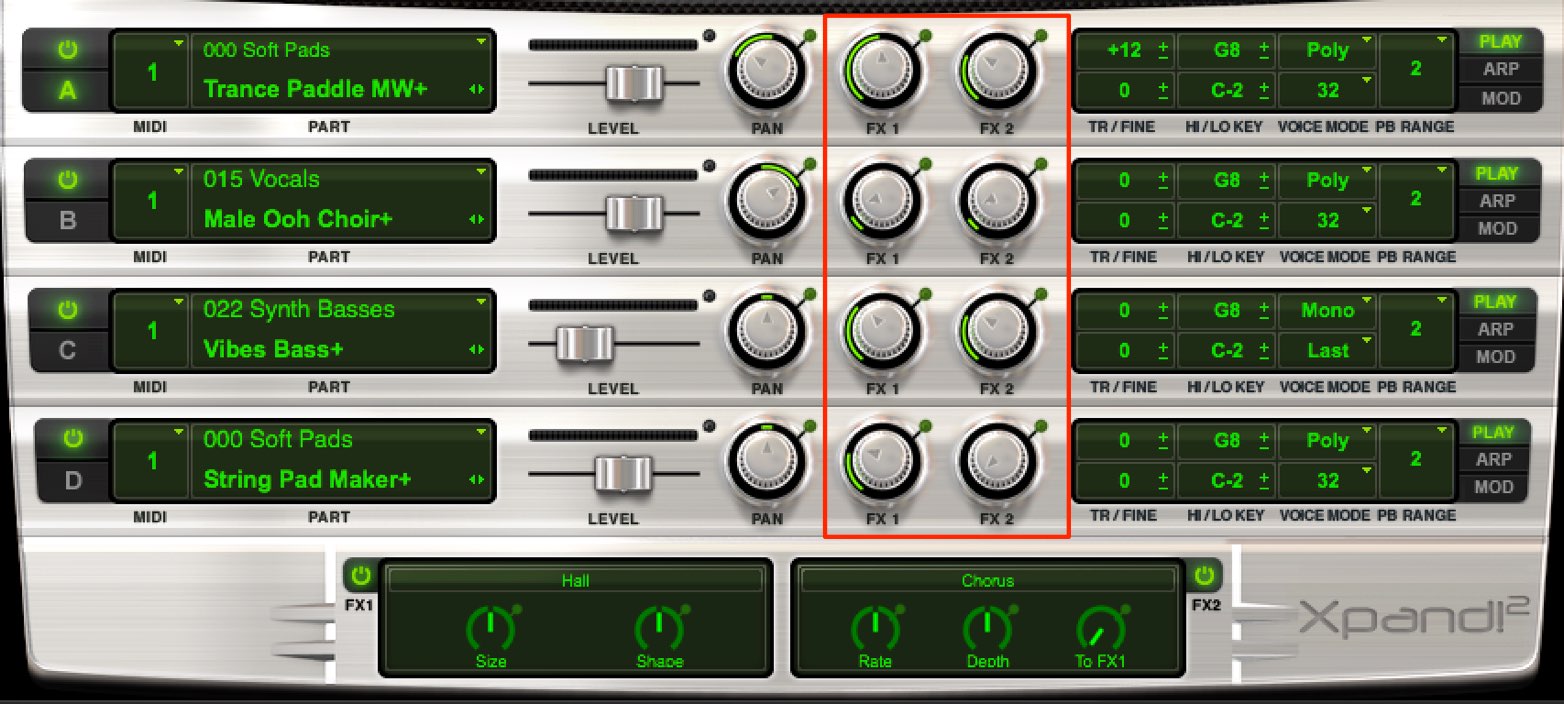
Use the FX1/2 knobs in each part A–D to adjust how much effect is applied.
Using the arpeggiator
You can also use the arpeggiator, a classic synthesizer feature.
It plays the notes of a chord separately at the selected note value.
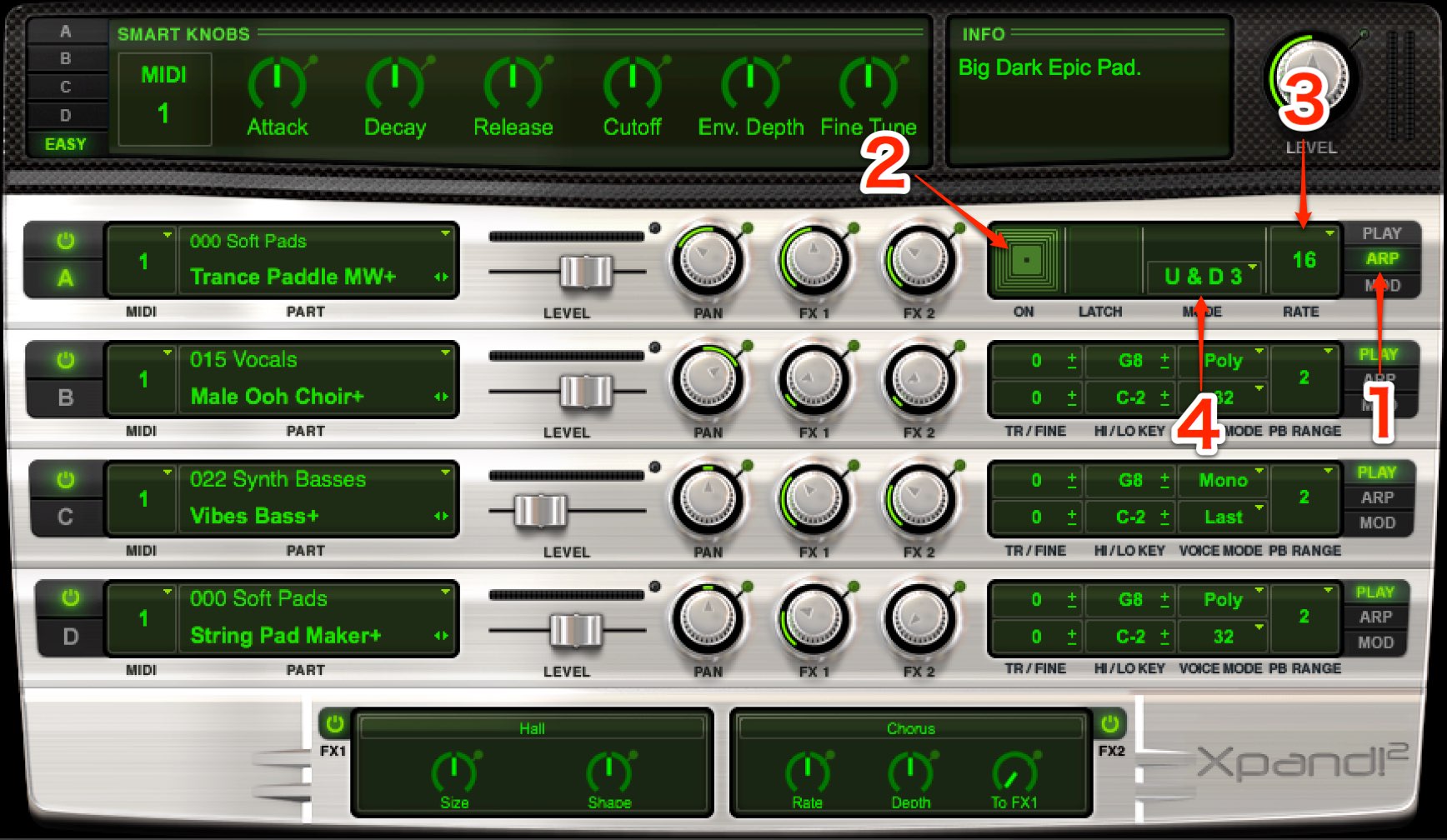
- 1. Click the ARP tab.
- 2. Click to turn the effect on.
- 3. Set the arpeggio speed (note value).
- 4. Choose how the pitches move.
Editing the sound
You can customize the selected presets to suit your song.
Adjust the presets in parts A–D individually, or select EASY to control all four together.
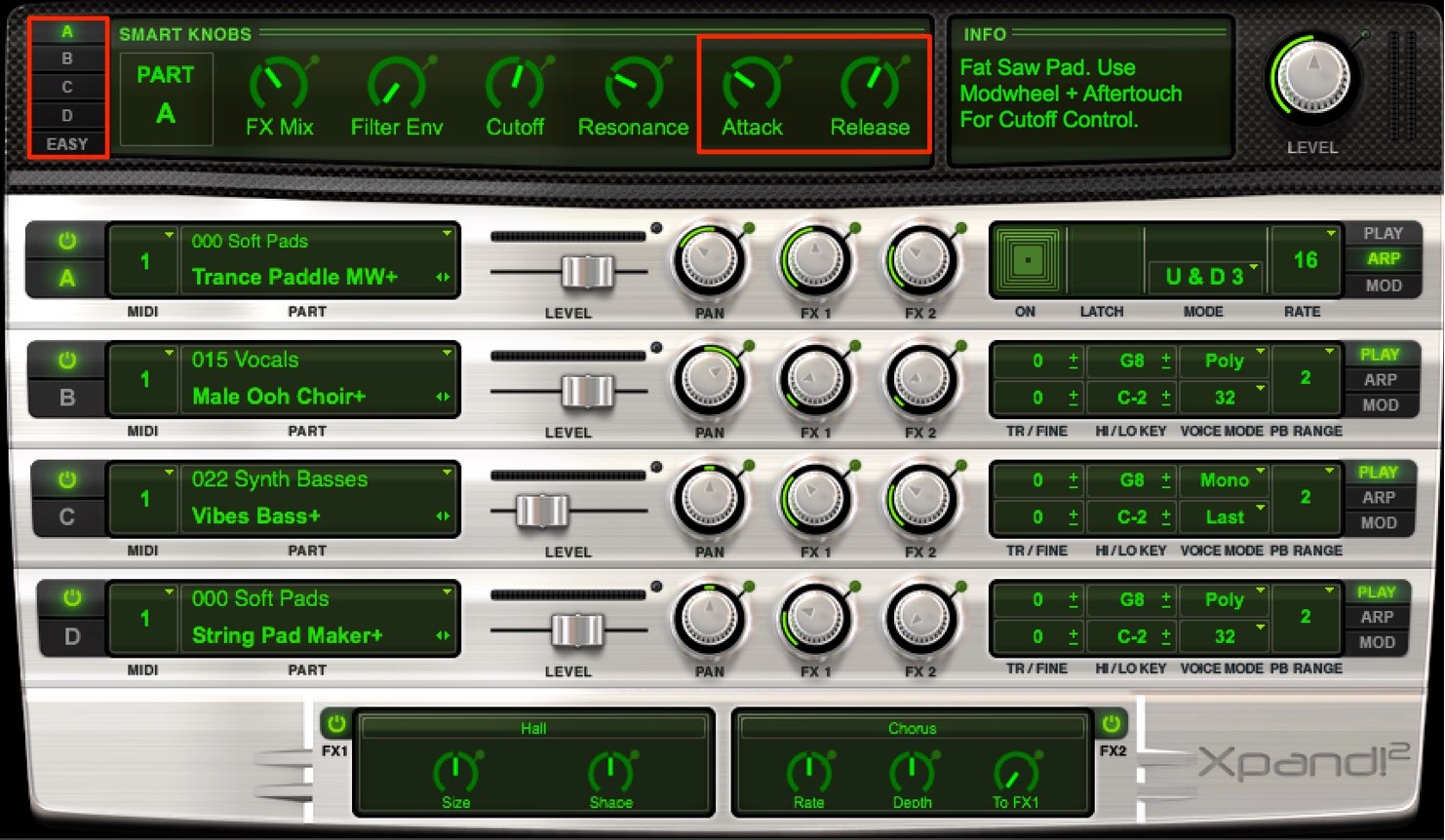
Attack adjusts how quickly the sound begins.
Set it for an immediate onset or a slower fade-in, depending on the sound you want.
Release controls how long the sound continues after the MIDI performance ends.
A longer setting creates a softer impression, while a shorter setting makes the sound more crisp.
Assigning different MIDI channels to separate parts
When you first load Xpand, MIDI notes play the presets in parts A–D simultaneously.
Sometimes you may want each preset to play a different part.
Assigning separate MIDI channels lets you program them independently.
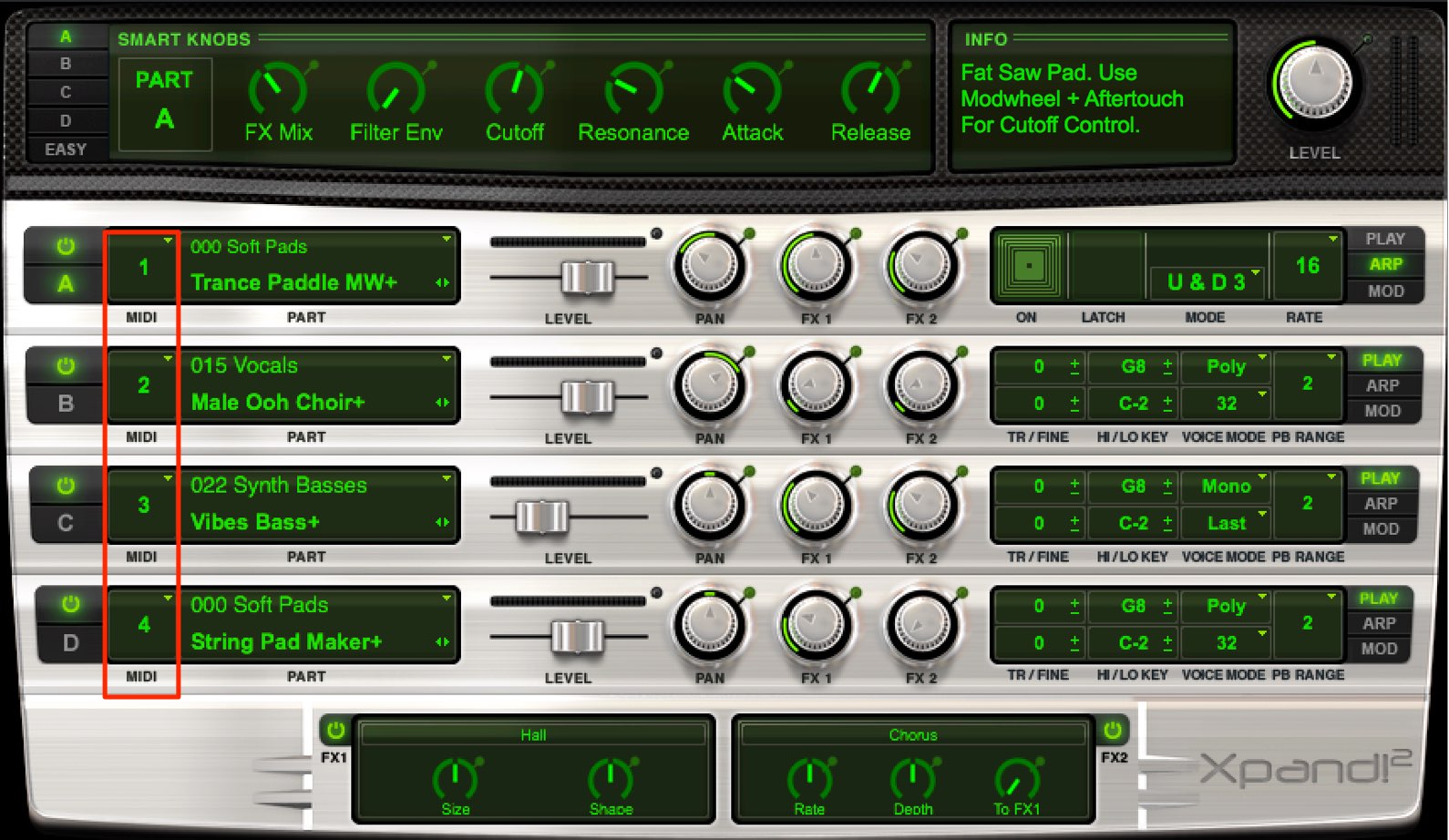
Assign different MIDI channels to parts A–D as shown.
The remaining setup depends on your DAW; consult the appropriate link below.

 Logic
Logic Cubase
 Ableton Live
 Studio One
 FL Studio
Frequently asked questions
Q1. Which DAWs can use Xpand!2?
It is included with Pro Tools and supports VST and AU, allowing use in major DAWs such as Logic and Cubase. Check the setup instructions for your DAW.
Q2. Is Xpand!2 easy for beginners to use?
Yes. Its simple design makes it approachable, and you can select from more than 2,500 presets to use in your music.
Q3. Can I play different instruments at the same time?
Yes. Assign different MIDI channels to the four parts A–D to program each one independently.
Q4. How many effects can I use?
You can apply up to two effects. Spatial effects such as reverb and delay can add depth to the sound.
Q5. What does the arpeggiator do?
It plays the notes of a chord separately at a selected note value. Adjust the speed and pitch movement to create expressive synthesizer phrases.
NEW ARTICLES
Latest English Articles


















































































































































































































































































































































